
Product photos sell products, but hiring a studio photographer for every SKU is expensive and slow. AI background generators let you swap, replace, or create entirely new scene backdrops from a single product cutout in seconds. Whether you run an e-commerce store, a print-on-demand brand, or a marketing agency, these tools can cut your photo production costs by 80% or more while maintaining catalog-quality output.
Why AI Backgrounds Beat Traditional Product Photography
Traditional product photography requires a physical studio, lighting rigs, props, and a photographer. For a 50-SKU catalog shoot, you are looking at days of work and thousands in costs. AI background generation flips this: you photograph each product once on a plain surface, then generate unlimited background variations digitally.
The practical benefits stack up quickly. You get consistent lighting and color temperature across your entire catalog without reshooting. Seasonal campaigns (holiday themes, summer collections, back-to-school) no longer require separate shoots. And A/B testing different backgrounds on your product listings becomes trivial when each variant takes 30 seconds to produce.
How AI Background Generation Works
Most AI background tools follow a three-step process:
- Subject extraction: The tool automatically removes the existing background using a segmentation model, isolating your product on a transparent layer.
- Scene generation: You either pick from preset templates (studio, outdoor, lifestyle) or write a text prompt describing the background you want. The AI generates a scene that matches.
- Compositing: The tool blends your product into the generated scene, matching perspective, shadows, and ambient lighting so the result looks natural.
The underlying models vary. Some tools use diffusion models (similar to Stable Diffusion or FLUX) for generation, while others rely on GAN-based inpainting. The difference matters: diffusion-based tools tend to produce more photorealistic scenes with better lighting consistency, while GAN-based tools are faster but sometimes produce artifacts around edges.

Best AI Tools for Product Photo Backgrounds
Here is a breakdown of the leading dedicated tools for this product photography workflow.
Photoroom

Photoroom is one of the most widely used options for e-commerce teams. It offers batch processing, a template library with hundreds of preset scenes, and a text-to-background feature powered by diffusion models. The mobile app is particularly strong, which makes it useful for sellers who photograph products on a phone and need quick edits on the go. Pricing starts free with watermarks; paid plans begin around $10/month.
Pebblely

Pebblely is built specifically for product photography. You upload a product image, pick or describe a scene, and it generates multiple variations. It handles reflections and shadows well, which is critical for hard goods like electronics or glassware. The free tier gives you 40 images per month, enough to test the workflow before committing. It integrates with Shopify and WooCommerce for direct listing updates.
Mokker AI
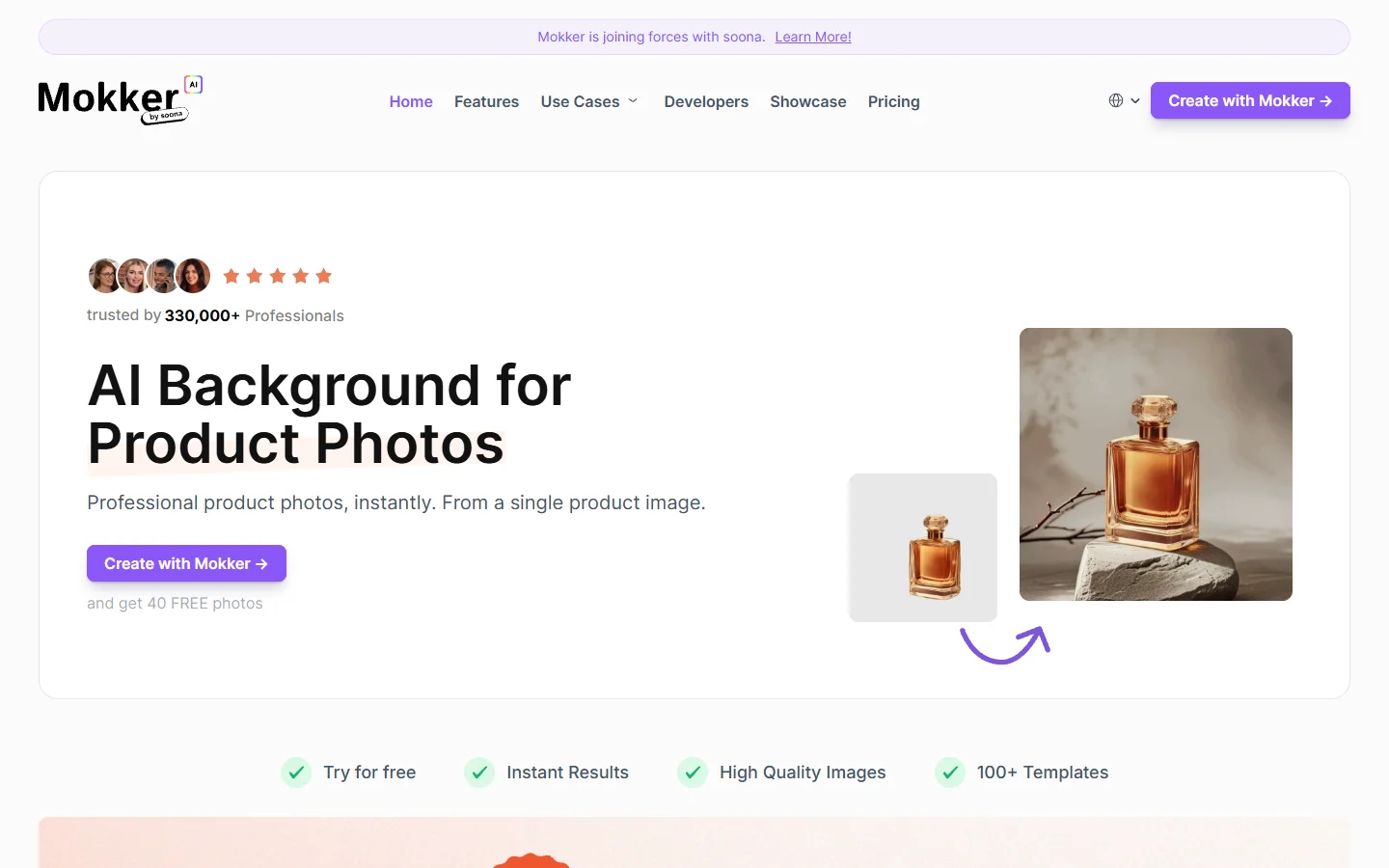
Mokker focuses on speed and simplicity. Upload your product photo, and it instantly generates dozens of background options categorized by style (minimalist, luxury, outdoor, seasonal). There is no prompt writing involved, which makes it accessible for non-technical users. The results are consistent enough for marketplace listings on Amazon or Etsy where background quality affects conversion rates directly.
Claid
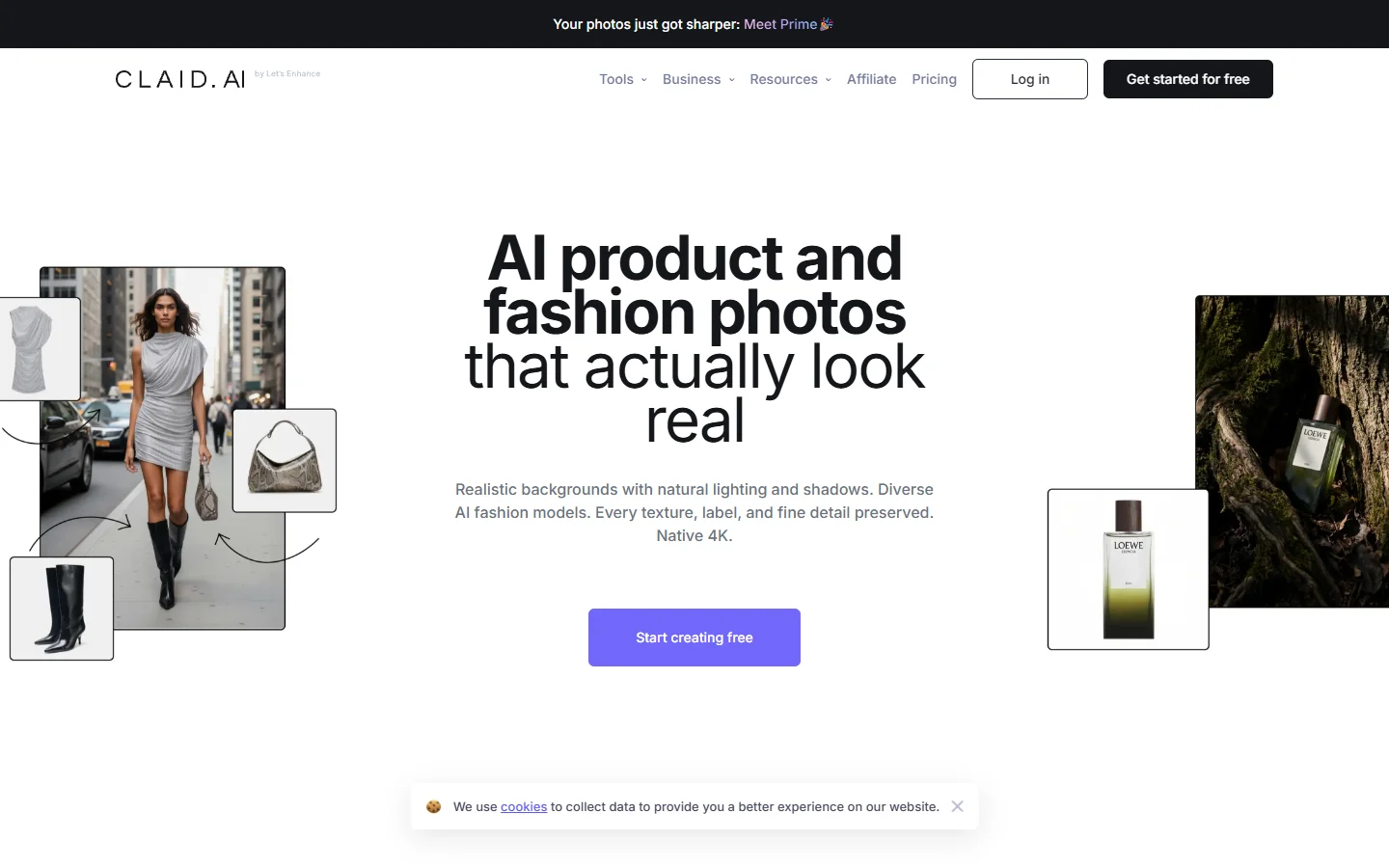
Claid offers an API-first approach, which makes it a better fit for teams that need to process hundreds or thousands of images programmatically. You send product images via their REST API and receive composited results with generated backgrounds. It also handles upscaling and color correction in the same pipeline. If you are building an automated product photo workflow, Claid is worth evaluating for the API alone.
Dzine

Dzine positions itself as an AI product background generator with fine control over scene composition. You can adjust camera angle, lighting direction, and surface material independently, giving more creative control than template-only tools. This is useful for brands that need backgrounds to match a specific visual identity across channels.
Step-by-Step: Generating a Custom Background
Here is a practical walkthrough you can follow with most of the tools above. For a deeper look at background editing techniques, see our guide on changing photo backgrounds with AI.
- Prepare your source image. Photograph the product on a plain white or light gray surface with even lighting. Avoid harsh shadows. A phone camera works fine as long as the product is in focus and well-lit.
- Upload and extract. Load the image into your tool of choice. The background removal step is usually automatic. Check the edges, especially around transparent or reflective surfaces like glass bottles.
- Choose or describe your scene. For a luxury skincare product, try a prompt like “marble countertop with soft morning light and eucalyptus leaves.” For electronics, something like “clean white desk with minimal setup, soft gradient background” works well.
- Generate and compare. Most tools produce 4-8 variations per prompt. Compare them for lighting consistency, shadow direction, and edge blending.
- Export at the right resolution. Marketplace requirements vary. Amazon requires at least 1000px on the longest side; Shopify themes often look best at 1200×1200 or higher.

Prompting Tips for Better Product Backgrounds
The quality of your AI-generated background depends heavily on how you describe the scene. If you are new to prompting, the FLUX prompt generator can help you build effective descriptions quickly. Here are patterns that consistently produce better results:
- Specify the surface material. “Oak table,” “marble slab,” “concrete shelf” gives the model a clear starting point.
- Describe the lighting. “Soft diffused daylight from the left” or “warm golden hour backlight” steers the mood.
- Include depth cues. “Blurred garden in the background” or “shallow depth of field” adds realism.
- Name the style. “Editorial magazine photography,” “minimalist Scandinavian,” or “luxury cosmetics campaign” anchors the overall feel.
- Avoid over-prompting. Listing 15 details usually produces worse results than 4-5 well-chosen descriptors. Let the model fill in the gaps.
For FLUX-based tools, you can get even more control by specifying aspect ratios and negative prompts. Check the FLUX prompting guide for model-specific syntax that applies to background generation as well.
FAQ
What image format works best for AI background generation?
PNG with a transparent background gives the cleanest results since the tool does not need to re-extract the subject. If you only have a JPEG, most tools handle the extraction automatically, but edges may be slightly less precise. You can also make backgrounds transparent as a preprocessing step.
Can I use AI-generated product photos on Amazon?
Yes. Amazon’s product image policy requires that the main image has a pure white background, but supplementary images (slots 2-9) can use lifestyle or contextual backgrounds. AI-generated scenes work well in those slots and can improve your listing’s visual appeal compared to competitors.
How many background variations should I test per product?
Start with 3-5 variations per product. A/B test the top 2 on your listing for 1-2 weeks, then keep the winner. Most sellers see a measurable lift in click-through rate from contextual backgrounds versus plain white.
Do AI backgrounds work for clothing and fashion?
They work best for flat-lay or folded clothing. For on-model shots, the background replacement is straightforward, but the lighting match between the model and the generated scene can look off if the original photo has strong directional light.
Are these tools accurate enough for jewelry and small items?
Reflective and translucent items (jewelry, glass, crystals) are the hardest category. Tools with dedicated reflection handling like Pebblely and Claid produce better results than general-purpose image generators. Always zoom in and check edge quality before publishing.
Can I generate backgrounds in bulk for my entire catalog?
Yes. Photoroom, Claid, and Mokker all support batch processing. Claid’s API is the strongest option for programmatic bulk workflows. Expect processing times of 5-15 seconds per image depending on resolution.
Is it legal to use AI-generated backgrounds for commercial product photos?
The generated backgrounds themselves are not sourced from copyrighted material in a way that creates legal risk for standard use cases. All the tools listed here grant commercial usage rights on their paid plans. Check each tool’s terms of service for specifics on your use case.
Conclusion
AI background generation has moved from a novelty to a core part of the e-commerce photography workflow. The tools available today handle extraction, scene generation, and compositing well enough that most product categories no longer need traditional studio shoots for catalog imagery. Start with a free background removal tool or any of the generators above, test a few products, and measure the impact on your listing performance before scaling up.