
Free online video makers have changed how creators produce content in 2026. Whether you need a quick social media clip or a polished marketing video, browser-based tools now handle tasks that once required expensive desktop software. Many of these platforms include AI-powered features like automatic captioning, text-to-video generation, and smart editing that save hours of manual work.
This guide covers seven of the best free online video makers available right now, comparing their strengths, limitations, and ideal use cases so you can pick the right tool for your next project. The same AI advances driving text-to-video tools have pushed these editors to add smarter automation across their free tiers.
The tools below span the full spectrum: lightweight browser editors for social clips, AI-assisted platforms that generate video from text prompts, and one professional-grade desktop suite that rivals paid software. Each entry includes what you get for free, where the limits are, and who should use it.
CapCut: Best All-Around Free Video Editor
CapCut has become the default choice for short-form video creators. Originally built as a companion to TikTok, it has expanded into a full-featured browser-based editor with surprisingly deep capabilities for a free tool. Its AI features overlap with what dedicated AI image and video generation tools offer, but packaged in a familiar editing interface.
Key features on the free tier include multi-track editing, auto-captions in 20+ languages, background removal, and a library of transitions and effects. The mobile and desktop apps sync seamlessly with the web version, so you can start a project on your phone and finish it in the browser. The main limitation is a subtle watermark on some exported templates, though most standard exports remain watermark-free. Creators who work with AI image generators often use CapCut to assemble generated visuals into video sequences.
Canva Video: Best for Non-Designers
Canva’s video editor sits inside the same design platform millions already use for presentations and social graphics. That integration is its biggest advantage: you can pull from Canva’s massive template library, stock footage collection, and brand kit without leaving the editor. The approach mirrors the template-driven trend visible in AI image editing tools as well.
The free plan includes basic video editing, thousands of templates, and 5GB of cloud storage. You get drag-and-drop simplicity that works well for social media ads, Instagram Stories, and presentation videos. The tradeoff is limited timeline precision. Canva is not built for frame-accurate editing or complex multi-track projects. It works best when you want something that looks polished in 15 minutes.
Clipchamp: Best for Windows Users
Microsoft acquired Clipchamp and bundled it into Windows 11, making it the most accessible video editor for PC users. It runs entirely in the browser but also has a native Windows app, and both versions share the same interface. For creators already using AI-powered photo generators to produce thumbnails and assets, Clipchamp slots naturally into that workflow.
Free tier highlights: 1080p exports (no watermark), stock audio library, basic text-to-speech, and screen recording. The timeline editor feels more traditional than Canva’s, closer to what you would expect from desktop software. The main gap is that the free stock video library is limited compared to what Canva or InVideo offer.
InVideo: Best AI-Assisted Video Creation
InVideo leans heavily into AI workflows. Its standout feature is a text-to-video pipeline where you paste a script or topic, and the platform generates a complete video draft with stock footage, transitions, and captions. You then refine from there rather than building from scratch. The concept is similar to how prompt-based image tools turn text descriptions into finished visuals.
The free plan includes 10 minutes of AI-generated video per week, access to the template library, and 720p exports with an InVideo watermark. The paid plan removes the watermark and unlocks 1080p. InVideo works best for content marketers and small businesses who need volume, turning blog posts or product descriptions into video at scale.
Veed.io: Best for Subtitles and Podcasts
Veed.io carved out a niche with its subtitle and transcription tools. The auto-captioning is among the most accurate of any free tool, supporting animated caption styles that match current social media trends. The accuracy improvements track with broader advances in AI voice and audio processing.
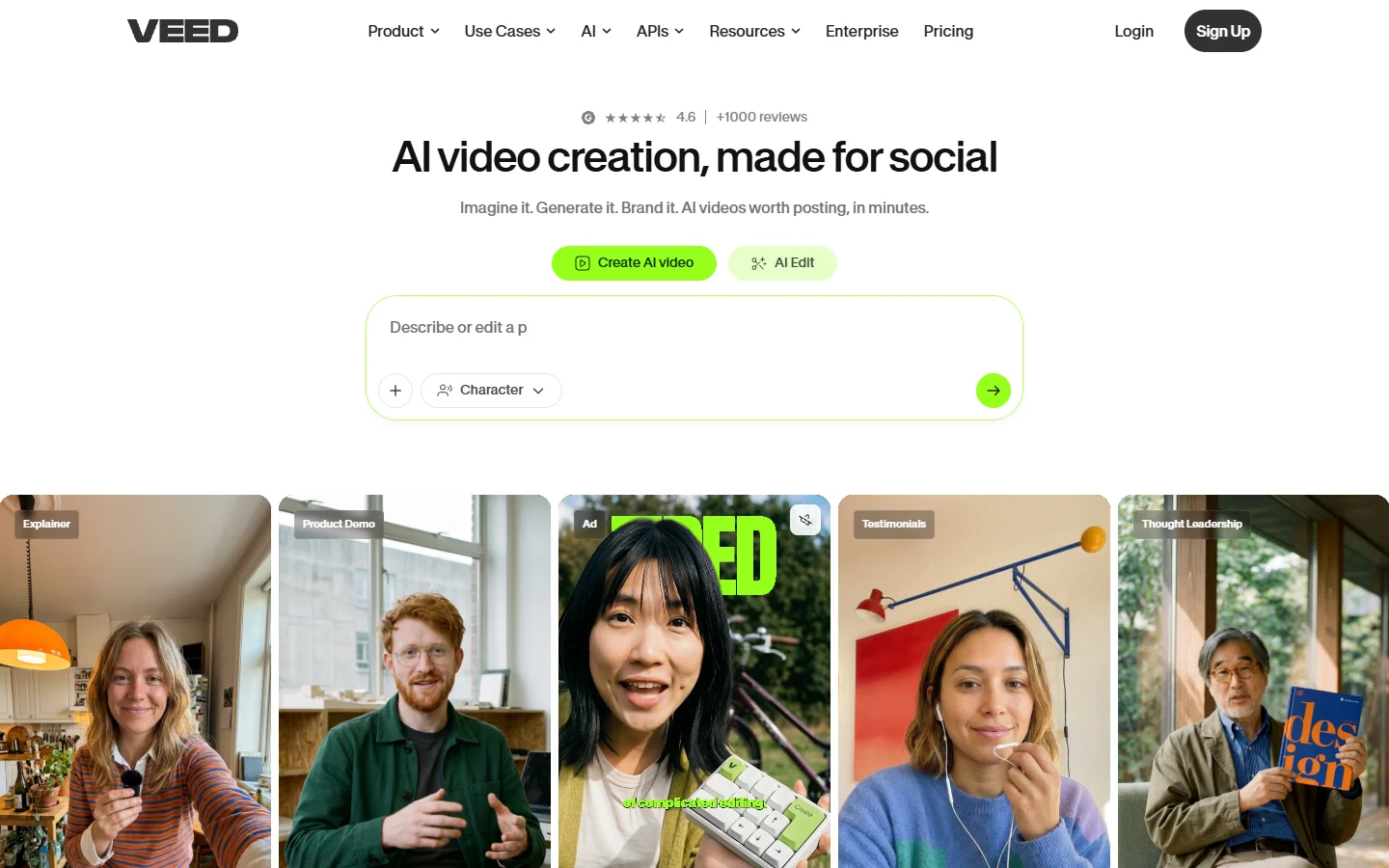
Beyond subtitles, the free tier offers trimming, cropping, filters, and basic audio cleanup. It also handles podcast-to-video conversion well, generating audiogram-style videos with waveform visualizations. The free plan caps exports at 720p with a Veed watermark.
FlexClip: Best Template Library for Marketing Videos
FlexClip targets marketers and small business owners with a library of over 6,000 templates organized by industry and platform. If you need a real estate listing video, a restaurant promo, or a product launch teaser, there is probably a template ready to customize. This template-first approach parallels what the best AI image generators have done for static content creation.
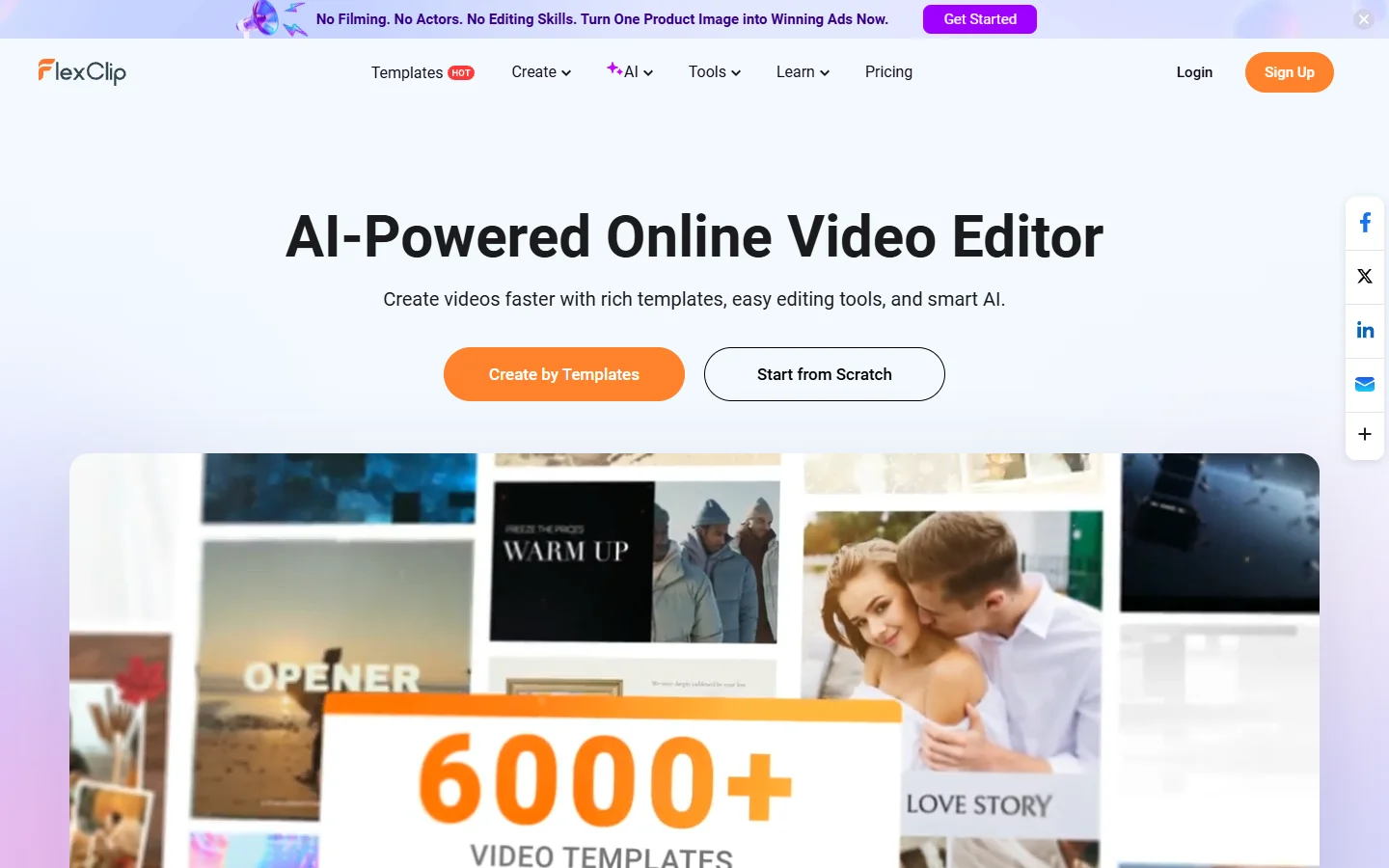
The free plan includes 720p exports (with watermark), up to 12 projects, and access to the template and stock media libraries. The editor is straightforward but lacks advanced features like keyframe animation or multi-track audio. FlexClip works best when speed matters more than customization.
DaVinci Resolve: Best Professional-Grade Free Editor
DaVinci Resolve is the outlier on this list. It is a desktop application, not a browser tool, but its free tier is so comprehensive that it deserves mention. Blackmagic Design offers the full editing, color grading, audio mixing, and visual effects suite at no cost, with no watermarks and no export limits. For creators who use tools like FLUX 1.1 Pro for high-resolution image generation, DaVinci Resolve handles large-format media without breaking a sweat.
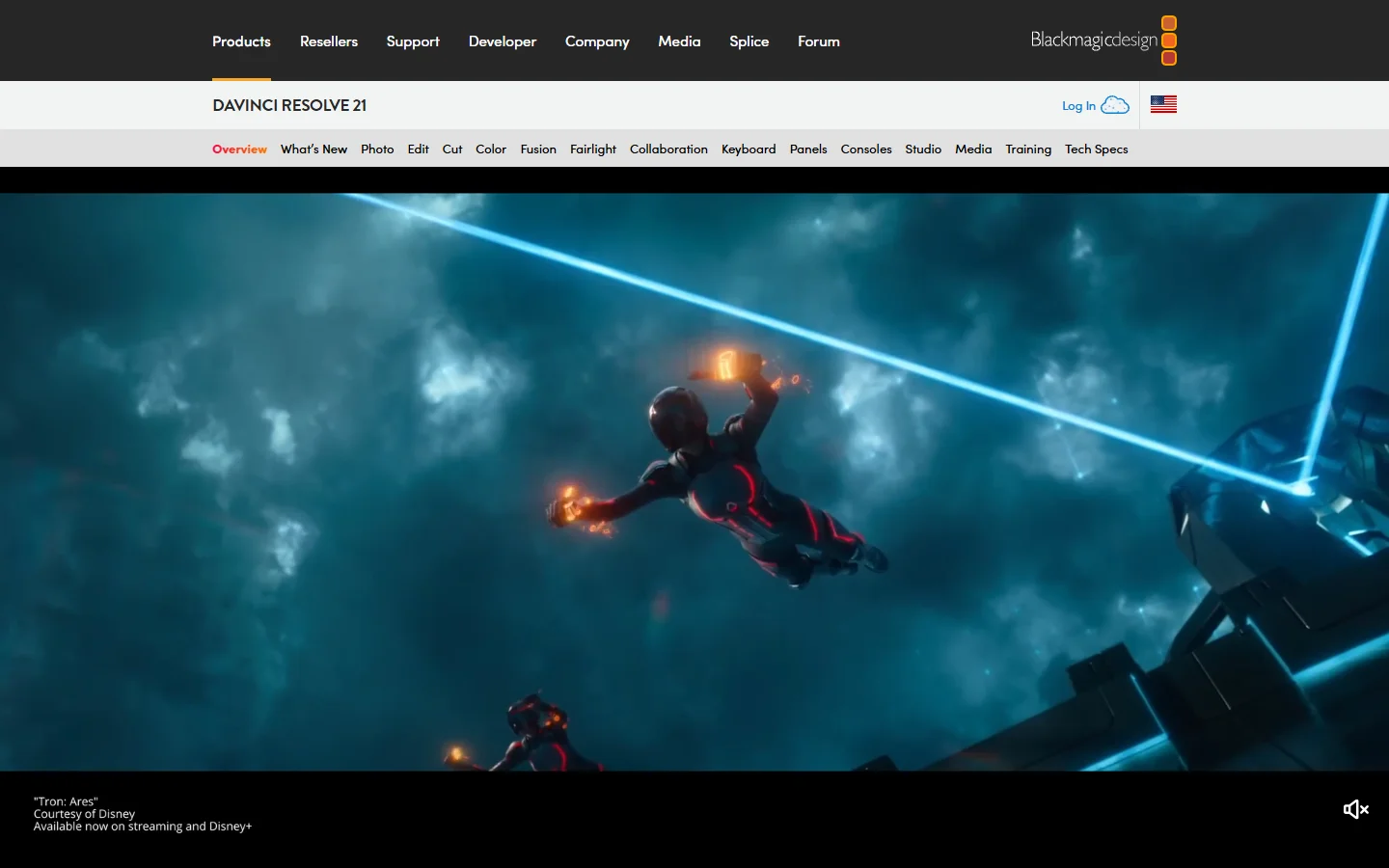
The learning curve is steep compared to the other tools here. DaVinci Resolve is built for professional workflows, and the interface reflects that complexity. But if you are willing to invest time learning it, no free tool comes close in raw capability. It handles 4K editing, advanced color grading, Fairlight audio post-production, and Fusion visual effects. Paired with AI headshot and portrait tools for generating custom assets, it can anchor a fully professional content pipeline.
Comparison Table
| Tool | Best For | Max Free Resolution | Watermark | AI Features | Platform |
|---|---|---|---|---|---|
| CapCut | Short-form social video | 1080p | On some templates | Auto-captions, background removal | Web, mobile, desktop |
| Canva | Non-designers | 1080p | No | Templates, stock media | Web, mobile |
| Clipchamp | Windows users | 1080p | No | Text-to-speech, auto-compose | Web, Windows app |
| InVideo | AI-assisted creation | 720p | Yes | Text-to-video, script generation | Web |
| Veed.io | Subtitles and podcasts | 720p | Yes | Auto-captions, transcription | Web |
| FlexClip | Marketing templates | 720p | Yes | Template suggestions | Web |
| DaVinci Resolve | Professional editing | Unlimited | No | Some (Studio only) | Desktop |
How to Choose the Right Tool
Picking the right video maker depends on three factors: your skill level, your output format, and how much time you have. The decision is similar to choosing between different AI art approaches, where the best option depends on what you are trying to produce.
- Beginners making social content: start with CapCut or Canva. Both have minimal learning curves and handle the most common formats (Reels, TikToks, Stories) with dedicated templates.
- Marketers who need volume: InVideo’s AI pipeline or FlexClip’s template library will get you from idea to published video fastest.
- Podcast creators: Veed.io’s subtitle and audiogram tools are purpose-built for your workflow.
- Serious editors on a budget: DaVinci Resolve is the clear choice if you want professional results without a subscription.
Frequently Asked Questions
What is the best completely free video maker with no watermark? CapCut and Clipchamp both offer 1080p exports without watermarks on standard projects. DaVinci Resolve is also fully free with no watermarks, though it requires a desktop installation. Among browser-only options, Clipchamp is the strongest choice for watermark-free video output.
Can I use these tools for commercial projects? Yes. All seven tools on this list allow commercial use on their free tiers, though you should review each platform’s terms of service for specifics. InVideo, Veed.io, and FlexClip add watermarks to free exports, which may not be suitable for client-facing deliverables.
Which free video maker has the best AI features? InVideo leads with its text-to-video generation pipeline, which can create a complete video draft from a written prompt. CapCut’s auto-captioning and background removal are also strong. For AI image generation that feeds into video workflows, FLUX prompt techniques can help create custom visual assets before you bring them into a video editor.
Is DaVinci Resolve really free? Yes. Blackmagic Design has offered a free version since 2014. The free tier includes the full editing, Fairlight audio, and Fusion VFX modules. The paid Studio version ($295 one-time) adds GPU-accelerated rendering and some advanced features, but most creators will never hit the limits of the free version. It pairs well with AI-generated image assets for creating polished visual content at no cost.
What resolution can I export for free? CapCut, Canva, and Clipchamp support 1080p free exports. InVideo, Veed.io, and FlexClip cap free exports at 720p. DaVinci Resolve has no resolution limit on the free tier.
Can I collaborate with a team on these platforms? Canva has the strongest collaboration features, with shared workspaces, commenting, and real-time co-editing on its free plan. Clipchamp and Veed.io also support basic sharing and collaboration. CapCut added team features in late 2025. The collaborative trend extends across creative AI tools, including real-time image generation platforms.
Do these tools work on Chromebooks or low-spec machines? The browser-based tools (CapCut web, Canva, Clipchamp, InVideo, Veed.io, FlexClip) all work on Chromebooks since they process video in the cloud. DaVinci Resolve requires a reasonably powerful desktop machine with dedicated GPU for smooth performance.
Conclusion
The gap between free and paid video editing has narrowed significantly. For most creators, one of these seven tools will handle everything they need without spending a dollar. CapCut and Clipchamp stand out for watermark-free 1080p output, InVideo leads in AI-assisted workflows, and DaVinci Resolve remains unmatched for raw editing power. Start with the tool that matches your primary use case, and switch only when you hit a specific limitation. As AI continues to reshape creative tools across both video and image generation, these platforms will only get more capable.