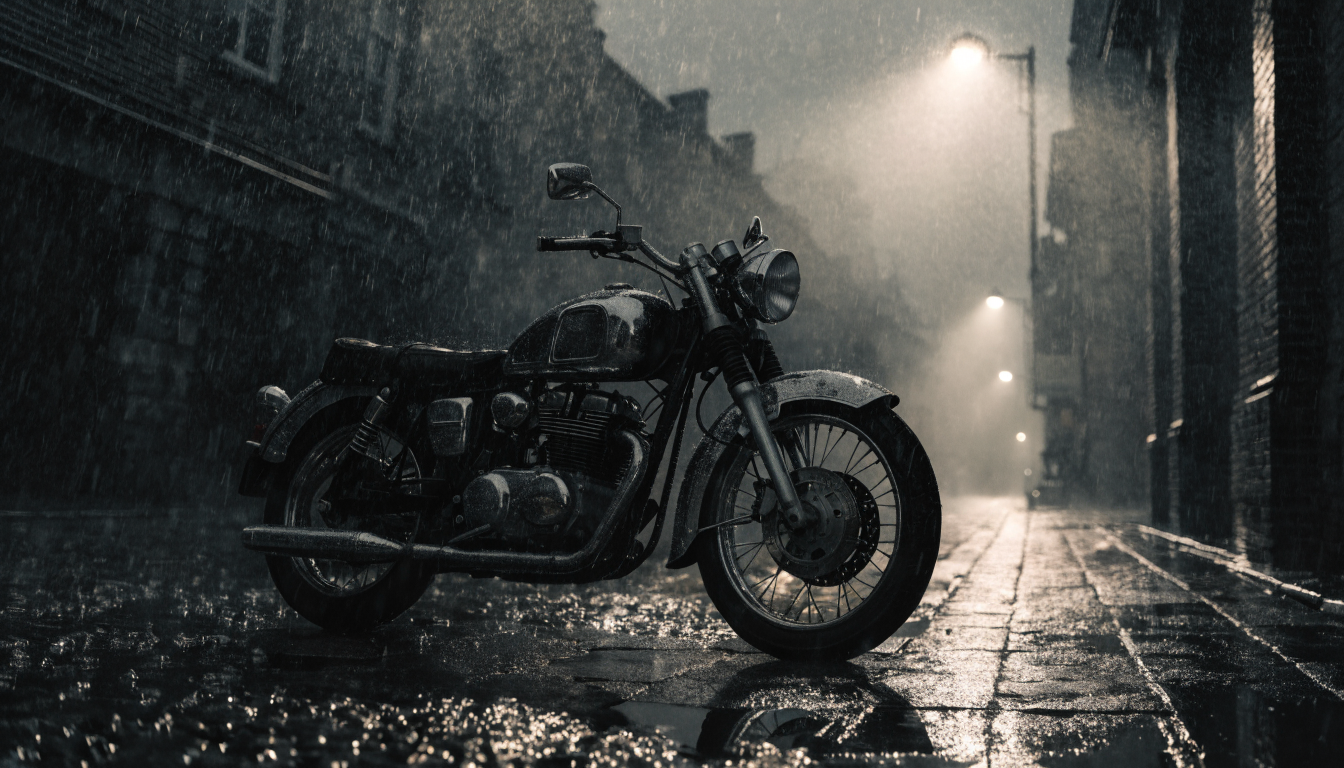
Still images no longer have to stay still. In 2026, AI animation tools can take a single photograph and produce smooth, natural motion in seconds. Whether you want to make a portrait blink, a landscape ripple with wind, or a product shot rotate on screen, the technology has matured enough to deliver results that look intentional, not gimmicky. This guide covers the best methods, tools, and practical tips for animating still images with AI right now.
How AI Image Animation Works
AI image animation uses deep learning models trained on millions of video frames to predict how objects in a still image should move. You provide a single frame, and the model generates a short video sequence (typically 3 to 10 seconds) by inferring depth, subject boundaries, and plausible motion paths.
Modern models like Kling 2.5, Veo 3.1, and Seedance use diffusion-based architectures that handle parallax effects, facial expressions, fabric movement, and camera orbits with far fewer artifacts than earlier approaches. For a broader look at how AI image generators have evolved, the improvements in base image quality directly feed into better animation results.
Choosing the Right Image for Animation
Not every photo animates well. The quality of your input image determines 80% of the output quality. If you are starting from scratch, using a high-quality AI image generator to create your source frame gives you consistent lighting and clean subject isolation that animates smoothly.
What works best: high-resolution images (1024px or larger), clear subject separation from the background, natural lighting with visible depth cues, a single primary subject, and images with implied motion like flowing hair or wind in trees. If you need to edit or enhance your photo before animating, cleaning up the composition first will improve the output significantly.
What causes problems: heavy text overlays or watermarks, flat graphic designs with no depth, extreme wide shots with dozens of small subjects, and images with motion blur already baked in.
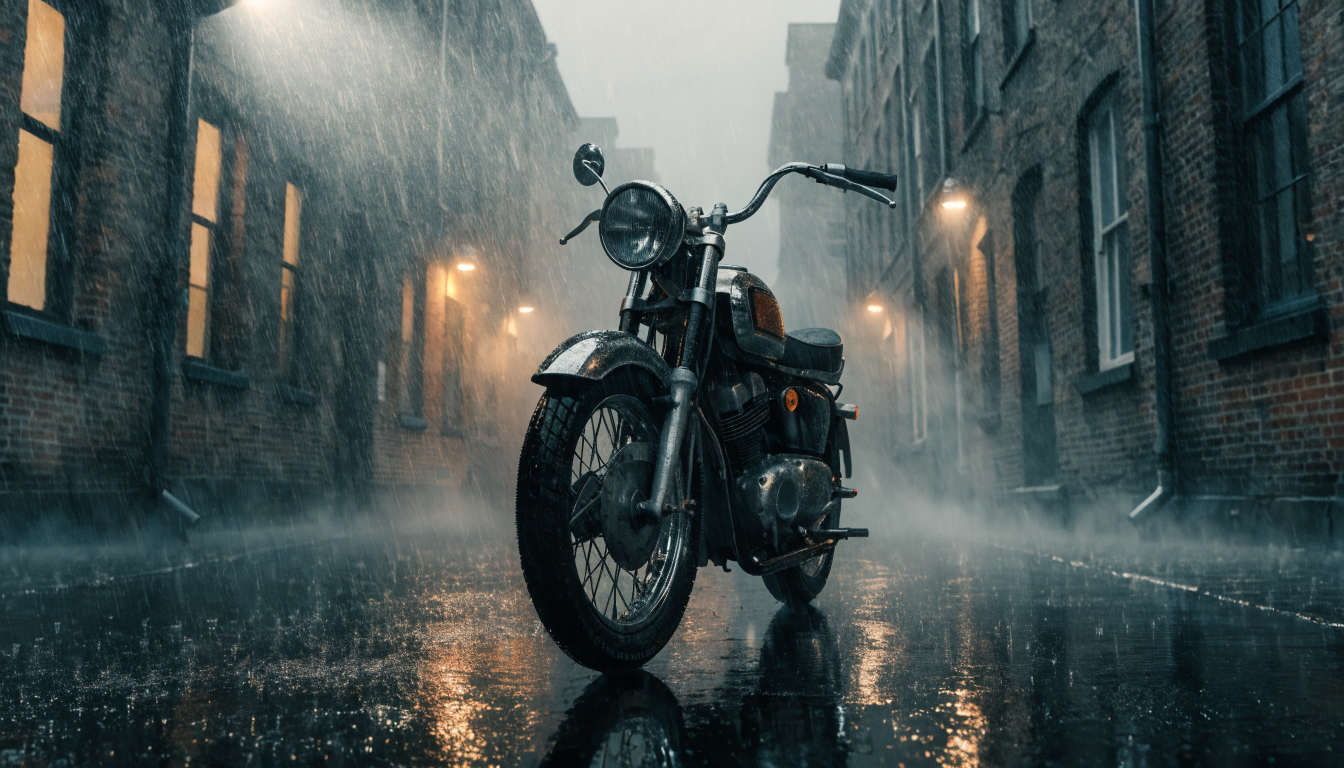
Portraits and realistic AI-generated photos tend to animate most reliably because they have clear depth layers and predictable motion patterns.
Best AI Tools for Animating Still Images in 2026
Several tools handle image-to-video well, but they differ in output quality, speed, and pricing. Here is a practical breakdown of the most capable options available right now. You can also check our full AI video generator comparison for detailed rankings.
Kling 2.5 produces the most naturalistic motion for human subjects, handling facial expressions and hand movements better than most competitors. Free tier gives 5 generations per day, with paid plans starting around $8/month. It is also one of the stronger free AI image generation options if you want to create source frames and animate them in one workflow.
Veo 3.1 (Google DeepMind) excels at camera motion and scene-level animation, simulating dolly shots, orbits, and zoom transitions from a single still. Access is through Google AI Studio or third-party API providers.
Seedance 2.0 is strong for stylized content and social media ad creation. Its preset motion styles (slow zoom, parallax drift, bounce) work well for Instagram and TikTok without detailed prompts.
Runway Gen-4 remains a solid all-rounder with “motion brush” control that lets you paint which areas should move. Pricing starts at $12/month. See our Runway alternatives guide for comparable options.
Pika 2.0 focuses on short-form animation with a “modify region” tool for selective animation. For a broader set of alternatives, our Midjourney alternatives roundup covers tools with image-to-video capabilities.
For teams that need to process images at scale or integrate animation into automated AI image editing suite workflows, API access becomes important. Kling and Veo both offer API endpoints, and platforms like Replicate and fal.ai provide hosted inference for several open-source video models.
Step-by-Step: Animating Your First Still Image
Here is a straightforward workflow that applies to most tools:
- Select your image. Pick a high-resolution photo with a clear subject and visible depth. Portraits, product shots, and landscape photos work best. You can also create digital art with AI specifically optimized for animation.
- Upload to your chosen tool. Most platforms accept PNG, JPG, and WebP. Resize to at least 1024×1024 if your source is smaller.
- Write a motion prompt. Be specific about what should move and how. “Camera slowly orbits left around the subject while hair blows gently in the wind” works better than “make it move.” Describe the motion style, speed, and camera behavior. Our FLUX prompts library has examples you can adapt for animation use.
- Set duration and output format. Most tools default to 4-second clips. For social media, 3 to 5 seconds is the sweet spot. Export as MP4 at 720p or 1080p. If you plan to use the result as a free online video, check that your export settings match the platform’s specs.
- Review and iterate. First generations rarely nail the motion perfectly. Adjust your prompt, try a different seed, or switch to a tool better suited to your image type.
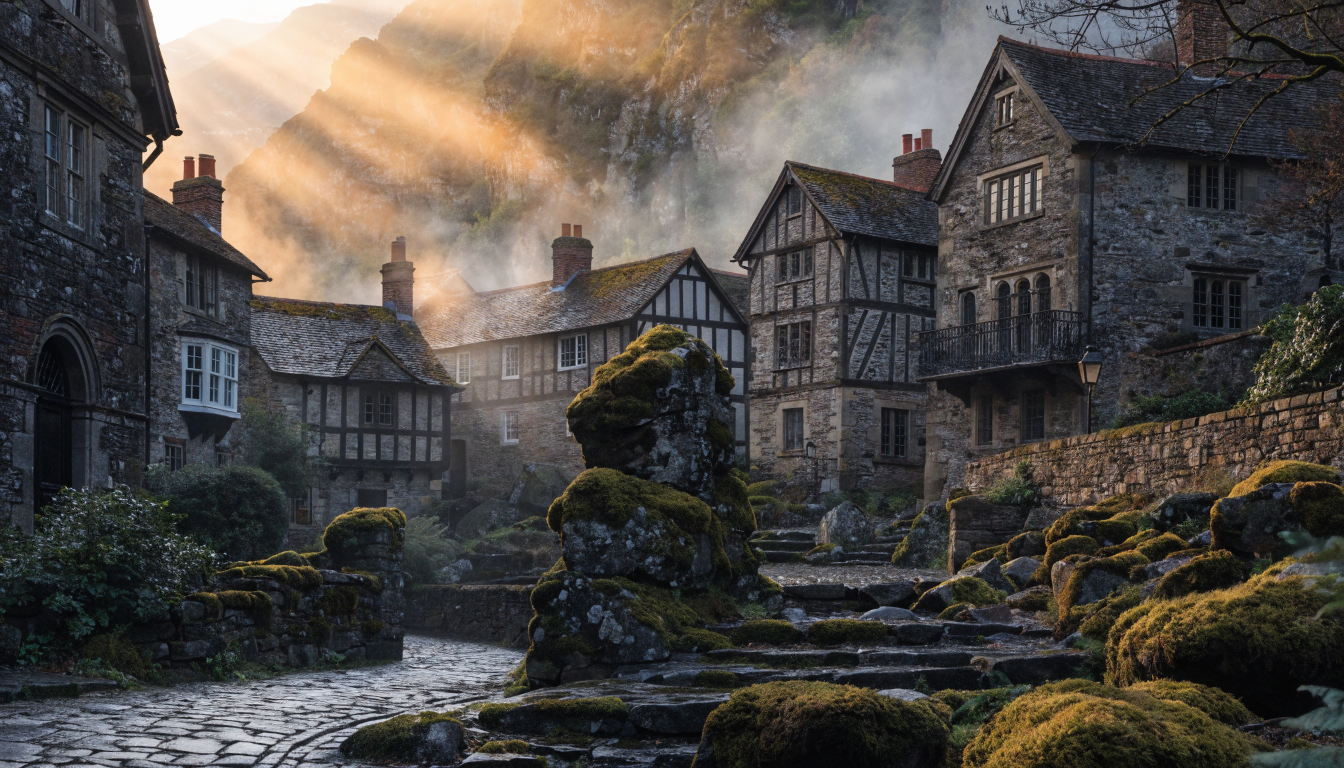
If you are already working with AI art generators to create your source images, you can feed those outputs directly into an animation tool for a complete generate-and-animate pipeline.
Prompt Engineering for Better Animation Results
The prompt you write controls the quality and realism of the animation. Good prompting techniques from text-to-image generation carry over directly to animation prompts. Here are patterns that consistently produce better results across tools.
Describe the motion, not the scene. The tool already sees your image. Focus on how things move: “gentle breeze moves the leaves left to right, camera slowly pushes in” rather than “a tree in a field.”
Specify camera behavior. Static camera, slow pan, orbit, dolly zoom. Being explicit prevents the model from making random camera choices. The FLUX prompt generator can help you structure descriptive prompts that work well for animation inputs.
Use speed modifiers. Words like “slowly,” “gradually,” and “gentle” produce more natural results. The biggest issue with AI animation is overcooking the movement. The same principle applies when writing prompts for FLUX 1.1 Pro: restraint produces better results.
Avoid contradictory instructions. “Zoom in while pulling back” will confuse the model. Keep your motion description physically coherent. For reference, the Flux Krea model documentation shows how structured prompts reduce artifacts in both image and video generation.
Common Problems and How to Fix Them
Even the best tools produce occasional artifacts. Here is how to handle the most frequent issues.
Face distortion. Faces sometimes warp, especially with profile angles. Fix: use a front-facing portrait and add “maintain facial features” to your prompt. Tools trained on realistic AI headshots preserve facial structure better.
Limb duplication. Hands occasionally duplicate or phase through objects. Fix: crop tightly to avoid complex poses, or use motion masking (Runway’s motion brush) to lock areas. You can also change the background before animating to simplify the scene.
Background jitter. Static backgrounds sometimes wobble. Fix: specify “static background” or “locked camera” in your prompt.
Motion too fast or too slow. Fix: adjust the motion intensity slider or add speed descriptors. Our top free AI video generators list includes speed control as a comparison factor.
FAQ
What is the best free tool to animate still images with AI?
Kling 2.5 offers 5 free generations per day, the most generous free tier among quality options. Pika 2.0 also provides limited free credits. Both cap free resolution at 720p. See our list of free AI video generators for more options.
How long can AI-animated clips be?
Most tools generate 3 to 10 second clips from a single image. Some, like Veo 3.1 and Runway Gen-4, support chaining generations to build 30+ second sequences. For longer-form projects, check our guide on creating marketing videos with AI.
Do I need a powerful computer to animate images with AI?
No. All major tools run in the cloud. You upload your image through a browser or API, the model runs on remote GPUs, and you download the result. No local GPU required.
Can I animate AI-generated images or only real photos?
Both work. AI-generated images from FLUX, Midjourney, or DALL-E 3 often animate well because they have consistent lighting and clean subject separation. Generated images sometimes produce smoother animation than real photos with complex textures. Learn more about what FLUX models can generate before feeding those outputs into an animation tool.
What resolution should my source image be?
Aim for at least 1024×1024 pixels. Higher resolution gives the model more detail to work with, resulting in cleaner motion. Most tools accept up to 4K input but process at 720p or 1080p for the output video. Using FLUX Realtime to generate high-resolution source frames works well when you need fast iterations.
Is AI image animation good enough for commercial use?
Yes, for many applications. Social media, product showcases, marketing materials, and presentations all benefit from AI animation. For broadcast or film, professional post-production may still be needed.
How is image-to-video different from text-to-video?
Image-to-video starts with a photograph or generated image, so you control the exact composition and style. Text-to-video generates everything from a text description, giving less control over the starting frame but more creative freedom. Our guide on turning text into video covers that workflow in detail.
Conclusion
Animating still images with AI has become practical and genuinely useful in 2026. Start with a clean, high-resolution source image, write specific motion prompts, and iterate until the output matches your vision. For creators who want to build animation into a larger creative pipeline, Wireflow offers workflow-based tooling that connects image generation, editing, and animation steps into a single automated process.