A polished professional headshot used to mean booking a photographer, renting a studio, and spending half a day on lighting and retakes. In 2026, AI image generation has made that process optional. With the right model and a few well-chosen prompts, you can produce headshots that look studio-quality in minutes.
This guide covers the full workflow: preparing source photos, writing effective prompts, choosing the right model, and editing outputs for a clean final result. If you are new to FLUX models, start with the introduction to FLUX 1 for background.
Why AI Headshots Make Sense Now
The quality gap between AI-generated portraits and real photographs has narrowed significantly. Models like FLUX 1.1 Pro can render skin texture, hair detail, and natural lighting at a level that satisfies most professional use cases. LinkedIn profiles, company team pages, speaker bios, and freelance portfolios all benefit from a sharp, consistent headshot.
Traditional photography still has its place for high-stakes editorial work. But for the majority of professionals who just need a clean, well-lit portrait, modern AI photo generators are faster, cheaper, and more accessible.
Preparing Your Source Photos
The quality of your AI headshot depends heavily on the input images you provide. Most AI headshot tools use reference photos to preserve your identity while generating new poses, backgrounds, and lighting setups. Follow these guidelines for best results:
- Use 5-10 clear photos of your face from slightly different angles
- Consistent lighting matters more than resolution; avoid harsh shadows and mixed color temperatures
- Remove glasses and hats unless you want them in the final output
- Plain backgrounds help the model isolate your face more accurately
- Recent photos only: the model will reproduce what it sees, so outdated photos produce outdated-looking results
Skip group photos, heavy filters, and anything where your face is partially obscured. The cleaner the input, the more natural the output. See how different AI generators compare when working with varying input quality.
Writing Prompts That Produce Professional Results
Prompting is where most people leave quality on the table. A vague prompt like “professional headshot” will give you something generic. Specific prompts produce specific results. Here is a structure that works well with FLUX prompt tools:
- Subject description: “a 30-year-old woman with shoulder-length brown hair”
- Setting: “in a modern office with soft natural window light”
- Camera angle: “shot from chest up, slight three-quarter turn”
- Lighting: “soft diffused lighting, subtle rim light separating subject from background”
- Style keywords: “professional corporate portrait, shallow depth of field, neutral color grading”
Avoid overloading prompts with contradictory style keywords. “Cinematic dramatic moody bright cheerful” will confuse the model. Pick one mood and commit to it. If you want to streamline your headshot workflow with an end-to-end AI pipeline, check it out here. Tools that chain generation, upscaling, and background removal into a single step save significant time when producing headshots at scale.
Choosing the Right Model
Not all AI image models handle portraits equally well. Here is how the major options compare for headshot generation:
| Model | Strengths | Best For |
|---|---|---|
| FLUX 1.1 Pro | High detail, natural skin tones | Professional portraits |
| FLUX Dev | Fast iteration, good baseline | Quick drafts and testing |
| FLUX Realtime | Near-instant generation | Live previews |
| Stable Diffusion XL | Wide community support | Custom fine-tuned models |
| Midjourney v6 | Artistic interpretation | Creative/editorial headshots |
For straightforward professional headshots, FLUX 1.1 Pro consistently produces the most photorealistic results. If you need to generate many variations quickly, FLUX Realtime offers near-instant previews that let you iterate on prompts without waiting.
Editing and Refining the Output
AI-generated headshots rarely need zero post-processing. Common adjustments include background cleanup, color correction to match your brand standards, cropping for platform-specific aspect ratios (LinkedIn uses 400×400, most company sites prefer 3:4), and upscaling for print-resolution output. Many modern AI image editing platforms now include built-in tools for all of these steps.
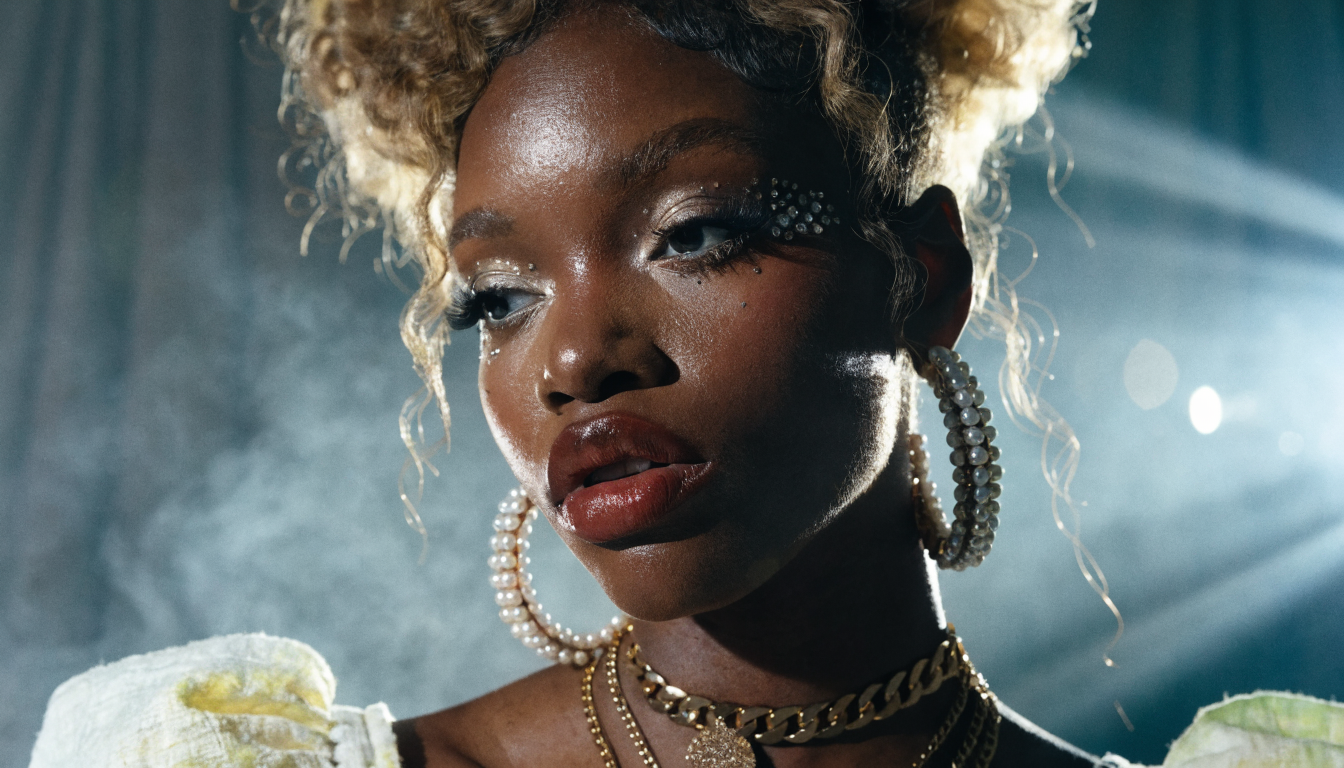
When working with FLUX-generated portraits, pay special attention to catch lights in the eyes and hair strand detail. These are the areas where AI artifacts are most noticeable to viewers.
Best Practices for Professional Results
After generating dozens of test headshots across different models and settings, these practices consistently produce the best output. Generate in batches of 10-20 and pick the best 2-3 rather than trying to get a perfect result in one shot. Keep backgrounds simple: solid colors, soft gradients, or blurred office environments work better than busy scenes. Match the headshot style to its context, and always check for common AI artifacts like extra fingers, asymmetric ears, or warped jewelry. Use the FLUX prompt library for tested templates that avoid these issues.
For teams and businesses that need to produce headshots at scale, Wireflow’s creative tools offer workflow automation that handles batch generation, consistent styling, and post-processing in a single pipeline. This is particularly useful for companies onboarding new employees who need team page photos on day one.
Frequently Asked Questions
Can AI headshots replace professional photography entirely?
For digital profiles, team pages, and most online uses, yes. For print editorial or large-format displays, traditional photography still has advantages. The latest AI image generators are closing the gap each year.
How many source photos do I need for a good AI headshot?
Five to ten photos from different angles work best. More photos give the model a better understanding of your facial features. Fewer than three often produces inconsistent or generic-looking results.
Are AI-generated headshots legal to use commercially?
In most jurisdictions, yes. If you generated the image using your own photos as input, you hold the usage rights. Check the terms of service for your specific tool, as some platforms retain certain licensing rights.
What resolution should I generate headshots at?
Generate at the highest resolution your model supports, then crop. FLUX 1.1 Pro outputs at 1024×1024 natively; you can upscale to 4K or higher using AI upscaling tools for print or large displays.
How do I avoid the “AI look” in generated headshots?
The “AI look” usually comes from over-smoothed skin, perfect symmetry, and unrealistic catch lights in the eyes. Counter this by adding slight imperfections in your prompt: “natural skin texture with visible pores,” “slightly asymmetric facial features,” and “realistic studio catch lights.”
Can I generate headshots of someone else using their photos?
Technically yes, but you need their explicit consent. Using someone’s likeness without permission raises ethical and potentially legal issues. Always get written consent before generating headshots of other people. Read more about FLUX model policies.
What is the best background for a professional AI headshot?
Solid neutral backgrounds (gray, white, navy) work for corporate contexts. Softly blurred office or nature backgrounds add warmth for creative fields. Experiment with different styles using the FLUX Realtime model for instant feedback.
Conclusion
Creating professional AI headshots in 2026 is straightforward once you understand the inputs that matter: clean source photos, specific prompts, and the right model for your use case. The technology handles the rest. Whether you need a single LinkedIn photo or a full set of team portraits, the workflow outlined here will get you to a polished result without a camera or a studio booking.