
AI background removal has gone from a painstaking Photoshop task to a one-click operation. Whether you are preparing product photos for an online store, cleaning up portraits, or isolating subjects for a text-to-image workflow platform, you can now get studio-quality cutouts without spending a cent. Below is a hands-on look at the best free background remover tools available online in 2026, with real comparisons so you can pick the right one for your workflow.
The tools below range from dedicated single-purpose removers like Remove.bg to full creative suites like Adobe Express and Canva. We tested each one on portraits, product shots, and complex scenes with semi-transparent edges to see how they actually perform in practice. Each tool’s section includes a screenshot of its interface, a breakdown of its free tier limits, and notes on where it fits best.
If you have been working with FLUX models and need a post-processing step to clean up backgrounds, these six tools cover every workflow from mobile product photography to desktop design pipelines.
Remove.bg
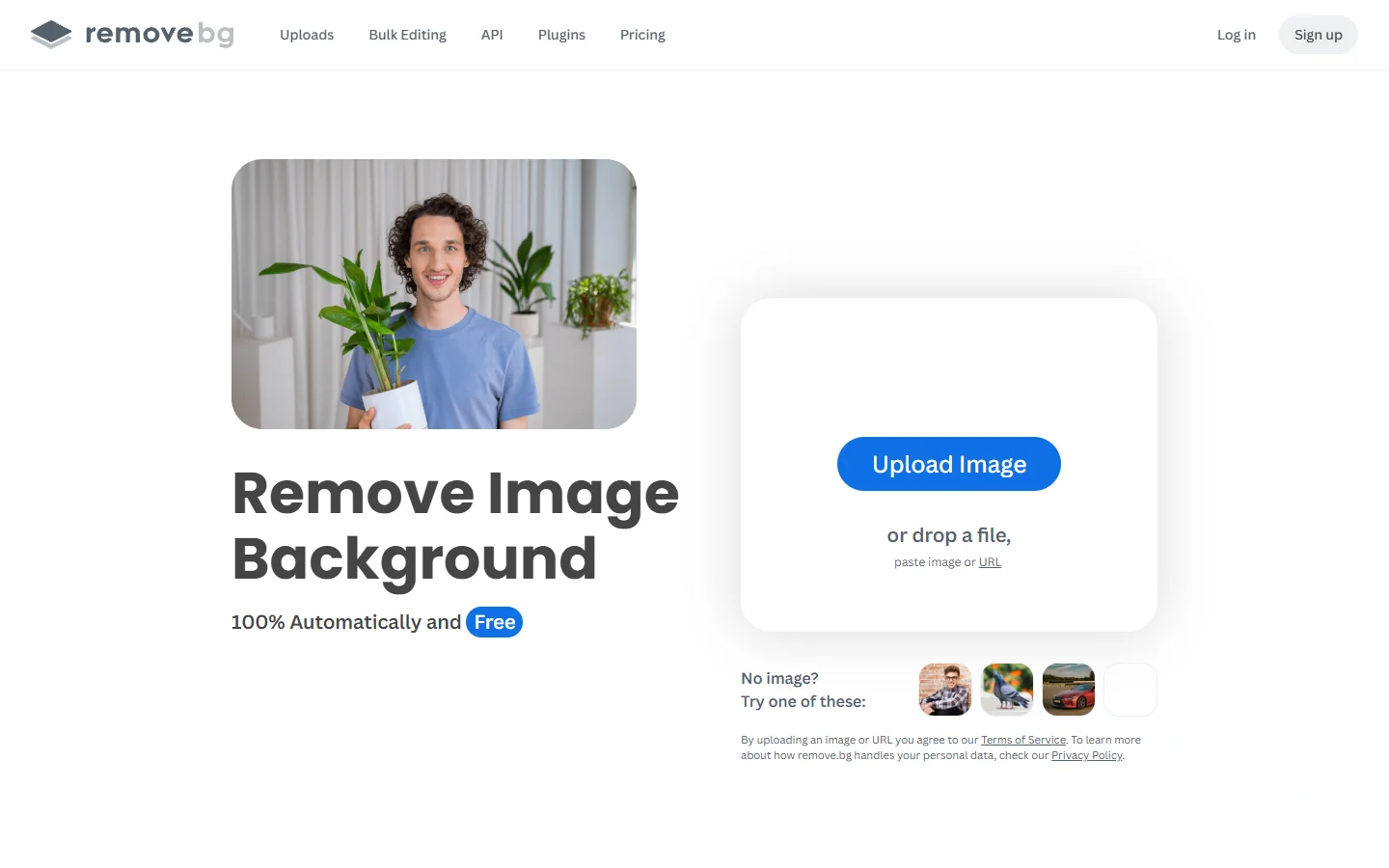
Remove.bg is one of the oldest dedicated background removal tools on the web. It handles portraits especially well, with strong edge detection around hair, fur, and translucent objects. You upload an image, and the AI returns a transparent PNG in seconds.
The free tier limits output resolution to 0.25 megapixels, but for social media thumbnails and web graphics that is usually enough. Batch processing and full-resolution downloads require a paid plan or API credits.
Adobe Express
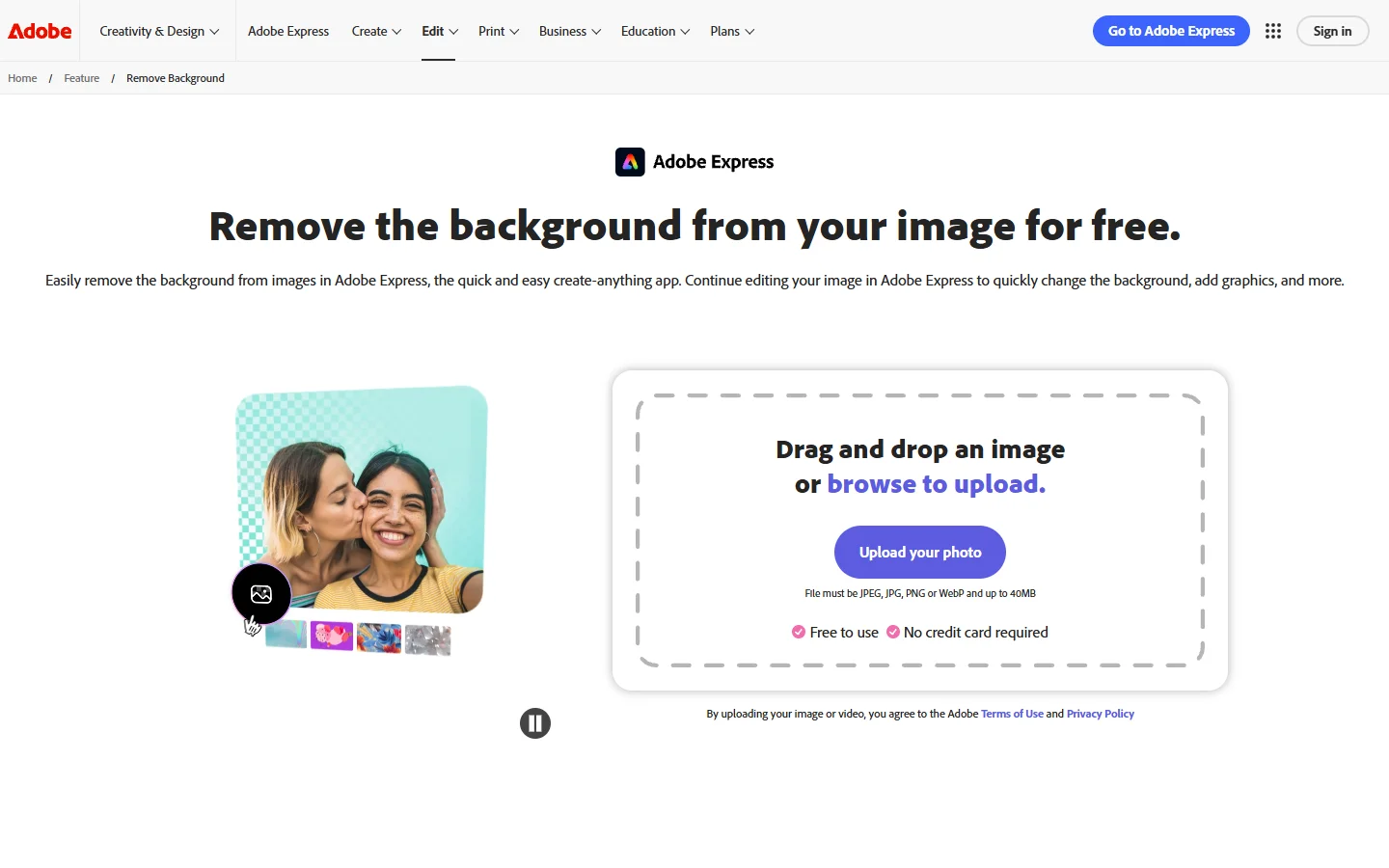
Adobe Express bundles background removal into its free online editor. The tool leverages Adobe Sensei, the same AI engine behind Photoshop, so edge accuracy is strong even on complex subjects. After removing the background you can immediately drop the cutout onto templates, add text, or swap in a new backdrop without leaving the editor. The free plan includes unlimited background removals with no watermarks, which makes it a solid pick for creators who already use other AI image generators and want a quick editing step.
Canva
Canva’s Background Remover sits inside its design editor, so the moment you remove a background you are already in a full design workspace. Upload a photo, tap “BG Remover,” and the AI isolates the subject with an adjustable erase/restore brush for fine-tuning edges. The tool is available on Canva Pro and occasionally in limited form on the free tier. Its biggest advantage is context: once the background is gone, you can place the subject on branded templates, pair it with stock images, or export in multiple formats, all without switching apps. For photographers exploring FLUX model capabilities for realistic images, Canva’s editing layer pairs nicely with AI-generated backdrops.
Photoroom
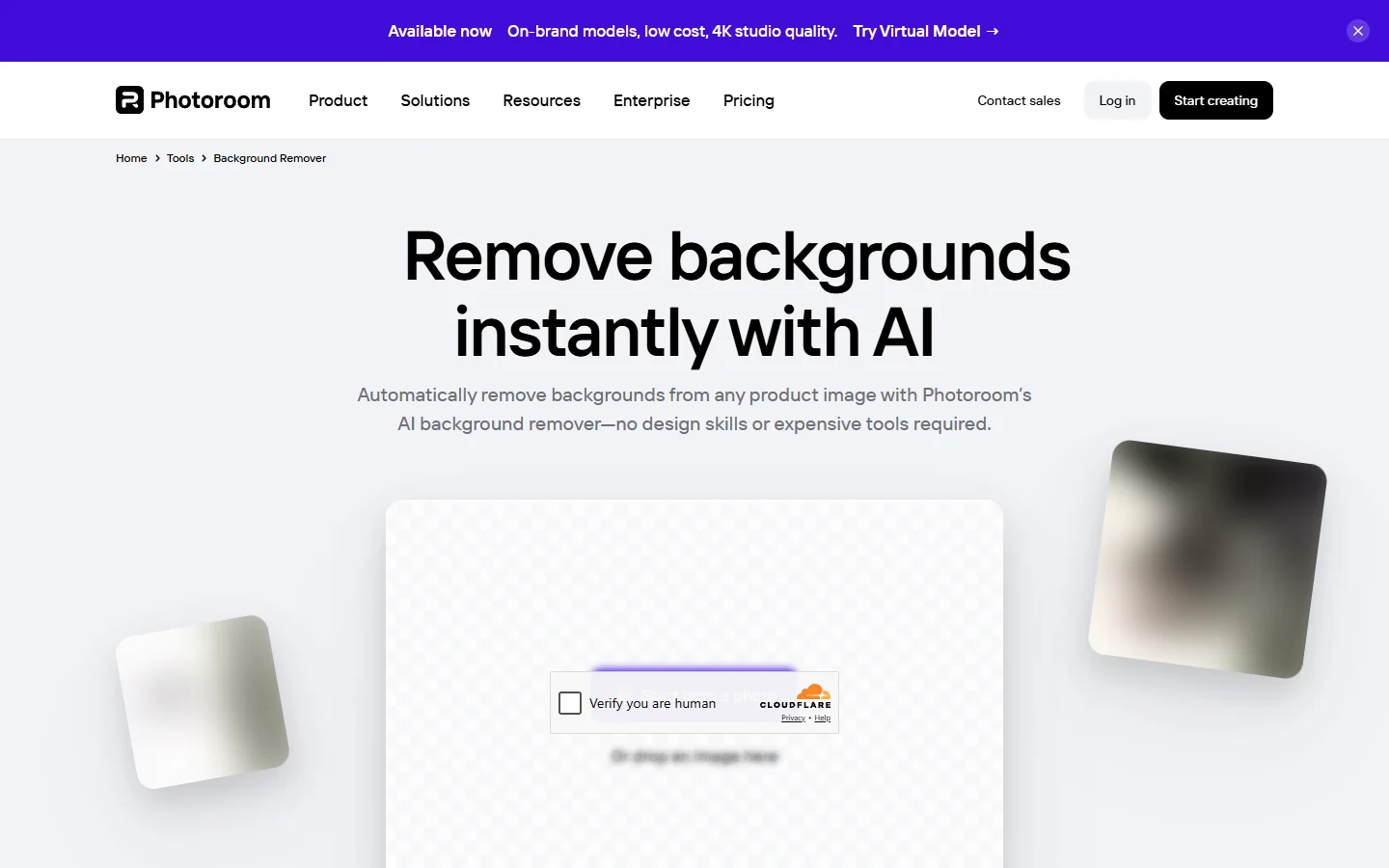
Photoroom started as a mobile-first background removal app and has grown into a full product photography studio. Its web tool lets you remove backgrounds instantly with no signup required. The AI handles reflections, shadows, and semi-transparent edges well, and it can auto-generate new backgrounds to match your brand palette. The free version adds a small watermark, but the removal quality itself is unrestricted. Photoroom is particularly popular with e-commerce sellers who need consistent, clean product shots at scale, and it integrates with platforms like Shopify and Etsy. If you are exploring AI-powered prompt techniques for generating product backdrops, Photoroom can handle the final cutout step.
Clipdrop
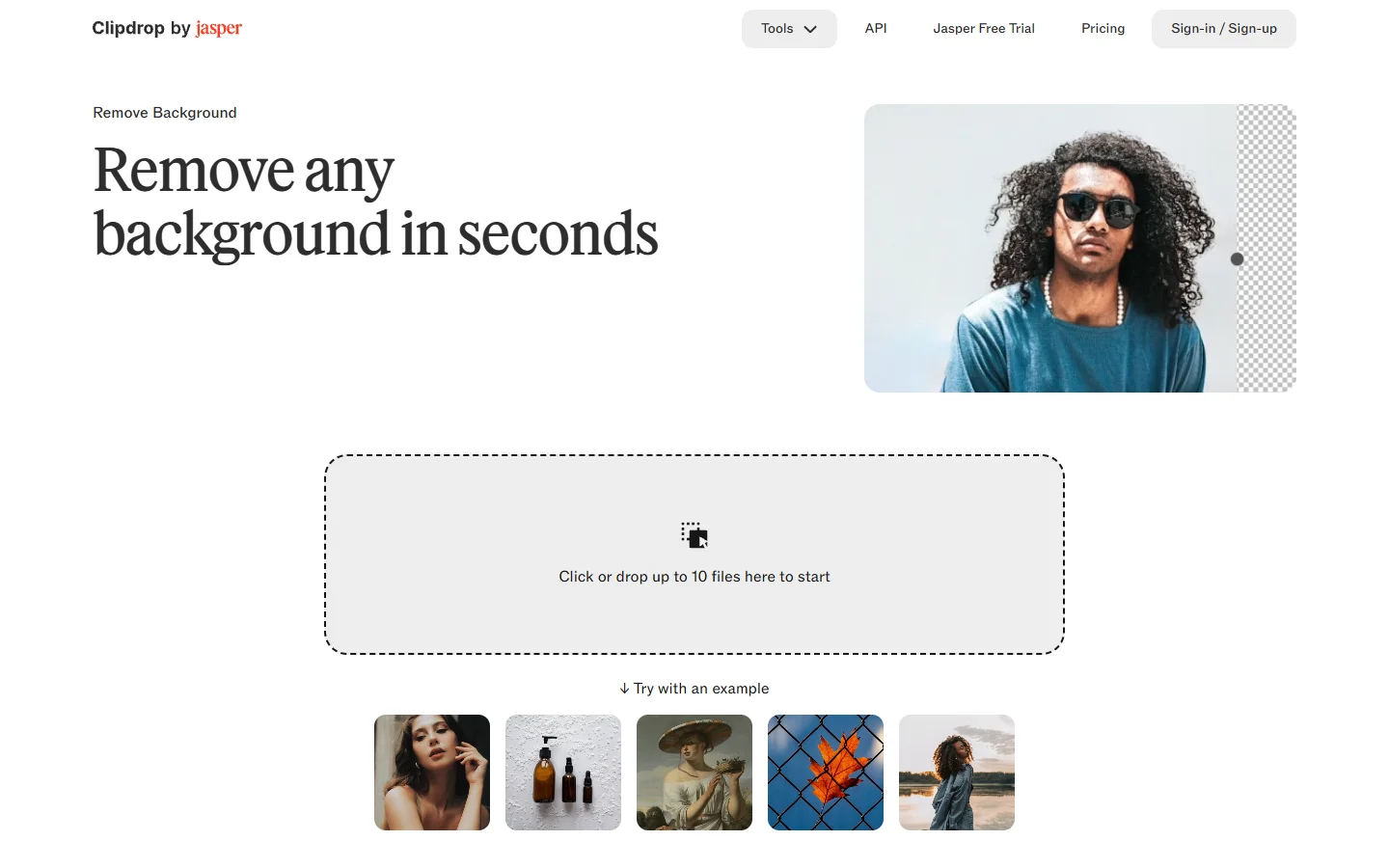
Clipdrop, now part of the Stability AI ecosystem, offers a background removal API alongside a web interface. The tool is fast and handles group photos and complex compositions better than most competitors. Beyond background removal, Clipdrop bundles image upscaling, relighting, and object removal into the same workspace. The free tier gives you a generous daily allowance. If you work with AI image editing and photo tools, Clipdrop’s multi-tool approach means you can handle several editing steps in one place.
Pixelcut
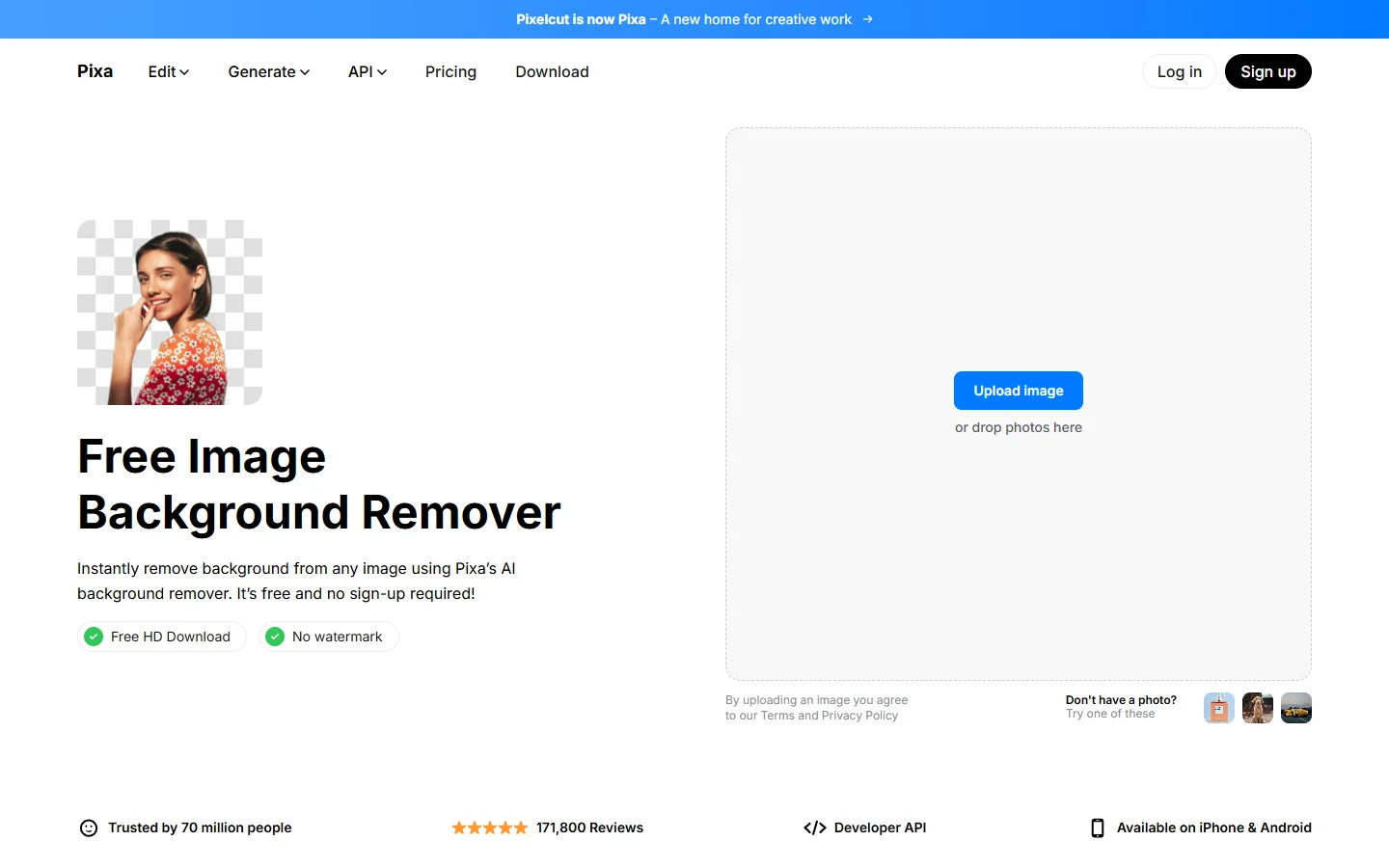
Pixelcut is a mobile-friendly background remover built for sellers and social media creators. The app removes backgrounds in one tap and offers AI-generated backdrops, shadow effects, and batch editing. The free plan covers basic removals and a limited number of AI backdrop generations per day. Where Pixelcut stands out is speed on mobile: the entire flow from camera to finished product photo takes under 30 seconds. For users who generate images with FLUX models and then need quick post-processing on their phone, it fills a useful gap.
How to Choose the Right Background Remover
Picking a tool depends on your workflow and output needs. Here are the key factors to consider:
- Edge accuracy on hair and fur: Remove.bg and Adobe Express lead here, thanks to mature AI models trained on portrait data.
- Design integration: If you need to immediately place cutouts onto templates, Canva and Adobe Express keep you in one editor.
- Mobile workflow: Pixelcut and Photoroom are optimized for phone-based shooting and editing.
- API access: Clipdrop and Remove.bg both offer developer APIs for integrating background removal into automated pipelines.
- Batch processing: Photoroom and Pixelcut handle bulk product photos efficiently on their paid plans; free tiers are limited to single images.
- No watermark on free tier: Adobe Express and Remove.bg (at reduced resolution) deliver clean outputs without branding.

Comparison Table
| Tool | Free Tier | Watermark | API | Mobile App | Best For |
|---|---|---|---|---|---|
| Remove.bg | Yes (low-res) | No | Yes | Yes | Portraits, quick single edits |
| Adobe Express | Yes | No | No | Yes | Integrated design workflow |
| Canva | Limited | No | No | Yes | Template-based design |
| Photoroom | Yes | Small | Yes | Yes | E-commerce product photos |
| Clipdrop | Yes (daily limit) | No | Yes | Yes | Multi-tool editing |
| Pixelcut | Yes (limited) | No | No | Yes | Mobile-first sellers |
The table above covers the core differences, but real-world performance varies by image type. For portraits and product shots, run a quick test with your own images across two or three tools before committing to one. You can also explore FLUX-generated sample images to see how AI-generated content pairs with these removers.
FAQ
Is AI background removal as accurate as manual editing?
For most use cases, yes. Modern AI models handle hair, fur, and semi-transparent edges well enough for web, social media, and e-commerce. The same neural network architectures used in models like Recraft V3 power these segmentation tools. Professional retouching for print or fashion campaigns may still benefit from manual refinement in Photoshop.
Do free background removers add watermarks?
It depends on the tool. Adobe Express and Remove.bg (at reduced resolution) do not watermark free outputs. Photoroom adds a small watermark on free exports. Canva’s BG Remover requires a Pro subscription for most users.
Can I use these tools for commercial purposes?
Yes. All six tools listed here allow commercial use of the processed images, just like most AI image generation platforms. Check each tool’s terms for specifics around API usage and bulk processing limits.
What image formats work best for background removal?
PNG and JPEG are universally supported. For the cleanest results, upload high-resolution images with good lighting and contrast between the subject and background. If you are working with AI-generated photos from FLUX Krea, exporting at maximum resolution before removing the background gives the best edge quality. Some tools also accept WEBP and HEIC.
How do AI background removers handle group photos?
Most tools are optimized for single subjects. Clipdrop handles group photos better than average. For complex multi-person scenes, you may need to manually refine the mask after the initial AI pass.
Can I replace the background after removing it?
Yes. Photoroom, Canva, and Adobe Express all let you swap in new backgrounds immediately after removal. You can also export a transparent PNG and composite it in any image editor or AI generation tool.
Are there privacy concerns with uploading photos?
Most tools process images on their servers and delete them after a set period (typically 1-24 hours). Clipdrop and Remove.bg both state that uploaded images are not used for training. If privacy is critical, check each tool’s data policy before uploading sensitive images.
Conclusion
Free background removal tools have reached a point where the quality gap between free and paid options is mostly about resolution and batch volume, not accuracy. Remove.bg remains the go-to for quick single-image edits, Adobe Express offers the best integrated design experience, and Photoroom leads for e-commerce workflows. If you want to combine background removal with AI image generation in a single pipeline, you can learn more about platforms that bundle both capabilities. Whichever tool you pick, the days of manually tracing subjects with the pen tool are firmly behind us.