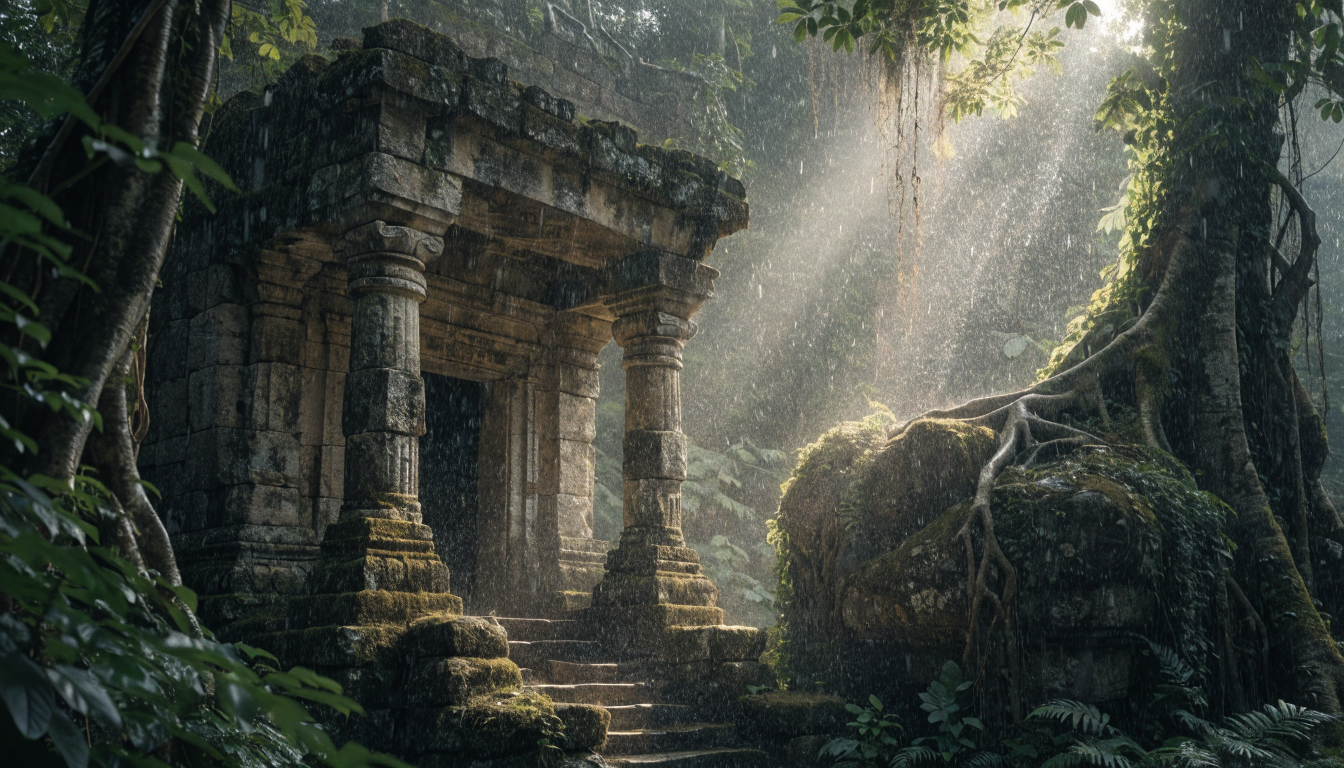
Making a still photo talk used to require expensive motion capture rigs and professional video editors. In 2026, a handful of free AI tools let you upload a portrait, type a script or record audio, and get a lip-synced talking video back in under a minute. Whether you need a quick product explainer, a personalized greeting, or a social media clip, the barrier to entry has dropped to zero. Below is a practical walkthrough of how to do it, which tools work best, and tips for getting the most realistic results from your AI-generated portraits.
What Are AI Talking Photos?
AI talking photos combine face detection, lip-sync modeling, and text-to-speech (or audio input) to animate a still image into a short video. The AI maps facial landmarks in your photo, generates realistic mouth movements that match the audio, and blends the animation with the original image so the result looks natural. Most tools handle head movement and subtle expressions automatically.
The technology builds on the same diffusion and GAN research that powers text-to-image generation, but adds a temporal dimension: instead of producing a single frame, the model outputs a sequence of frames where the subject appears to speak. The quality of the source photo matters a lot, which is why pairing a strong portrait generator with a talking-photo tool gives the best results.
How to Make a Photo Talk: Step by Step
The process is straightforward and similar across most platforms. If you are starting from scratch, you can generate a portrait with FLUX first:
- Choose or generate a portrait. Use a clear, front-facing photo where the face fills most of the frame. AI-generated portraits from FLUX models work well because they produce sharp, evenly lit faces.
- Upload the image. Most tools accept JPG, PNG, or WebP. Some accept full-body shots but crop to the face automatically.
- Add audio. You can either type text (the tool converts it to speech) or upload your own audio/voiceover file. Typed scripts are faster; uploaded audio gives you full control over tone and pacing.
- Generate. Processing takes 10 to 60 seconds depending on video length and the tool’s queue. Free tiers usually cap output at 30 to 60 seconds.
- Download. Most free tools add a small watermark. Paid plans remove it.
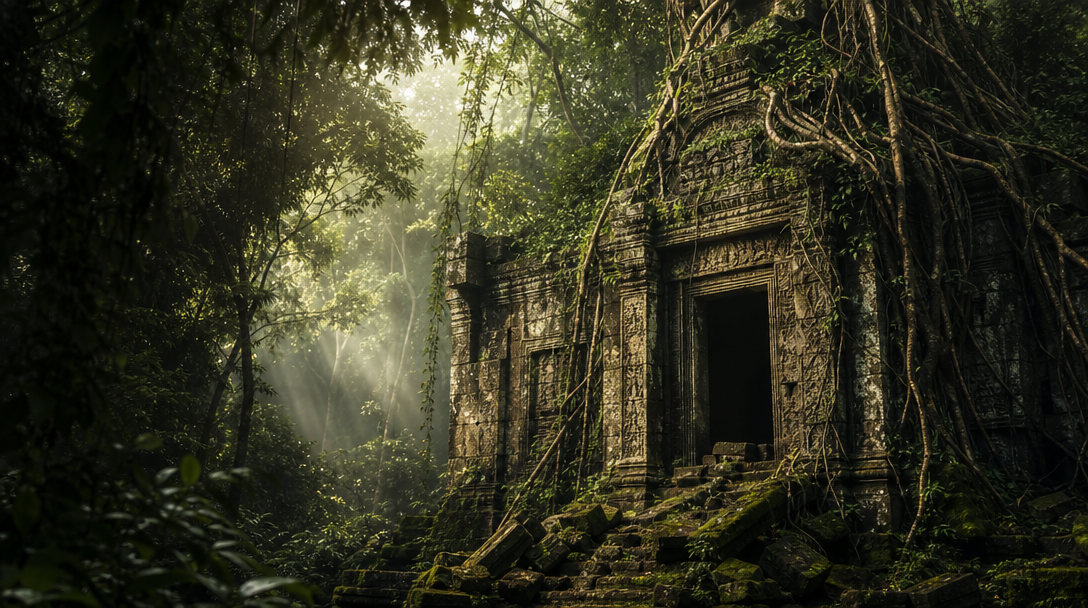
For the best lip-sync accuracy, use a photo where the mouth is closed or slightly open in a neutral expression. Extreme angles, sunglasses, or heavy shadows confuse the face-detection model and produce artifacts around the jaw. If your portrait needs cleanup, a prompt generator can help you create a better base image.
Best Free Tools to Make Photos Talk
Here is a comparison of the most capable free options available right now. Each tool was tested with the same AI-generated portrait and a 15-second script.
Vidnoz AI Talking Photo
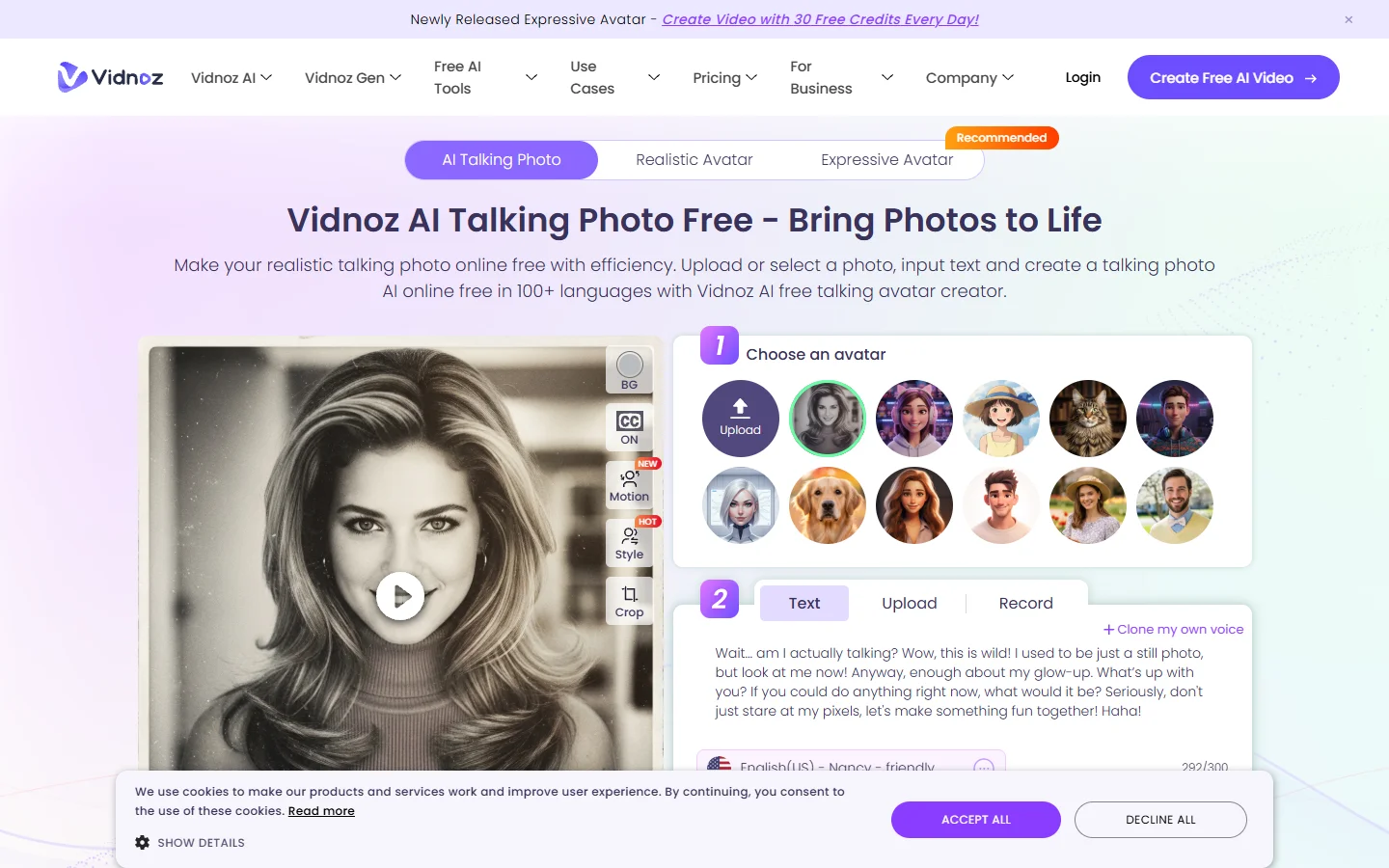
Vidnoz offers a browser-based talking photo generator with no sign-up required for the first few uses. It supports over 140 languages and includes a library of stock avatars if you do not have your own image. The free tier allows videos up to 1 minute with a watermark. Lip-sync accuracy is solid on front-facing portraits but drops on angled shots.
HeyGen
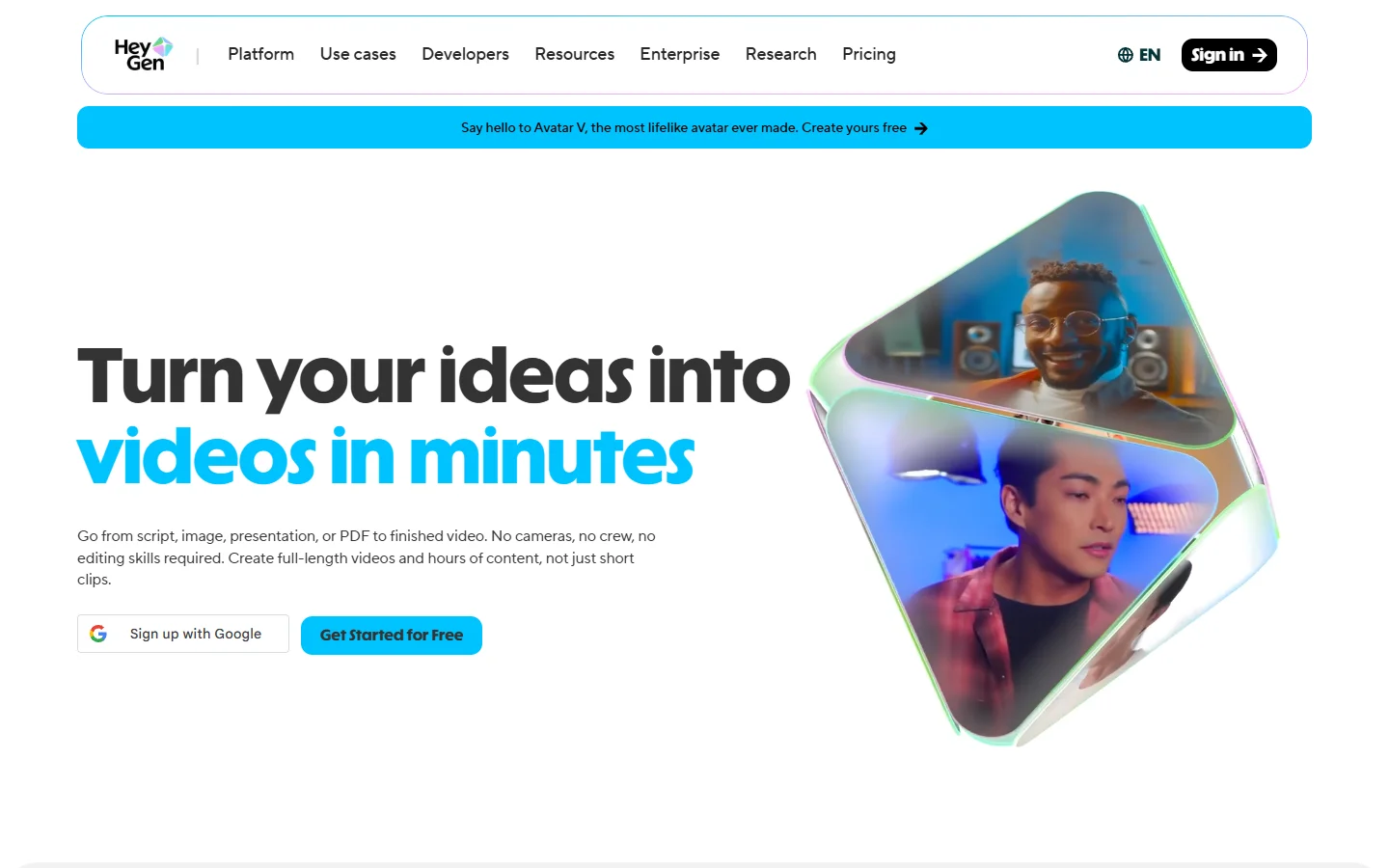
HeyGen is primarily an AI avatar video platform, but its talking photo feature is one of the best in the space. The free plan gives you one credit per day and produces high-quality lip sync with natural head movement. It handles both uploaded audio and text-to-speech. The main limitation on the free tier is resolution (720p) and the HeyGen watermark.
Virbo by Wondershare
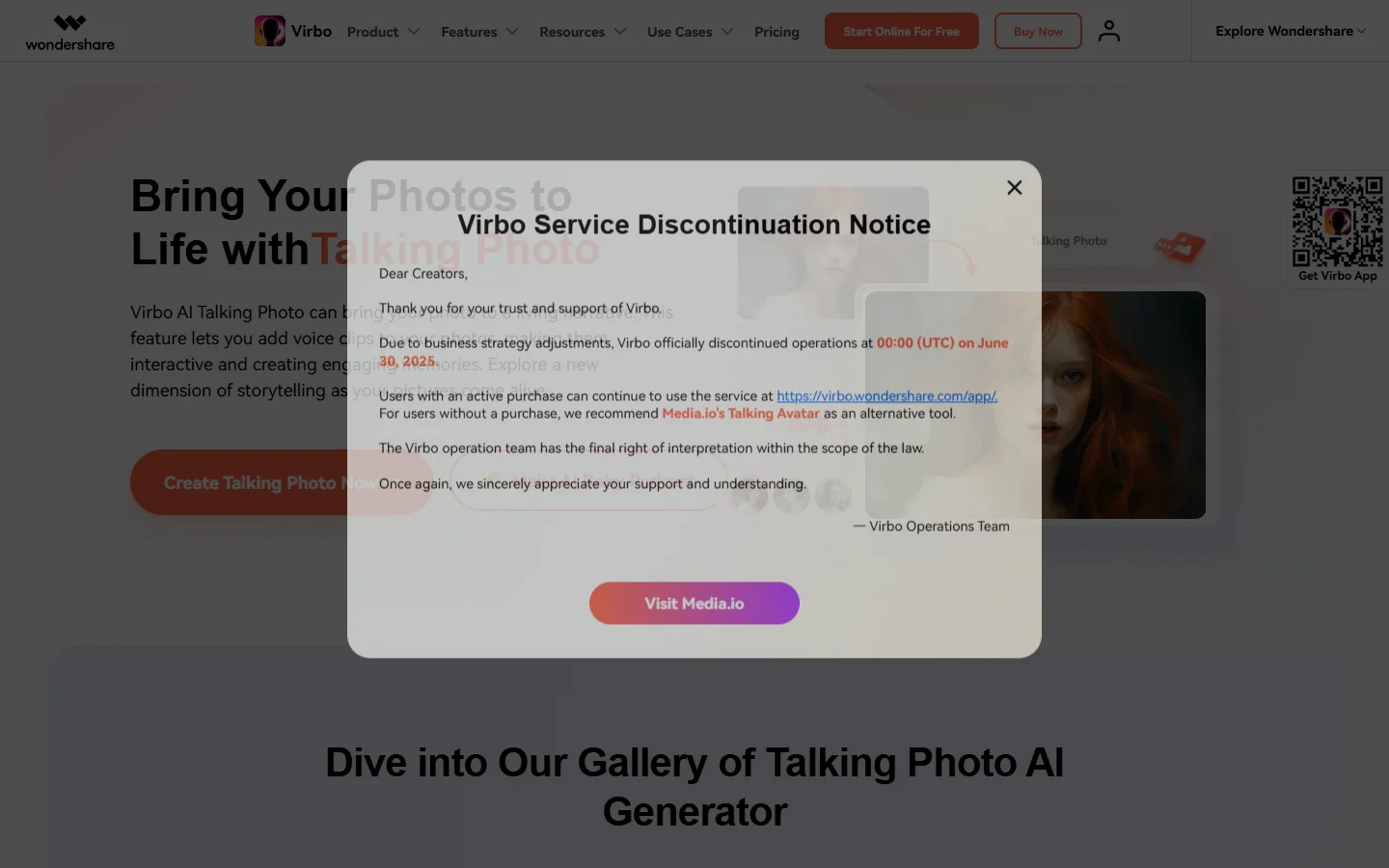
Virbo offers both a web app and desktop client. The free tier includes 3 minutes of video generation per month. Virbo stands out for its multi-language support and the quality of its built-in TTS voices. It also supports photo background changes before animation, so you can composite your subject into a new scene first.
Magic Hour
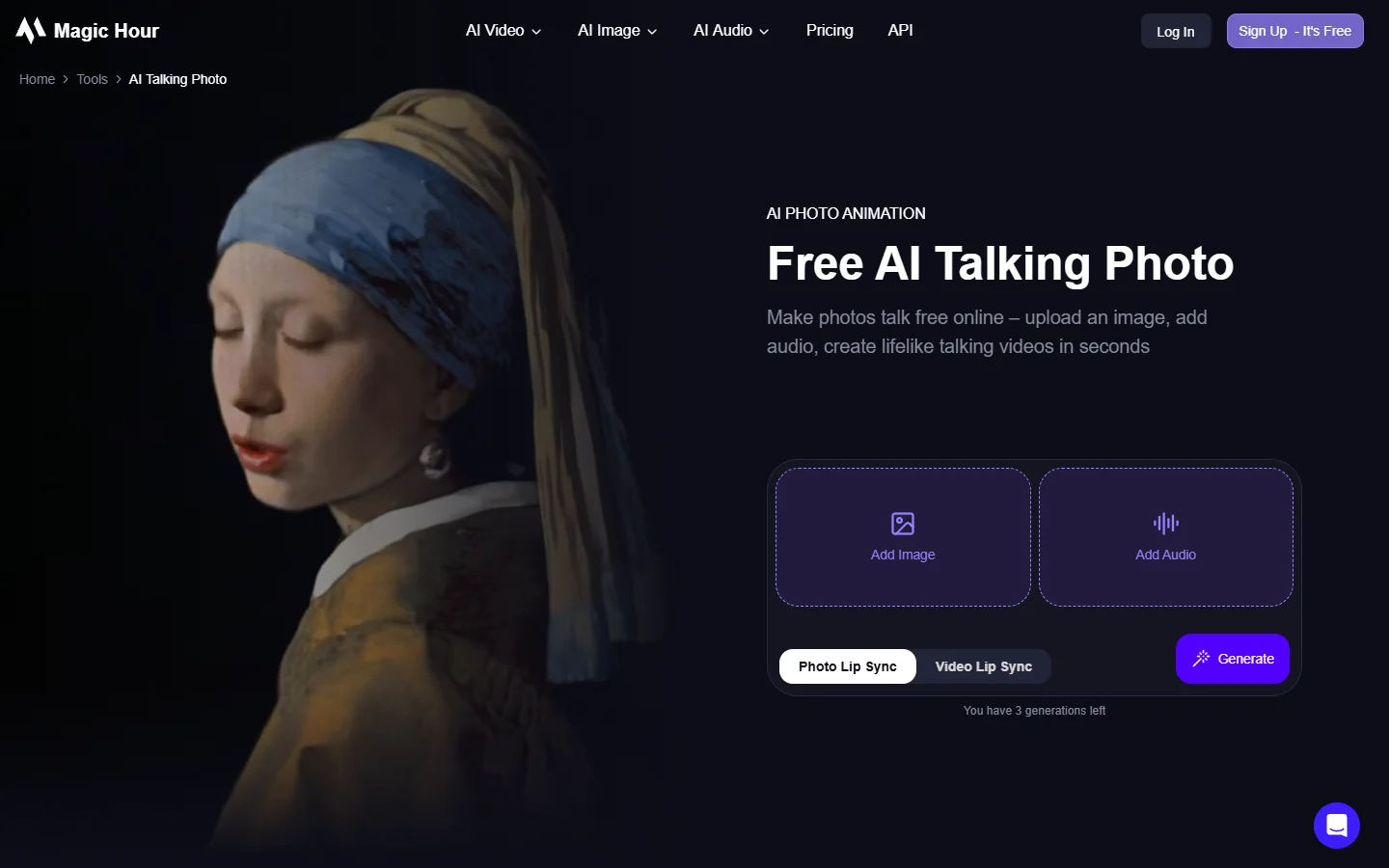
Magic Hour provides 3 free talking photos per day with no sign-up. The interface is minimal: upload a photo, paste text, click generate. Results are delivered in about 20 seconds. Quality is good for short clips (under 15 seconds) but longer outputs sometimes lose sync. It is a solid pick for quick social media content.
D-ID Creative Reality Studio
D-ID was one of the first platforms to popularize AI talking photos. The free trial gives you 5 minutes of video. Its lip-sync engine handles multiple face angles better than most competitors, and it recently added support for image-to-video workflows beyond simple talking heads.
Comparison Table
| Tool | Free Limit | Watermark | TTS Languages | Audio Upload | Best For |
|---|---|---|---|---|---|
| Vidnoz | ~1 min/use | Yes | 140+ | Yes | Quick no-signup clips |
| HeyGen | 1 credit/day | Yes | 40+ | Yes | Highest quality lip sync |
| Virbo | 3 min/month | Yes | 20+ | Yes | Multi-language + desktop |
| Magic Hour | 3/day | Yes | English | Yes | Fast social content |
| D-ID | 5 min trial | Yes | 30+ | Yes | Multi-angle faces |
Tips for Getting Realistic Results
The source image is the single biggest factor in output quality. Pairing a strong AI photo generator with these tips makes a noticeable difference:
- Use high-resolution portraits. At least 512×512 pixels. Higher resolution gives the model more facial detail to work with. AI portrait generators like FLUX 1.1 Pro output at 1024×1024 or higher by default.
- Neutral expression, mouth closed. The animation model “opens” the mouth to match speech. Starting from an already-open mouth creates double-articulation artifacts.
- Even, soft lighting. Harsh shadows across the face confuse landmark detection. Studio-style or overcast lighting works best. You can use an AI image editing suite to adjust lighting and expression in the source portrait before feeding it to a talking-photo tool.
- Solid or blurred background. A busy background can bleed into the face animation. Remove or blur it using a background removal tool before uploading.
- Match audio pace to the tool’s capability. Fast speech produces choppier lip sync in most free tools. A measured, conversational pace around 130 to 150 words per minute gives the smoothest results.

Creative Use Cases
Talking photos are not just a novelty. Here are practical ways creators and businesses use them:
- E-commerce product introductions. A brand founder’s photo “explains” the product in a 30-second clip. No video shoot needed.
- Social media engagement. Animated portraits grab attention in Instagram Stories and TikTok, especially when paired with a prompt-crafted AI image as the base.
- Education and training. Instructors turn a headshot into a mini-lecture. Particularly useful for asynchronous courses and internal knowledge bases.
- Historical and archival projects. Museums and genealogy enthusiasts animate old family portraits or historical figures. Some tools from the spell-review roundup evaluate quality control in these outputs.
- Personalized messages. Birthday greetings, holiday cards, or welcome messages where the sender’s photo “speaks” to the recipient.
Frequently Asked Questions
Is it really free to make photos talk with AI? Yes. Every tool listed above offers a free tier or trial. The trade-offs are watermarks, lower resolution, and limited generation time. For occasional use, free plans are more than enough.
What photo format works best? PNG or high-quality JPG. Avoid heavily compressed images where facial details are blurry. The sharper the input, the more convincing the output animation.
Can I use AI-generated portraits instead of real photos? Absolutely. AI-generated faces from FLUX or similar models often produce better results than phone selfies because the lighting and resolution are more consistent.
Do talking photo tools work with group photos? Most tools detect one face and animate it. For group photos, you would need to crop individual faces first, animate them separately, and composite the results.
How long can a free talking photo video be? Typically 30 to 60 seconds. Vidnoz and D-ID offer the longest free outputs. HeyGen’s free tier is limited to one short clip per day. For longer AI video projects, you may need a paid plan.
Are there privacy concerns with uploading my photo? Review each tool’s privacy policy before uploading. Some retain uploaded images for model training. If privacy matters, use an AI-generated portrait instead of a real one.
Can I add my own voice recording instead of text-to-speech? Yes, all five tools support audio file uploads. This is the better option when you want a specific voice or delivery style that TTS tools cannot replicate.
Conclusion
Making photos talk with AI is now accessible to anyone with a browser and a portrait image. The tools compared here each handle the core job well, with differences mainly in free-tier limits, language support, and lip-sync smoothness. For the best results, start with a clean, high-resolution portrait (AI-generated or real), add a well-paced script, and pick the tool that fits your output needs. If you want to chain portrait generation, background editing, and animation into a single automated pipeline, Wireflow’s visual workflow platform connects these steps so you can produce talking-photo content at scale without switching between apps.