Creating animations used to require months of frame-by-frame work, expensive software licenses, and a team of skilled artists. In 2026, AI tools have compressed that timeline from weeks to minutes. Whether you need animated explainers for marketing, motion graphics for social media, or fully rendered character sequences for a short film, the current generation of AI animation tools can handle most of it with a text prompt and a few parameter tweaks.
This guide walks through the practical steps of creating animations with AI, covers the tools worth using, and explains how to get consistent, production-quality results from each approach.
How AI Animation Actually Works
Most AI animation tools rely on one of three underlying techniques. Generative video models (like those behind Runway and Kling) predict frame sequences from text or image inputs using diffusion-based architectures. Motion capture AI (like DeepMotion) tracks body movement from standard video and maps it onto 3D rigs. Template-based generators (like Renderforest) use pre-built scenes and swap in your content, logos, and text using AI-driven layout logic.
The quality ceiling varies across these categories. Generative models produce the most visually striking results but give you less frame-level control. Motion capture tools offer precision for character animation. Template engines are fastest for branded content at scale.
Step 1: Choose the Right Tool for Your Animation Type
The tool you pick depends on what you are making. Here is a breakdown by use case, from quick video clips to full 3D character rigs:
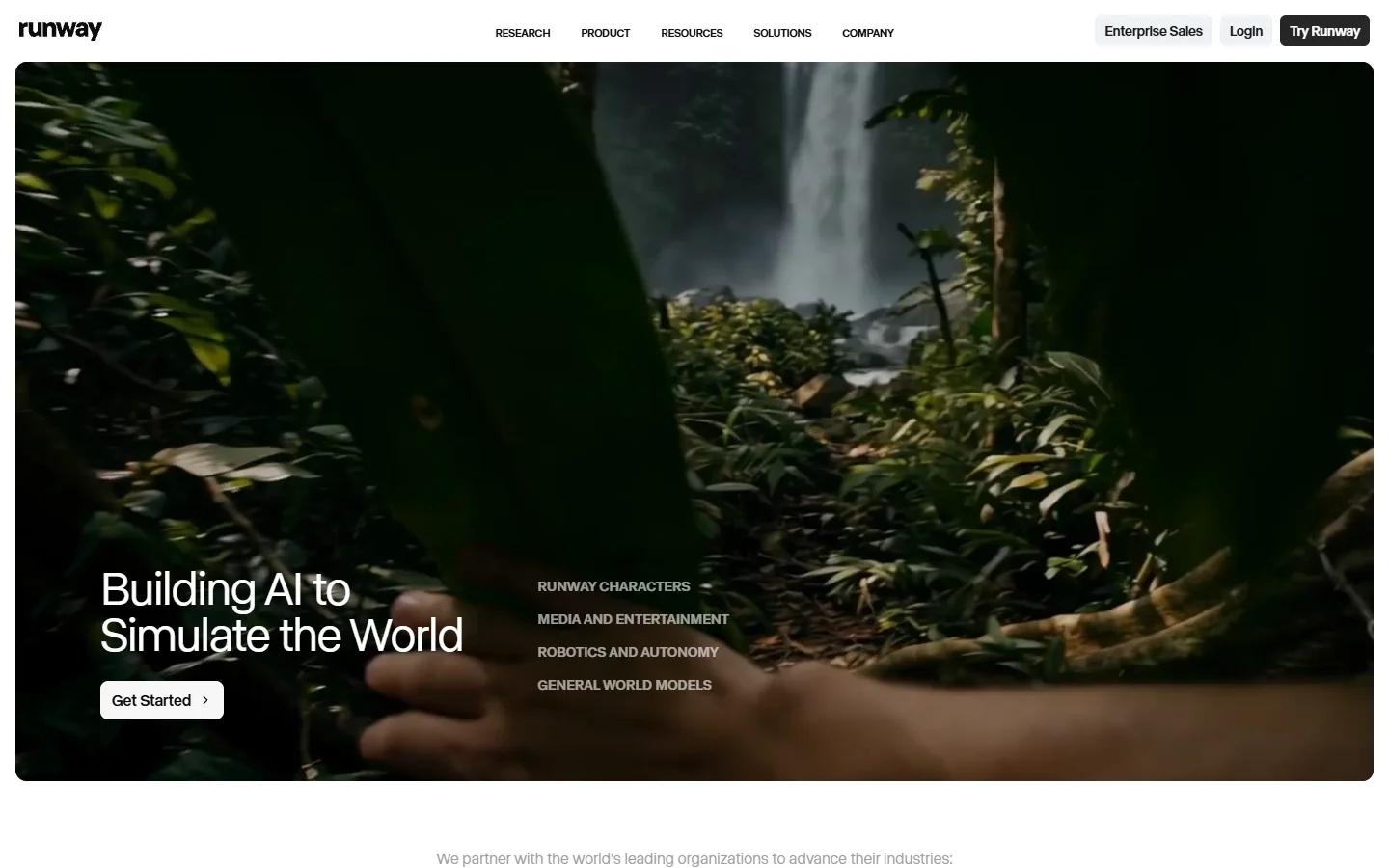
Short-form video clips (social media, ads): Runway Gen-4 or Kling AI generate 5-10 second clips from text or image prompts. Both support image-to-video conversion, which means you can start from a FLUX-generated still and animate it.
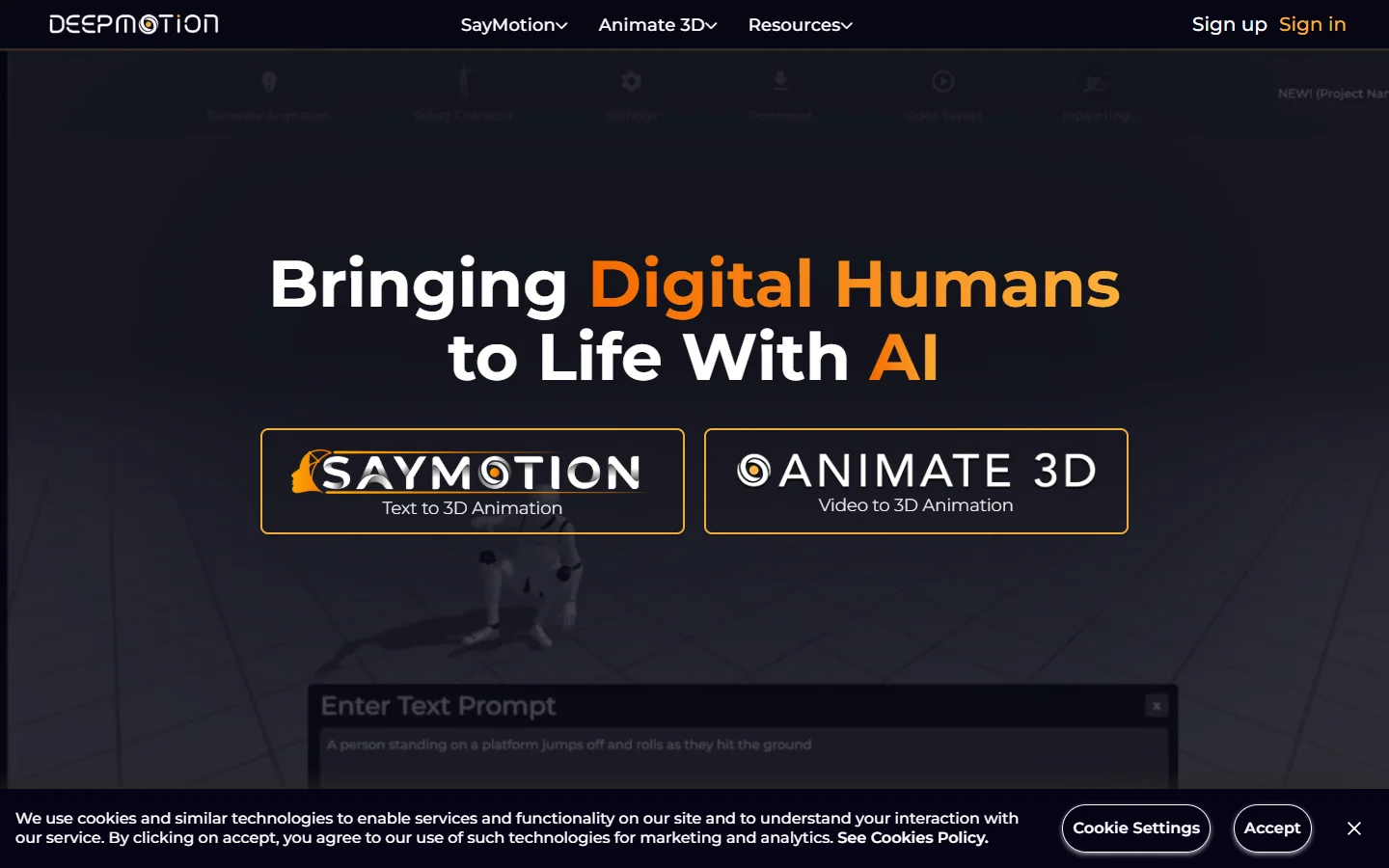
Character animation and rigging: Cascadeur uses AI-assisted physics to auto-generate realistic keyframes for 3D characters. DeepMotion converts webcam footage into skeletal motion data you can apply to any rigged model.
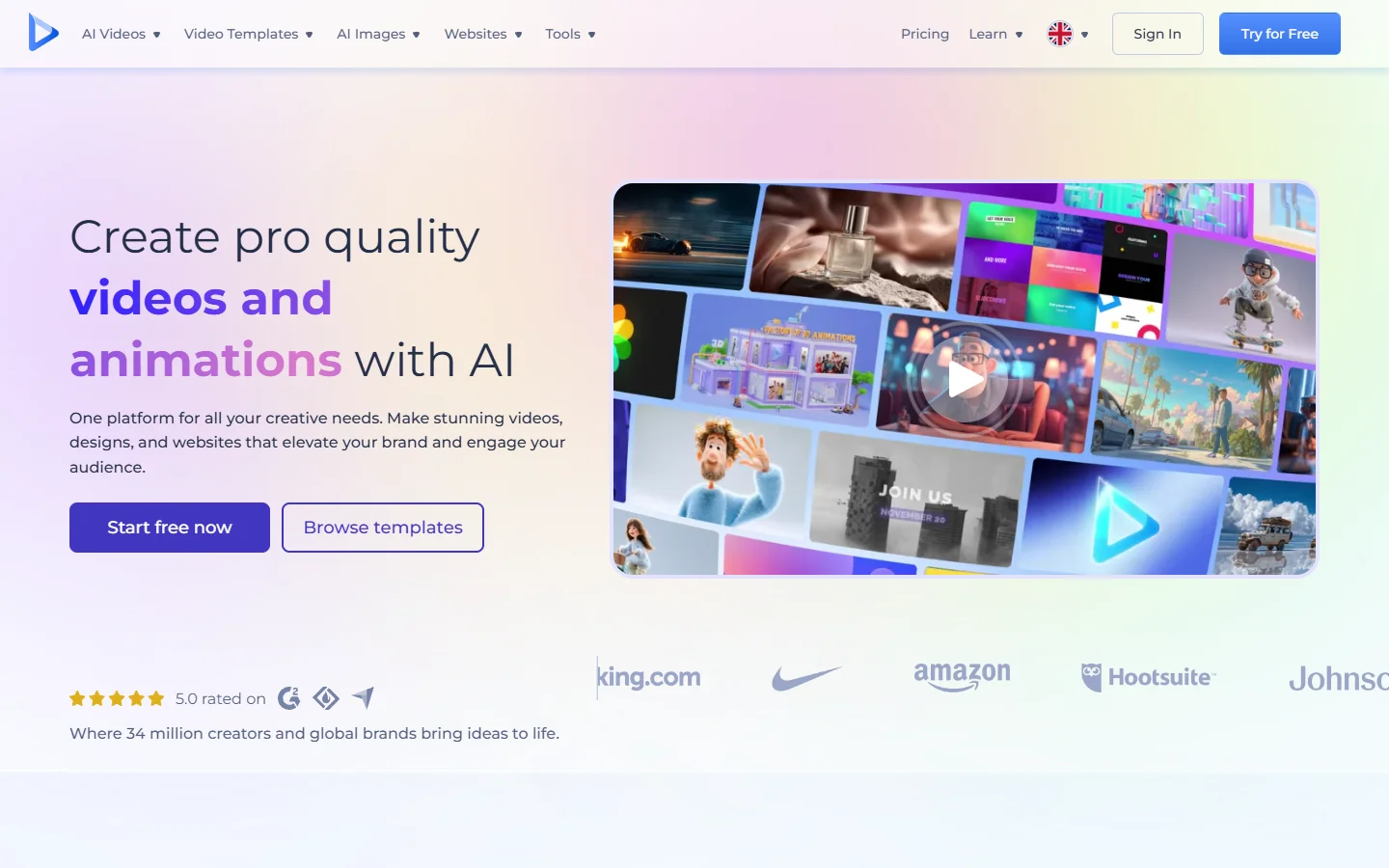
Explainer videos and branded content: Renderforest and similar template engines let you produce polished animated videos without touching a timeline. You pick a template, input your script, and the AI handles scene transitions, text placement, and pacing.
Full creative pipelines: If you need to chain multiple AI steps together (generate an image, animate it, add voiceover, composite), platforms like Wireflow’s creative tools let you build node-based workflows that connect these stages into a single automated sequence.
Step 2: Start With a Strong Source Image
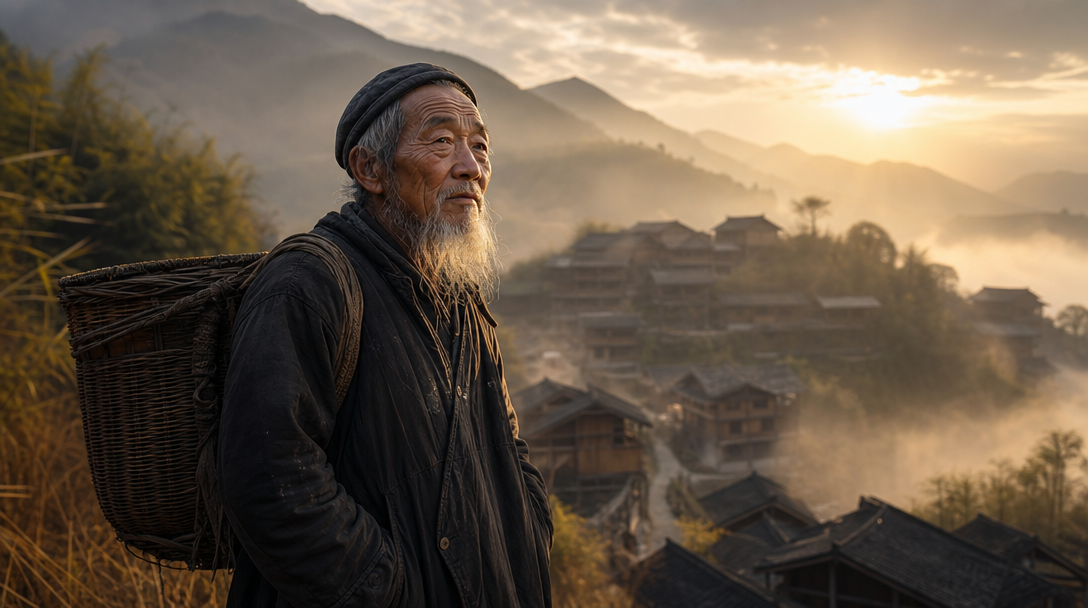
The best AI animations start from a well-composed source image rather than a raw text prompt. Here is why: when you give a generative model both an image and a motion prompt, it has far less to “invent,” which means fewer artifacts and more consistent results.
For source images, FLUX models produce particularly clean results because of their high coherence at complex scenes. You can generate a character pose, a landscape, or a product shot using FLUX 1.1 Pro and then feed that directly into an animation tool.
Tips for source images that animate well:
- Clear subject separation from background
- Stable lighting (avoid mixed light sources that confuse motion models)
- Natural poses rather than extreme angles
- Resolution of at least 1024×1024 for clean upscaling
Step 3: Write Effective Motion Prompts
Motion prompts work differently from image generation prompts. Instead of describing a static scene, you describe what changes over time.
Structure your motion prompt in three parts. First, the subject action: “A woman walks forward through a forest.” Second, the camera movement: “slow dolly push-in” or “static locked shot.” Third, the atmosphere and timing: “golden hour lighting, gentle breeze, 4 seconds.” If you need help crafting visual descriptions, studying real-world FLUX outputs can provide structured starting points.
Single, clear actions with one subject doing one thing produce the best results. Explicit camera instructions and consistent lighting descriptions also help.
What breaks:
- Multiple subjects doing different things
- Rapid scene changes within a single generation
- Vague descriptions like “something cool happens” (see FLUX prompt examples for patterns that work consistently)
Most tools generate 3-10 second clips per prompt. For longer sequences, generate multiple clips with overlapping start/end frames and composite them in a video editor. Some free AI video generators offer basic concatenation features built in.
Step 4: Refine and Iterate
AI animation rarely nails it on the first try. Plan for 3-5 iterations per clip. Here is a practical refinement workflow:
- Generate at low resolution first. Most tools have a draft or preview mode. Use it to test your prompt before burning credits on full-quality renders.
- Fix artifacts with inpainting. If a frame has a warped hand or a flickering background, use AI image editing tools to fix the individual frame, then regenerate from that corrected frame.
- Adjust motion intensity. Most tools expose a “motion strength” or “guidance scale” parameter. Lower values produce subtler, more controlled movement. Higher values create dramatic transformations but risk coherence.
- Composite multiple passes. Generate the background motion and foreground motion separately, then layer them. This gives you independent control over each element.
For creators who need to learn more about chaining these refinement steps into repeatable pipelines, workflow automation tools can handle the iteration loop programmatically.
Comparing the Top AI Animation Tools
| Tool | Best For | Input Type | Output Length | Free Tier |
|---|---|---|---|---|
| Runway Gen-4 | Cinematic clips | Text, image, video | 5-16 sec | Limited |
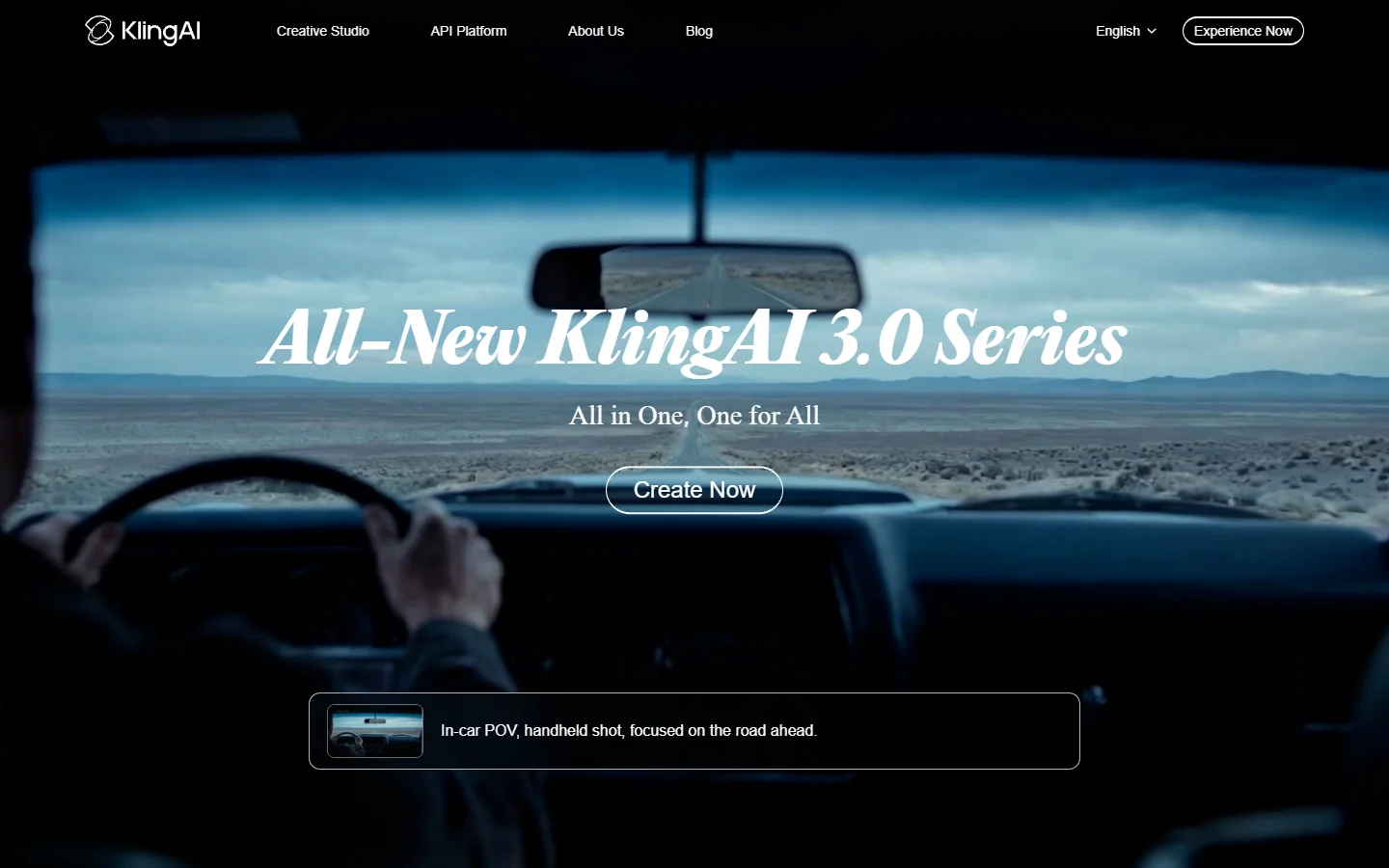
| Kling AI | Realistic motion | Text, image | 5-10 sec | Yes |
| DeepMotion | Character rigging | Video (mocap) | Unlimited | Yes |
| Renderforest | Branded explainers | Templates + text | 1-10 min | Yes (watermark) |
| Cascadeur | 3D character physics | 3D models | Unlimited | Free tier |
Each tool has different strengths. Runway and Kling lead for pure generative quality. DeepMotion and Cascadeur are better when you need precise control over how characters move. Renderforest wins on speed for branded video production when polish matters more than novelty.
For a broader directory of AI tools across categories, AI Directories maintains a curated index organized by use case.
Common Mistakes to Avoid
Overcomplicating prompts. Simpler prompts with one clear action produce better results than dense descriptions. Good prompt technique matters: AI models handle “dog runs across a beach” far better than “golden retriever sprints across wet sand while seagulls fly overhead and waves crash in the background at sunset.”
Ignoring aspect ratio. Still image generation and animation tools often default to different aspect ratios. If you generate a 16:9 image and feed it to a tool that outputs 9:16, you will get cropping artifacts. Match your source to your target format.
Skipping the source image step. Text-only generation is convenient but produces less consistent results. Whenever possible, generate a source image first and use image-to-video mode.
Not planning for post-production. AI-generated clips almost always need color grading, audio, and transitions added in a traditional editor. Build that step into your timeline.
FAQ
What is the easiest AI tool for beginners to create animations? Renderforest is the most approachable since it uses templates rather than open-ended prompts. You choose a style, input your text, and the AI handles composition. For text-to-video from scratch, Kling AI has a straightforward interface with a generous free tier.
Can I create animations from AI-generated images? Yes. This is actually the recommended workflow. Generate a high-quality still image using FLUX or a similar model, then feed it into Runway or Kling’s image-to-video mode. The results are more coherent than pure text-to-video generation.
How long can AI-generated animations be? Most generative tools produce clips of 3-16 seconds per generation. For longer content, generate multiple clips and edit them together. Template-based tools like Renderforest can produce videos up to 10 minutes from a single project.
Are AI animations good enough for commercial use? For social media, ads, and web content, yes. For broadcast television or cinema, AI animation still serves better as a pre-visualization tool or for specific effects shots rather than full production output. Realistic AI photo generation already meets commercial standards, and video quality improves significantly every few months.
What resolution do AI animation tools output? Most tools output at 720p or 1080p. Runway Gen-4 supports up to 4K output on paid plans. For higher resolution needs, you can upscale individual frames using AI image enhancement tools before compositing.
Do I need a powerful computer to use AI animation tools? No. Most AI animation tools run in the cloud, so your local hardware does not matter. You just need a stable internet connection and a modern browser. The heavy computation happens on the provider’s GPU servers.
Can I animate only part of an image while keeping the rest still? Yes. Runway and several other tools support motion masking, where you paint over the area you want to animate and leave the rest static. This is useful for subtle effects like making hair blow in the wind or water ripple while the surrounding scene stays locked.
Conclusion
Creating animations with AI in 2026 comes down to picking the right tool for your format, starting from strong source images, and writing focused motion prompts. The technology has matured enough that solo creators can produce work that would have required a small studio just two years ago.
The most efficient approach combines AI image generation for source frames with dedicated animation tools for motion, then standard video editing for polish. Whether you are building social content, product demos, or creative short films, these tools make the production pipeline accessible without sacrificing quality.