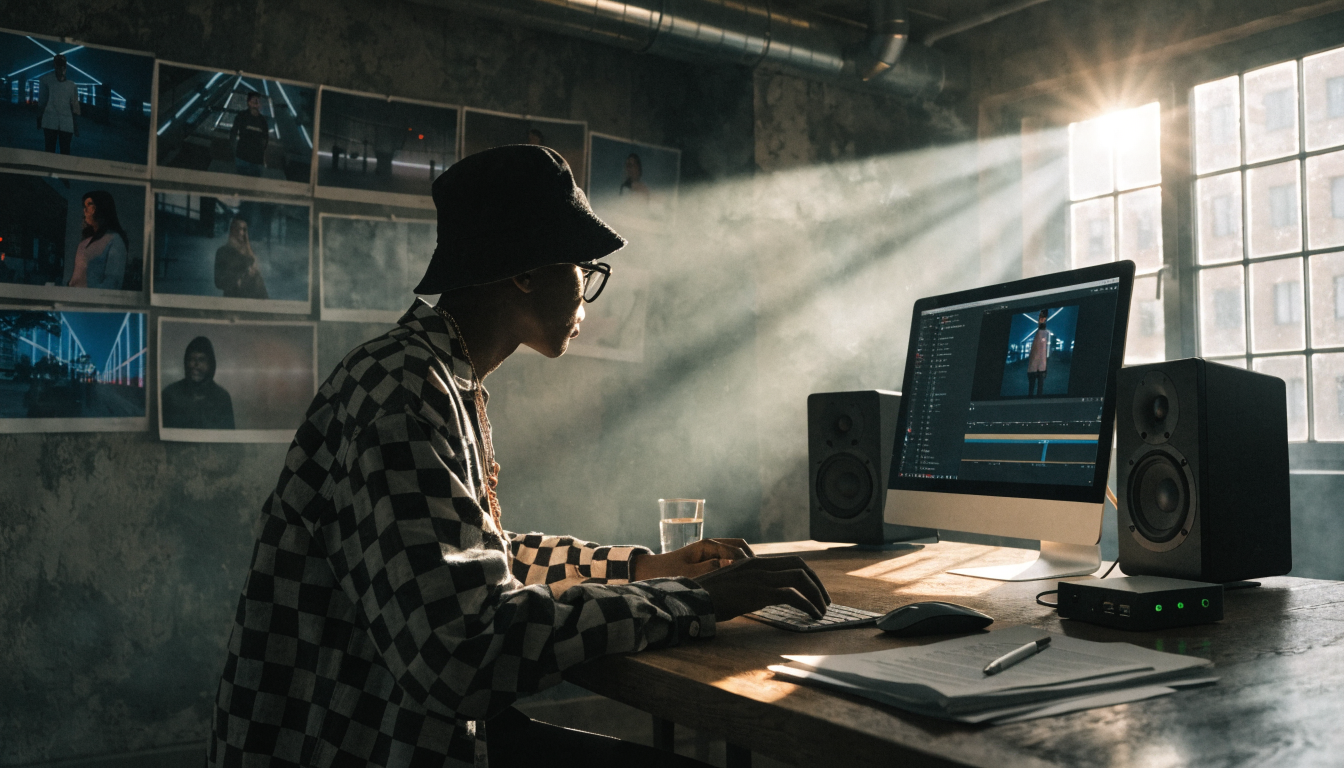
Making an AI music video for free in 2026 is less about finding one tool that does everything and more about building a controlled sequence of small steps. The most reliable approach is to create the visual world in FLUX first, approve still reference frames, and only then animate them. This prevents a singer, outfit, color palette, or location from changing randomly between clips.
The full workflow is straightforward: choose a track, define a visual identity, generate a storyboard in FLUX, animate selected frames, edit to the beat, and export for the intended platform. If image generation is new to you, this text-to-image guide explains the basic prompting process before you start planning a complete video.
Why FLUX should come before animation
The main weakness of clip-by-clip AI video generation is visual drift. A character may gain different facial features, clothing, or proportions in every shot, while lighting and production design also wander. FLUX solves much of this problem by acting as the design engine. One approved portrait, outfit sheet, location study, and color treatment become references for every scene.
Create a storyboard grid before spending limited video credits. Include wide shots, medium performance shots, close-ups, inserts, and transition images, but keep the same character description and style language throughout. You can compare accessible options in this guide to free AI image generators, then keep one FLUX setup for the project instead of switching image styles halfway through.
Plan your visual system before generating clips
Write a compact style bible containing the performer’s age range, hair, clothing, signature prop, locations, lens style, lighting, palette, texture, and aspect ratio. Turn the song into a scene table with timestamps, lyric or mood cues, shot type, reference-frame prompt, intended motion, and duration. A three-minute video usually needs about 25 to 40 shots when clips last four to eight seconds, although repeated choruses can reuse alternate crops or revised motion from established scenes.
A practical free AI music video workflow
1. Choose the track and confirm usage rights
Use your own recording or create a demo with Suno or Udio, then download the highest-quality audio available. Decide whether the release is personal, monetized, or client work, because the service plan used to create the track can affect commercial rights. This comparison of AI music generators for creators is a useful starting point for matching a tool to the project.
2. Map the song and define the visual identity
Mark the intro, verses, choruses, bridge, drops, and final beat in an editor such as CapCut, DaVinci Resolve, or Shotcut. Give each section a visual purpose. For example, verses can establish narrative locations, choruses can return to a performance setup, and instrumental breaks can use abstract inserts. Next, write one reusable identity block describing the character and art direction in precise, visible terms.
3. Assemble the FLUX storyboard and animation queue
Generate a contact sheet, select the strongest character portrait, and build several approved views of the same person before making scene frames. Keep filenames tied to shot numbers so the storyboard remains understandable. You can use the Wireflow platform to assemble approved frames and move them into image-to-video steps without losing track of which design belongs to each shot.
4. Generate a reference frame for every scene
Start each prompt with the unchanged identity block, then add only the shot-specific action, location, composition, and camera distance. Reuse the same seed or image reference when your FLUX interface supports it. Generate in the final aspect ratio: 16:9 for YouTube, 9:16 for TikTok and Reels, or separate compositions for both. Reject inconsistent stills now, since fixing a frame is cheaper than regenerating several video clips.
5. Animate only the approved frames
Upload each still to an image-to-video model such as Runway, Pika, or Kling. Describe motion rather than redesigning the image: slow handheld push-in, fabric moving in wind, performer turning toward camera, or lights pulsing behind the subject. Keep early tests short and low resolution. This overview of the best AI video generators in 2026 helps compare motion quality, controls, credit systems, and output restrictions.
6. Edit to the beat and export
Place the finished audio on the timeline first, add markers on strong kicks, snares, phrase changes, and drops, then trim clip edges to those markers. Use hard cuts for energetic sections and reserve dissolves or speed ramps for genuine transitions. Add titles, restrained color correction, and grain only after the sequence works. Export a high-quality master, then create platform versions with safe framing, captions where useful, and the correct resolution.
What free video tools can and cannot do
Free plans are best treated as testing allowances, not unlimited production accounts. Pika 2.0 commonly adds a watermark on free output, RunwayML has offered 125 one-time credits, Kaiber provides a limited trial, and Neural Frames has offered a 20-second audio-reactive trial. Credit terms can change, while watermarks, queues, short durations, and resolution caps are normal. Check each service before production and use a free online video generator for tests before committing scarce credits to final shots.
Keep characters consistent and finish responsibly
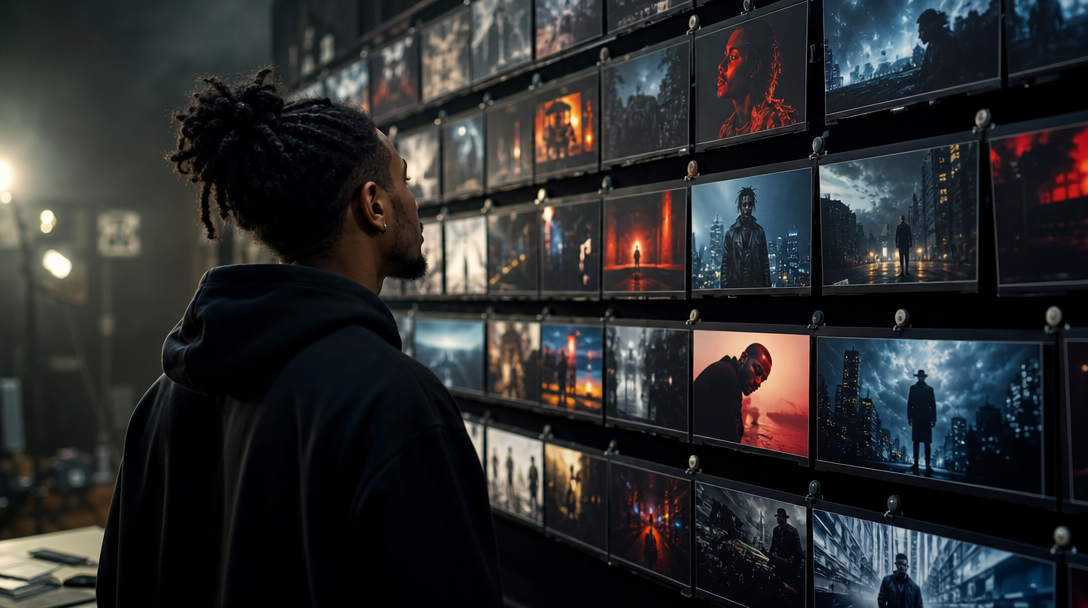
Treat the approved FLUX portrait as the source of truth. When a generated clip drifts, return to the still stage, correct the frame, and animate it again instead of trying to repair identity through a longer motion prompt. Maintain a folder containing the master portrait, outfit references, palette, reusable prompt block, seeds, shot list, and final frames. For YouTube, retain proof that you control the music and source assets, review every tool’s commercial terms, and avoid unlicensed logos or recognizable protected characters.
A multi-model AI workflow tool is useful when you want to repeat the same generate, review, animate, and replace cycle across dozens of shots. The key is still human approval at each handoff: FLUX establishes the design, the video model supplies movement, and the editor controls rhythm, continuity, audio, and the final platform-specific versions.
Frequently Asked Questions
Can I make an AI music video for free without a watermark?
Sometimes, but not reliably for an entire three-minute production. Free tiers often watermark exports or restrict credits, length, and resolution. You can reduce cost by perfecting FLUX stills first, testing motion at low quality, and reserving clean exports for the final selections.
What is the best free AI music video generator in 2026?
There is no single best choice for every shot. Pika is approachable for quick motion, Kling can handle realistic movement well, and Runway offers useful controls, subject to their current free allowances. For higher-quality design frames, FLUX 1.1 Pro can serve as the visual anchor before animation.
How do I sync AI visuals to the beat?
Import the final audio first and place timeline markers on major beats, section changes, vocal entries, and drops. Cut on the most meaningful markers rather than every beat. Vary shot length by section so verses can breathe and choruses feel faster without becoming visually exhausting.
Can I make a music video from just an MP3?
Yes. The MP3 provides timing and mood, but you still need a scene plan and visual source material. Build a timestamped shot list from the song, create FLUX frames for it, and adapt the assembly principles in this text-to-video workflow before replacing temporary clips with animated references.
How many AI clips do I need for a three-minute song?
Plan for roughly 25 to 40 clips at four to eight seconds each. The exact count depends on tempo and editing style. Generate extra options for the opening, choruses, and ending, but reuse strong settings through new camera angles or motions to protect both continuity and credits.
How do I keep the same character across every scene?
Approve one FLUX master portrait and repeat the same physical traits, wardrobe, palette, and style block in every scene prompt. Use image references and seeds where available, then reject drift before animation. A FLUX prompt generator can help structure reusable wording, but your locked identity block should remain unchanged.
The most dependable free AI music video workflow in 2026 is image-first: use FLUX to design a coherent world, spend video credits only on approved frames, and let editing supply the musical timing. Careful planning will improve consistency more than generating extra clips, while a documented asset and rights trail makes the finished video easier to publish confidently.