
Seedance 2.1 is ByteDance’s newest video model, the official successor to Seedance 2.0, and it just started reaching creators. For anyone who works in FLUX, it answers an obvious question about a finished still: what does that frame look like when it moves, and what does it sound like? Seedance 2.1 takes a strong image plus a prompt and turns it into a short clip with synchronized sound generated in the same pass.
This guide treats your FLUX render as the anchor and Seedance 2.1 as the layer that adds time, motion, and audio on top. You produce the frame in a model like FLUX 1.1 Pro, hand it to Seedance 2.1 as a reference image, and describe the movement you want. The image decides the look, so the quality of your render still decides the quality of your clip.
Seedance 2.1 sits on the same unified multimodal foundation as 2.0 and adds roughly a 20% jump in overall visual quality, with better rendering stability, more believable textures, and fewer artifacts. It outputs up to 1080p, as high as 2K, with a cinematic look, and it generates ambient sound, sound effects, and character dialogue alongside the picture. That makes it useful for anyone in a text-to-image workflow who wants the output to do more than sit still on a page.
Why pair Seedance 2.1 with a FLUX still instead of text-to-video
Pure text-to-video hands the model full control of the first frame, so you negotiate composition, identity, and motion all at once. Starting from a FLUX image flips that order: you lock the look first, then ask Seedance 2.1 to do one job, animate what is already there. This matters most for anything identity-sensitive, like a studio-grade AI headshot or a product angle hard to reproduce from text alone.
There is also a cost argument. Image generations are cheap to redo, so you can run ten variations of a portrait or packshot, pick the one that lands, and only then spend a video generation on the winner. A FLUX prompt generator helps you batch those variations before any motion enters the picture.
What Seedance 2.1 actually adds over 2.0
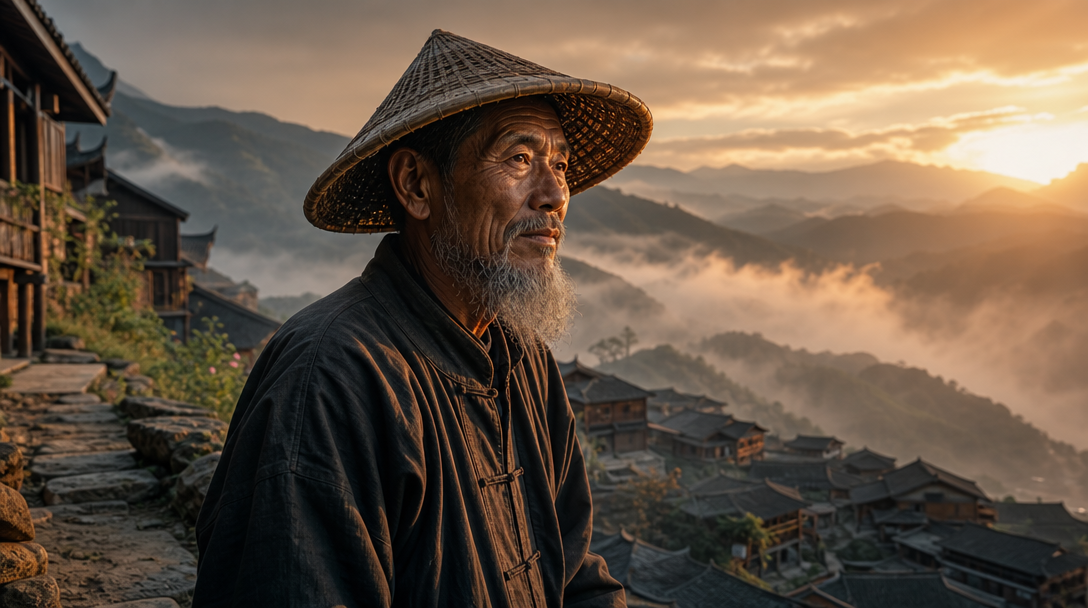
The headline change over 2.0 is quality. The roughly 20% improvement shows up as steadier motion, cleaner edges on hair and fabric, and fewer warping artifacts on a camera push-in. Skin holds detail and fast movement smears less, the difference between a publishable clip and the throwaway results in older guides on animating still images.
The second change is native synchronized audio. Seedance 2.1 generates the soundtrack in the same pass as the frames, so footsteps, room tone, a product clicking shut, or a line of dialogue arrive matched to the picture, with no separate dubbing step. That removes the most tedious part of making a still usable as a clip.
The third change is advanced multi-shot narrative. From a single text prompt of up to about 2,000 characters, Seedance 2.1 can lay out a short multi-shot sequence and hold character, style, and environment steady as the camera angle changes. That consistency is what most image-to-video tools get wrong, and it lets a single frame from a FLUX image generator seed a small scene rather than a static pan.
| Capability | Seedance 2.0 | Seedance 2.1 |
|---|---|---|
| Visual quality | Baseline | About 20% higher |
| Max resolution | 1080p class | Up to 2K |
| Native audio | Yes | Yes, with quality lift |
| Multi-shot consistency | Supported | Steadier |
| Speed | Fast | Faster |
A prompt-to-image-to-video pipeline with Seedance 2.1
Here is the sequence that works in practice, the same image-first order used in most guides on turning any image into a video. Each step keeps the picture at the center and treats motion as the final layer.
- Render the still in FLUX. Decide the frame: subject, lens feel, lighting, background. Generate several variants and pick the cleanest, since a sharp source frame animates far better than a soft one. A model rundown like the Recraft V3 overview helps you choose which renderer fits your shot.
- Clean the frame if needed. Fix a stray hand, swap a background, or tidy a product label first, since the video model animates whatever flaws are in the source. Workflows for custom product backgrounds help when a packshot needs a new setting.
- Pass the still as the reference image so the model anchors identity, composition, and color to your picture rather than inventing them.
- Write a motion-and-audio prompt. Describe what moves, how the camera behaves, and what you hear, in concrete verbs: slow push-in, subject turns toward the light, soft room tone and a distant door close.
- Generate, review, iterate. Watch for drift in the face or product, check the audio matches the action, and adjust the prompt, not the source frame.
How to prompt Seedance 2.1, and what to leave out
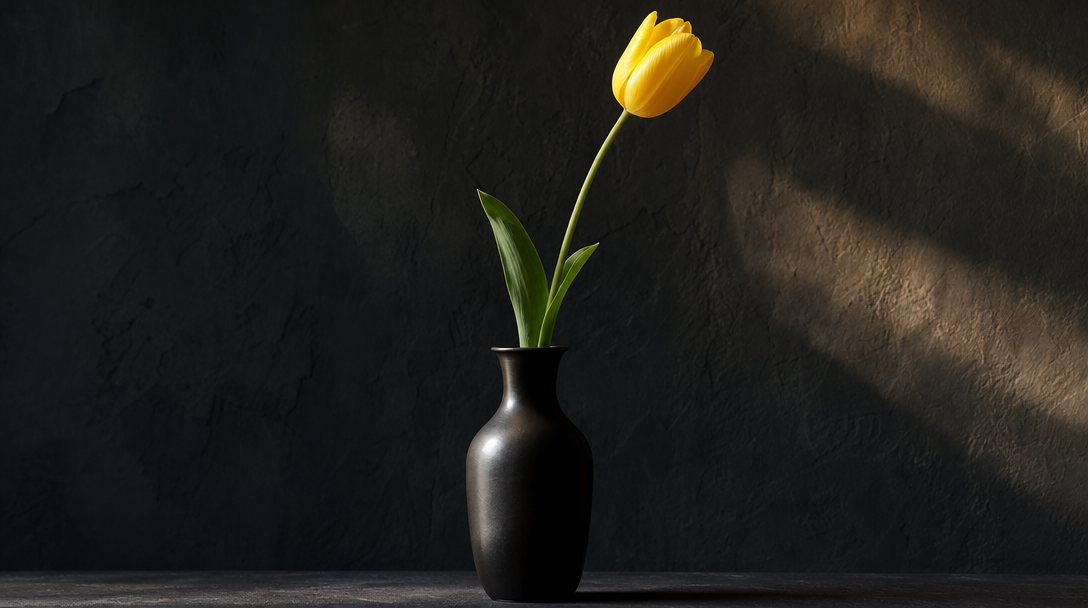
Seedance 2.1 has strong prompt comprehension, but motion prompts are their own skill. Be specific about three things: the subject’s action, the camera move, and the sound. Vague prompts drift; precise ones produce controlled clips. Good motion verbs are small and physical, like hair lifting in a breeze or a camera orbiting right.
For audio, name the source: ambient wind, a specific sound effect, or a short spoken line. Because the model writes sound and picture together, the more concrete your cue, the better the sync. The prompt habits in a FLUX prompts library translate well here, since both reward concrete nouns and verbs.
Leave out anything that fights your source frame. Do not ask for a new outfit, a different face, or a relit scene; that is the image model’s job, and overriding it mid-clip is where consistency breaks. Keep clips short and the motion contained, the discipline covered in tutorials on the best AI video generators of 2026: short movements hold up, while long choreography is where any model wanders.
Running Seedance 2.1 as one pipeline instead of separate tools
Doing this by hand means disconnected steps: generate the image, download it, upload it to a video tool, download the clip. For a one-off that is fine, but for a batch of product clips the handoffs are where time goes, which is why Wireflow treats the model as one node wired directly after an image node.
In that setup a FLUX 2 Pro or Nano Banana 2 render flows straight into the video step without a manual export. Add an LLM node ahead of it to expand a brief into a full motion prompt, drop an upscaler after it, then call the whole chain as one REST endpoint behind a Bearer token. You submit a job, poll on an executionId, and retrieve the result asynchronously, which suits batch runs.
Per-node cost reporting separates the image step from the video step, account-level spend limits stop a runaway batch from surprising you, and you can swap models without touching code for comparison. ByteDance ships Seedance through Dreamina, CapCut, and the Volcano Engine and BytePlus clouds, while most developers outside China reach it through a third-party provider, so a model-agnostic AI creative workflow tool is a clean way to standardize access.
Limits worth knowing before you commit
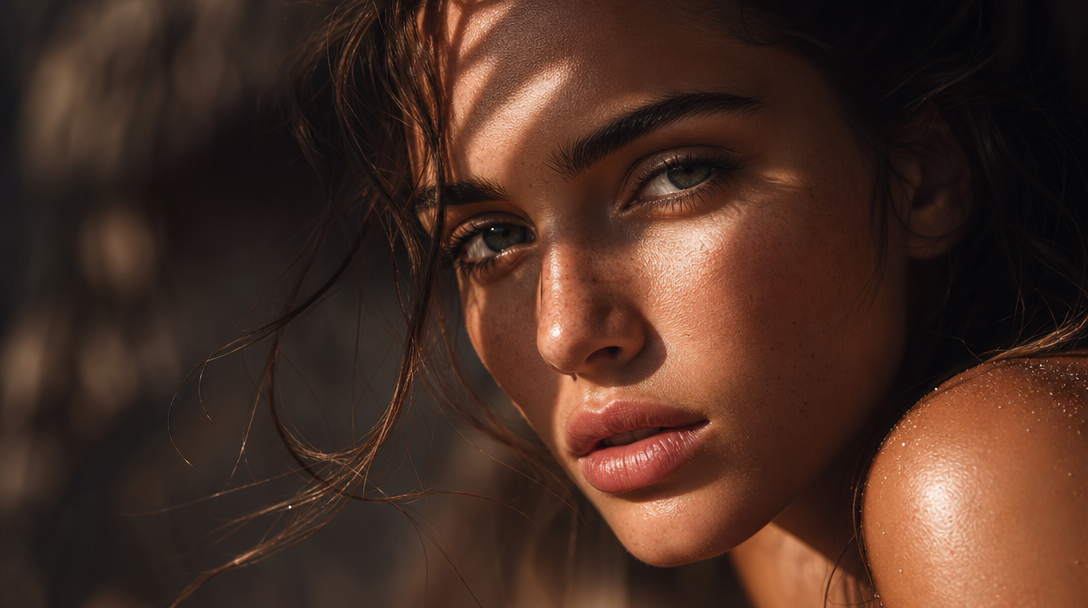
Seedance 2.1 is new, so test exact behavior rather than assume it. Keep clips short; contained motion is where it is strongest, and long sequences invite drift. The reference image is a strong anchor but not an absolute lock, so review faces and logos frame by frame where identity matters, the care you would give a polished FLUX 1 Realtime render before publishing.
Native audio is generated, not licensed, so for branded work confirm any dialogue or sound effect fits your usage rules, much as you would when making viral TikTok clips with AI. And because the source frame drives everything, a weak still produces a weak clip, so the bulk of your quality control belongs upstream in the FLUX render.
FAQ
Does Seedance 2.1 need a reference image, or can it work from text alone? Both. It can generate a clip from a text prompt of up to about 2,000 characters, but for a FLUX pipeline you pass your render as the reference image so it animates your exact frame.
How does Seedance 2.1 handle audio? It generates ambient sound, sound effects, and character dialogue in the same pass as the video, synchronized to the action, with no separate dubbing step. That is a shift from older free AI video generators, where sound was always a second job.
What resolution does Seedance 2.1 output? Up to 1080p, and as high as 2K, with a cinematic look. Start from a high-quality still; clean source frames, like those in tutorials on realistic AI faces, give the resolution something to work with.
How is Seedance 2.1 different from Seedance 2.0? It is the direct successor on the same unified multimodal foundation, with roughly a 20% jump in visual quality, better stability and texture realism, fewer artifacts, steadier multi-shot consistency, and faster generation. Pair it with a sharp FLUX Krea render and the lift shows.
What kind of FLUX images work best as input? Sharp, well-lit frames with clear subjects: portraits, product shots, and clean scenes. Soft or busy frames animate poorly, so techniques in guides on realistic AI photo generators work best when you fix composition and lighting first.
Conclusion
The fastest way to get motion and sound out of your best work is to stop treating image and video as separate projects. Render the frame you love in FLUX, approve it, then let Seedance 2.1 add controlled movement and native audio on top. The image stays the creative decision; the video model just extends it in time. For where these clips end up, the guides on making marketing videos with AI are a good next read.
Keep the loop tight: strong still, concrete motion-and-audio prompt, short clip, review, iterate on the prompt rather than the frame. By hand or on a canvas, treat every clip as a FLUX image that learned to move.