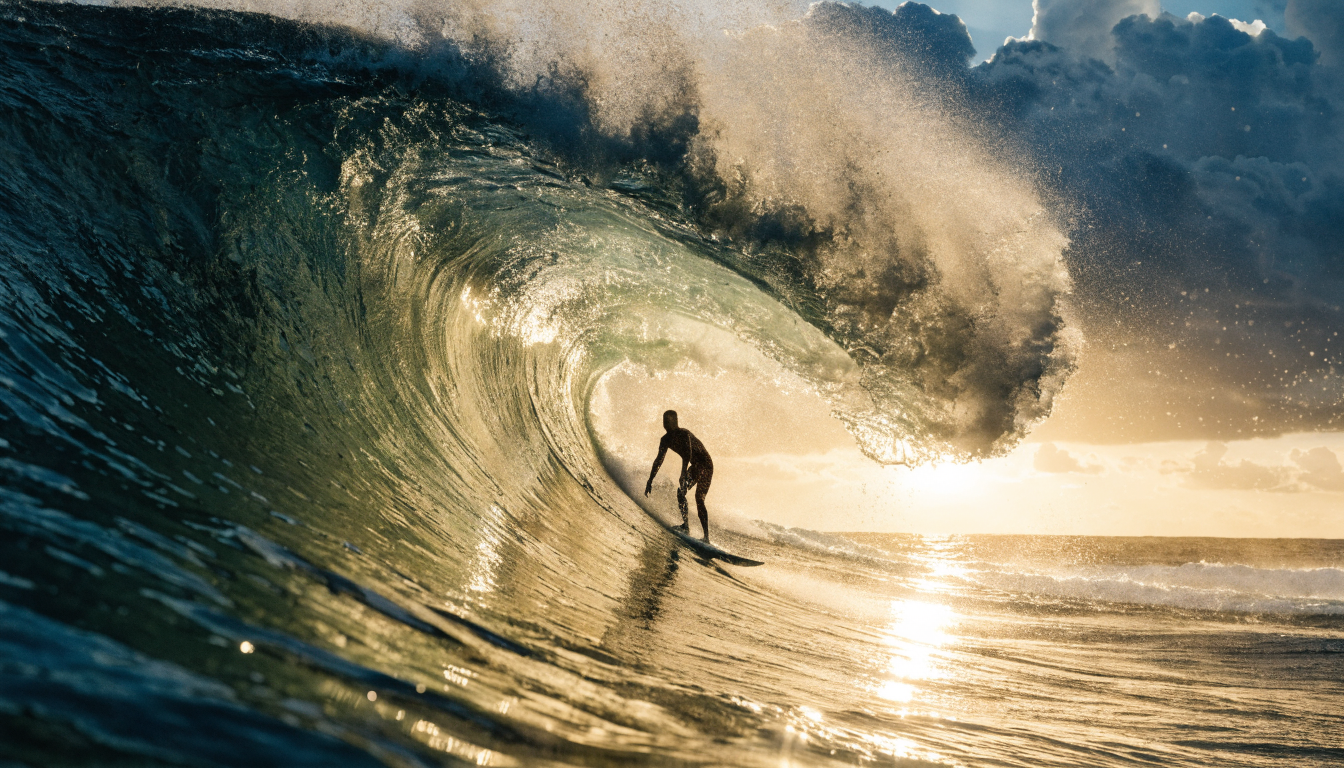
Swapping a photo background used to require hours in Photoshop, careful masking, and a solid understanding of layer blending. In 2026, AI tools handle the entire process in seconds. Whether you need a clean product shot, a professional headshot backdrop, or a creative composite, the latest AI image editing tools can detect subjects, remove backgrounds, and generate new ones from a text prompt.
This guide walks through how the technology works, which tools deliver the best results, and how to get clean background swaps on your first try.
How AI Background Removal Works in 2026
Modern background changers rely on transformer-based segmentation models that analyze every pixel in your image. Unlike older threshold-based tools, these models understand context: they know that hair needs soft, feathered edges while clothing should have crisp boundaries. They handle transparent objects like glass, smoke, and sheer fabrics that would trip up simpler algorithms.
The process typically follows three stages. First, the model segments the foreground subject from the background using a trained neural network. Second, it refines the edges, applying different treatments based on what each edge represents. Third, it composites the subject onto your chosen replacement, whether that is a solid color, an uploaded image, or an AI-generated scene.
The best tools in 2026 complete all three stages in under two seconds, and some newer models like FLUX 1.1 Pro can process images at resolutions up to 2048px without noticeable quality loss at the edges.
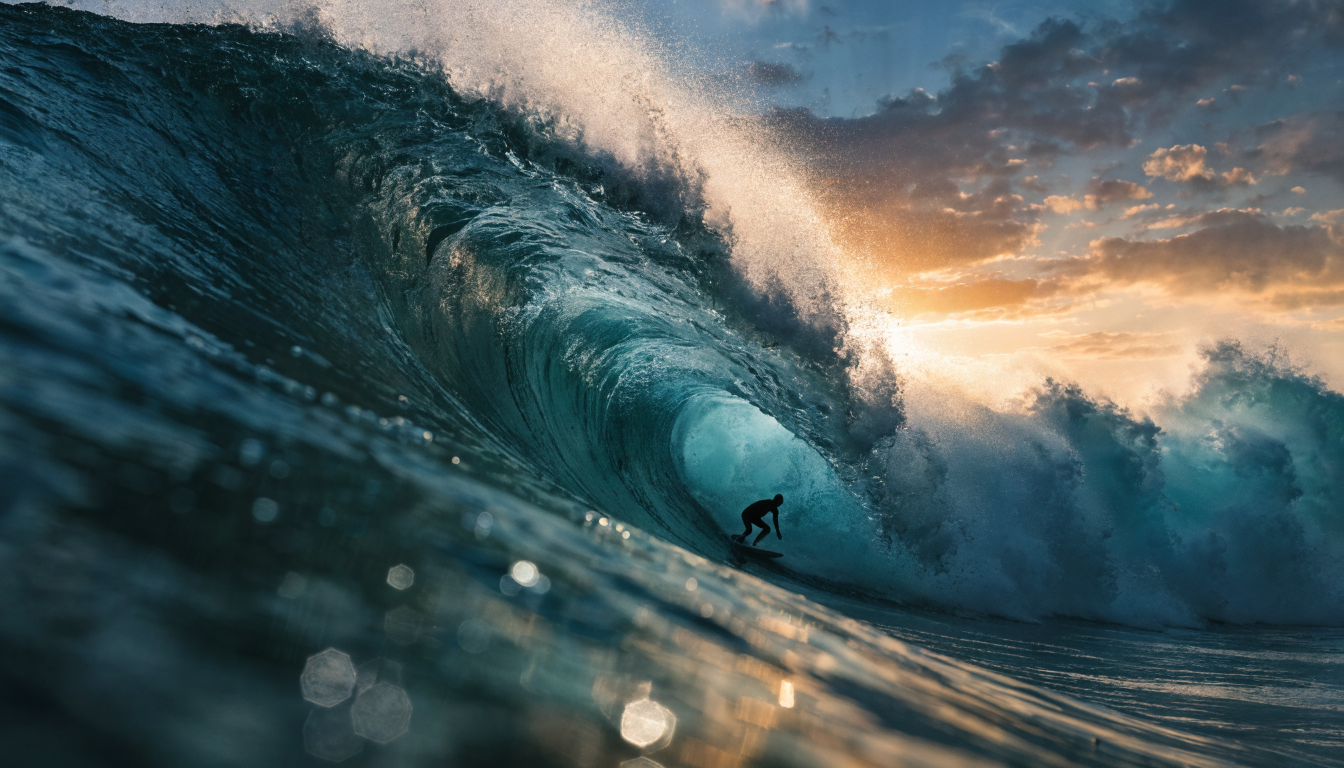
Best AI Background Changer Tools Compared
Not all background changers produce the same quality. Here is a breakdown of five popular options, with real screenshots of each tool’s interface.
Adobe Express
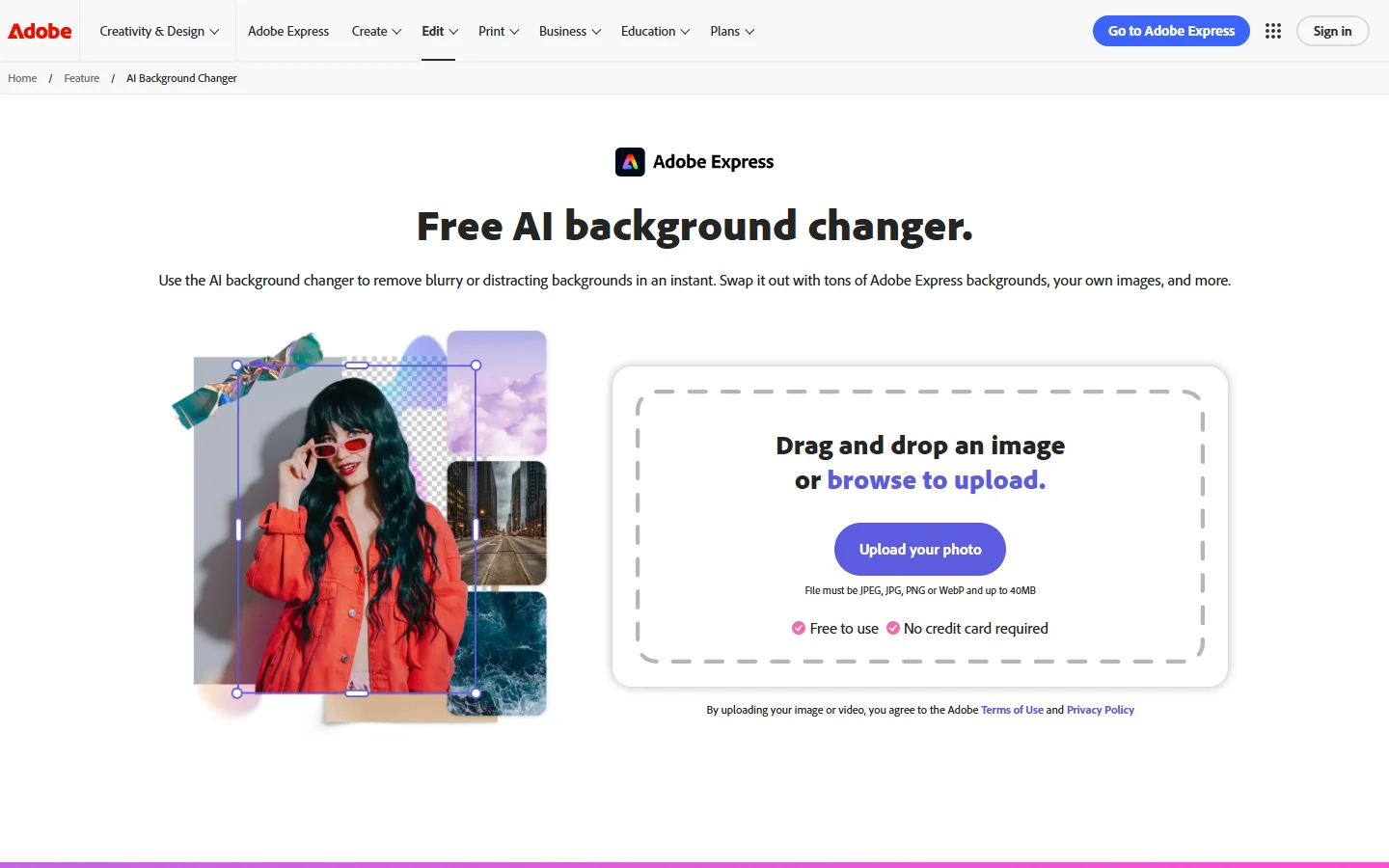
Adobe Express offers a free background changer that integrates with its broader design suite. It handles edge detection well, especially on portraits, and includes preset backgrounds alongside prompt-based generation. The main limitation is that high-resolution exports require a paid plan.
Fotor
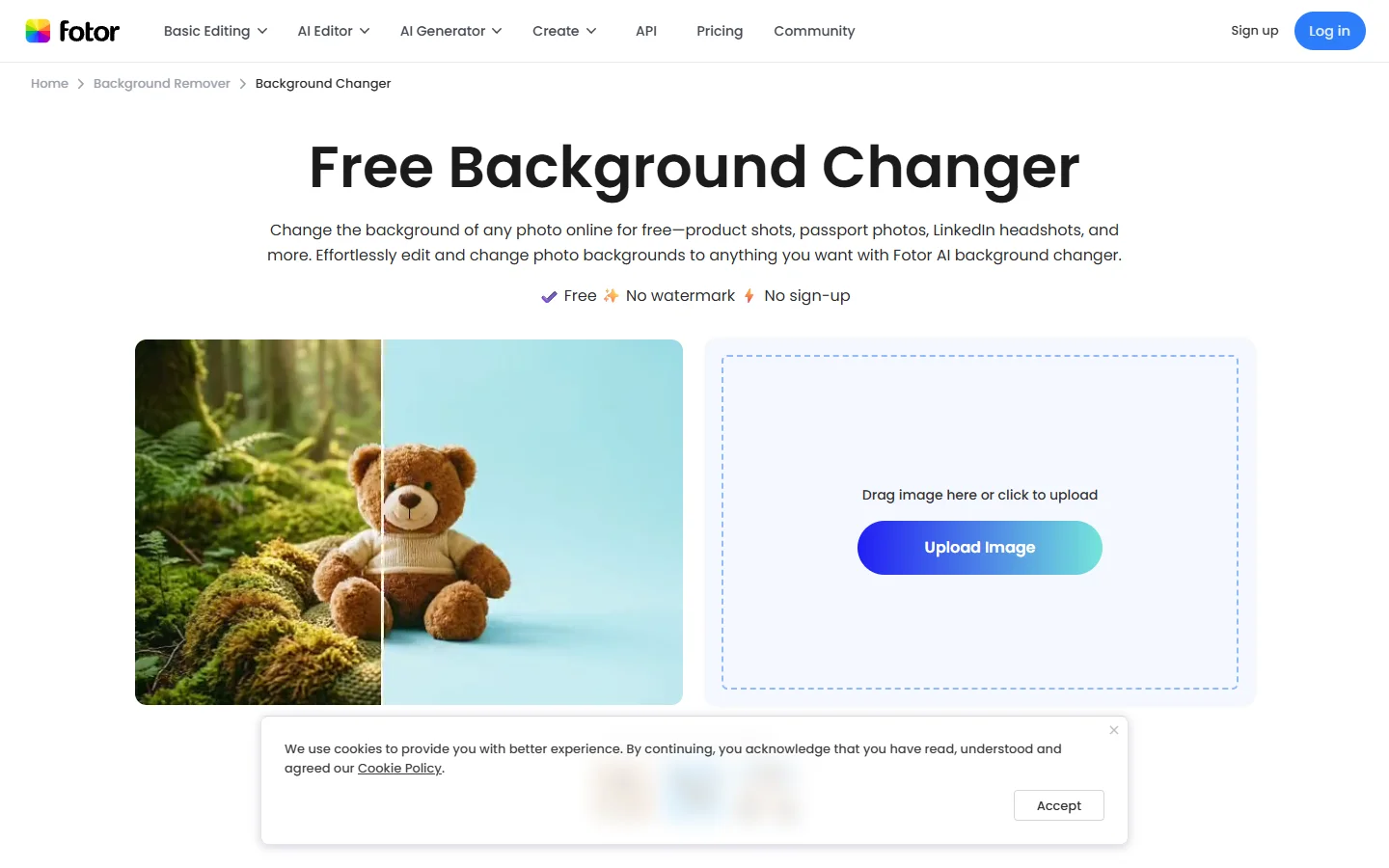
Fotor removes backgrounds in under three seconds and provides both preset and custom replacement options. Its strength is batch processing: you can swap backgrounds on multiple product photos in a single session. The free tier includes watermarks on downloads, so check alternative image tools if you need unlimited free exports.
Canva

Canva pairs its background remover with a text-to-image generator, letting you describe any scene you want as the new backdrop. The results tend toward a softer, more illustrative style. If you need photorealistic AI-generated images, dedicated image models generally produce sharper output.
Mokker AI
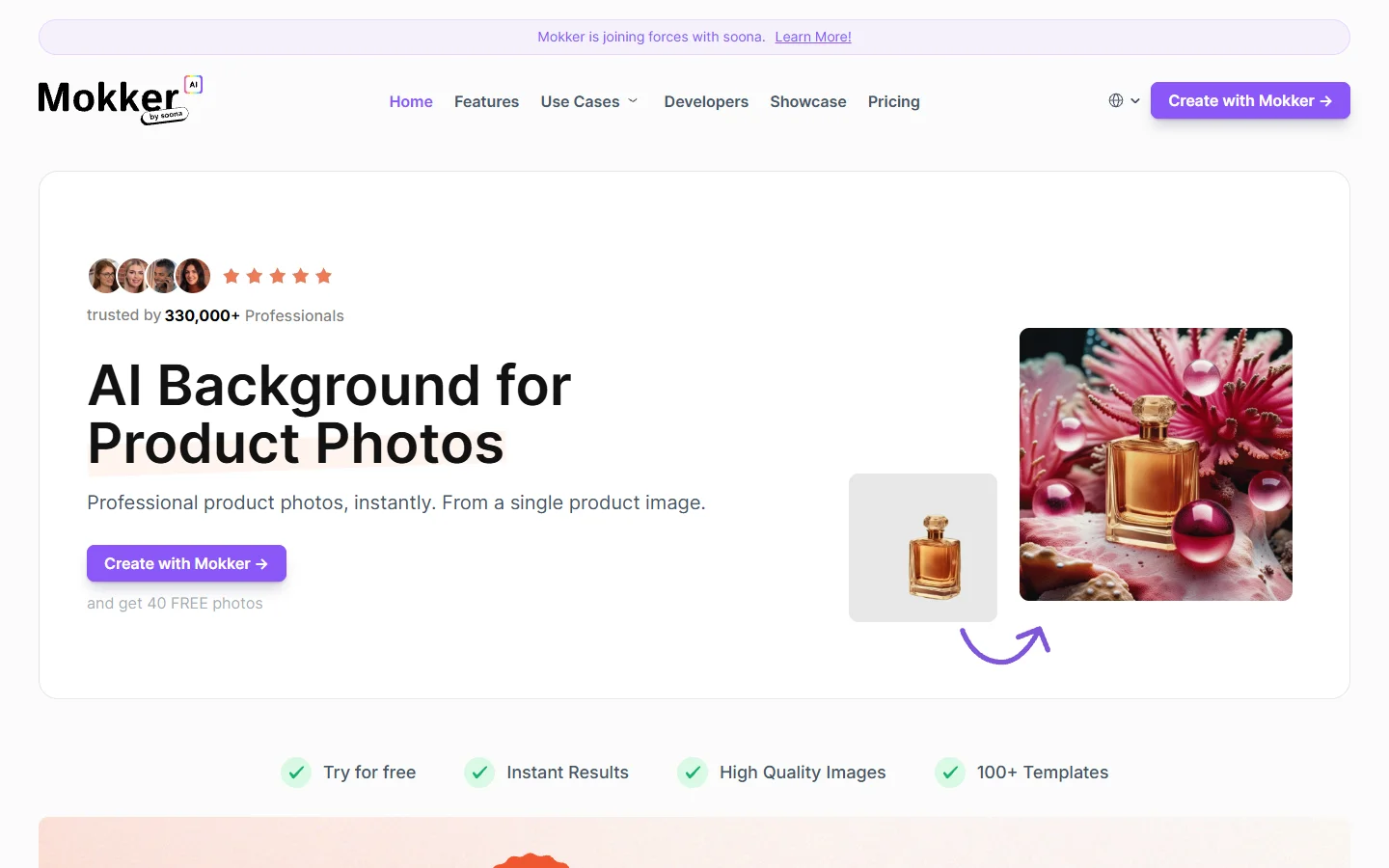
Mokker specializes in e-commerce product photography. Upload a product photo and it generates professional studio-quality backgrounds automatically. It is less versatile for portraits or creative composites, but for product shots it produces some of the most consistent results available.
Phot.ai
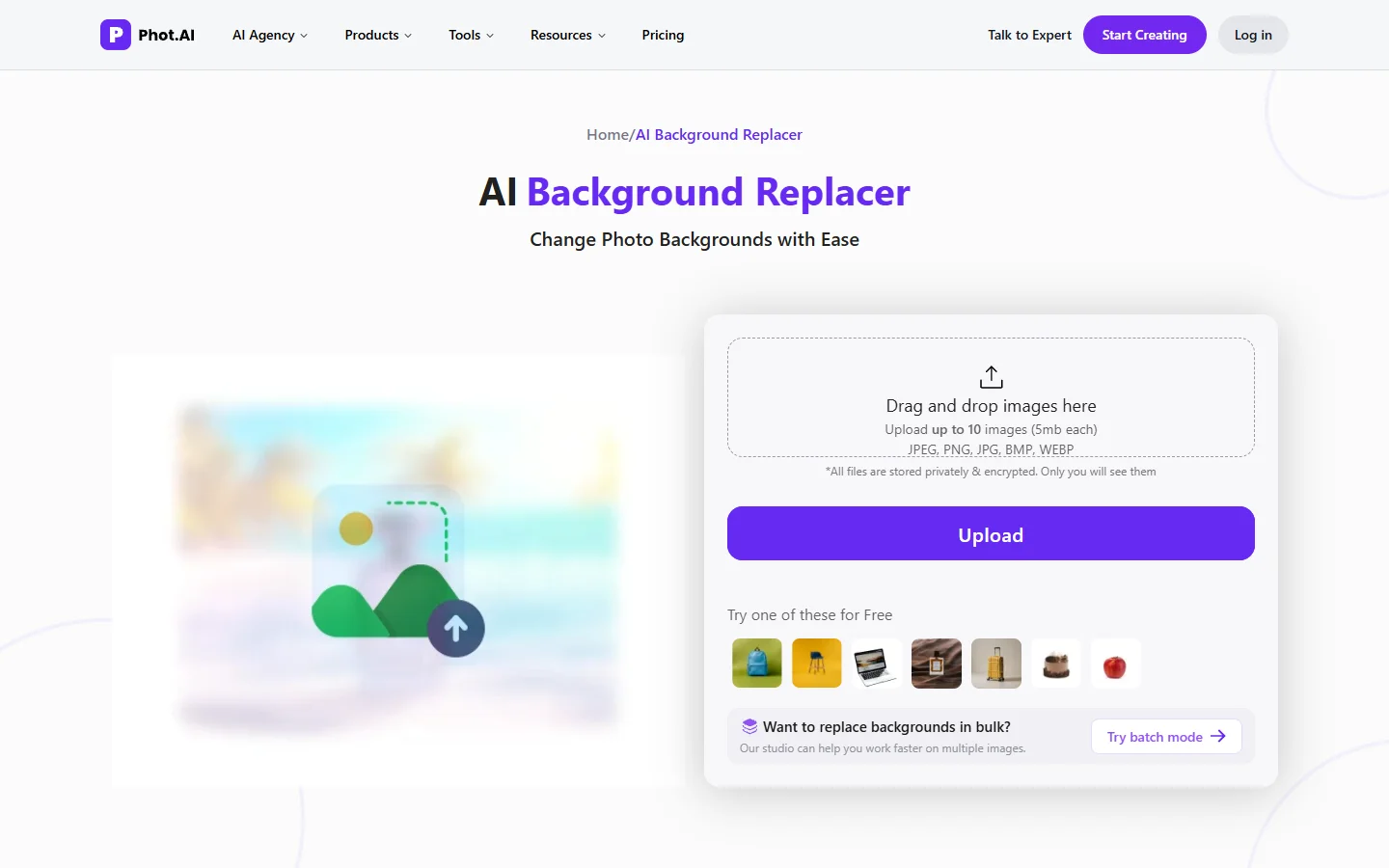
Phot.ai offers a straightforward background replacement workflow with no sign-up required. The tool supports both solid color replacements and AI-generated scenes. Processing speed is fast, though edge quality on complex subjects like curly hair or semi-transparent clothing can be inconsistent compared to Adobe or Canva.
Quick Comparison
| Tool | Free Tier | Batch Processing | Prompt-Based Backgrounds | Best For |
|---|---|---|---|---|
| Adobe Express | Yes (limited exports) | No | Yes | Portraits, general editing |
| Fotor | Yes (watermarked) | Yes | Limited | Product photos at scale |
| Canva | Yes (limited) | No | Yes | Design projects, social media |
| Mokker AI | Trial only | Yes | Auto-generated | E-commerce product shots |
| Phot.ai | Yes | No | Yes | Quick one-off edits |
Step-by-Step: How to Change a Photo Background
The basic workflow is similar across most tools. Here is a general process you can follow with any of the options listed above.
- Upload your photo. Choose a well-lit image where the subject is clearly separated from the background. Busy, cluttered backgrounds are harder for AI to parse cleanly. Starting with a high-quality source image makes a significant difference in final output.
- Let the AI remove the existing background. Most tools handle this automatically on upload. Check the edges around hair, fingers, and any accessories. The latest FLUX-based models handle even complex edges with minimal artifacts.
- Choose your new background. You have three options: upload a specific image, select a solid color, or type a text prompt describing the scene you want. For the most realistic results with prompt-based generation, use a dedicated image generator to create the background separately at full resolution, then composite it in.
- Adjust positioning and scale. Resize or reposition your subject so it looks natural against the new background. Pay attention to lighting direction: if your subject is lit from the left, a background with light coming from the right will look off. Getting familiar with lighting in AI-generated images helps you spot these mismatches quickly.
- Export at full resolution. Download the final image at the highest resolution available. Some tools compress exports on free plans, so check file size before using the image professionally.
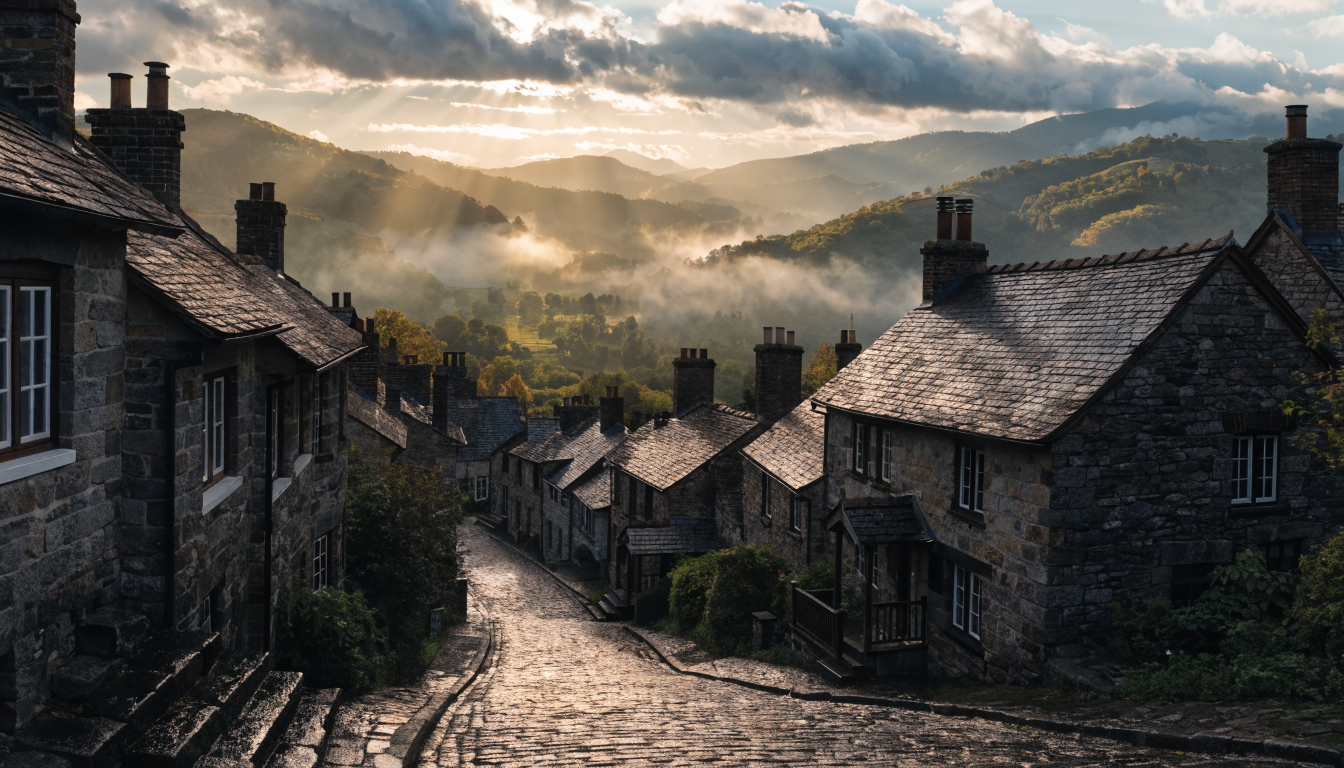
Tips for Getting Clean Background Swaps
Even with the best AI tools, a few practices make a noticeable difference in output quality.
Start with good source photos. High-resolution images with clear subject separation give AI models more data to work with. Avoid heavily compressed JPEGs or images where the subject blends into the background. If you are generating source images from scratch, text-to-image models like FLUX 1.1 Pro produce clean subjects with well-defined edges.
Match the lighting. The most common giveaway in a background swap is mismatched lighting. If your subject has warm, golden-hour lighting, a background with cool blue tones will look composited. Either match the background to the subject’s lighting or adjust color temperature after the swap.
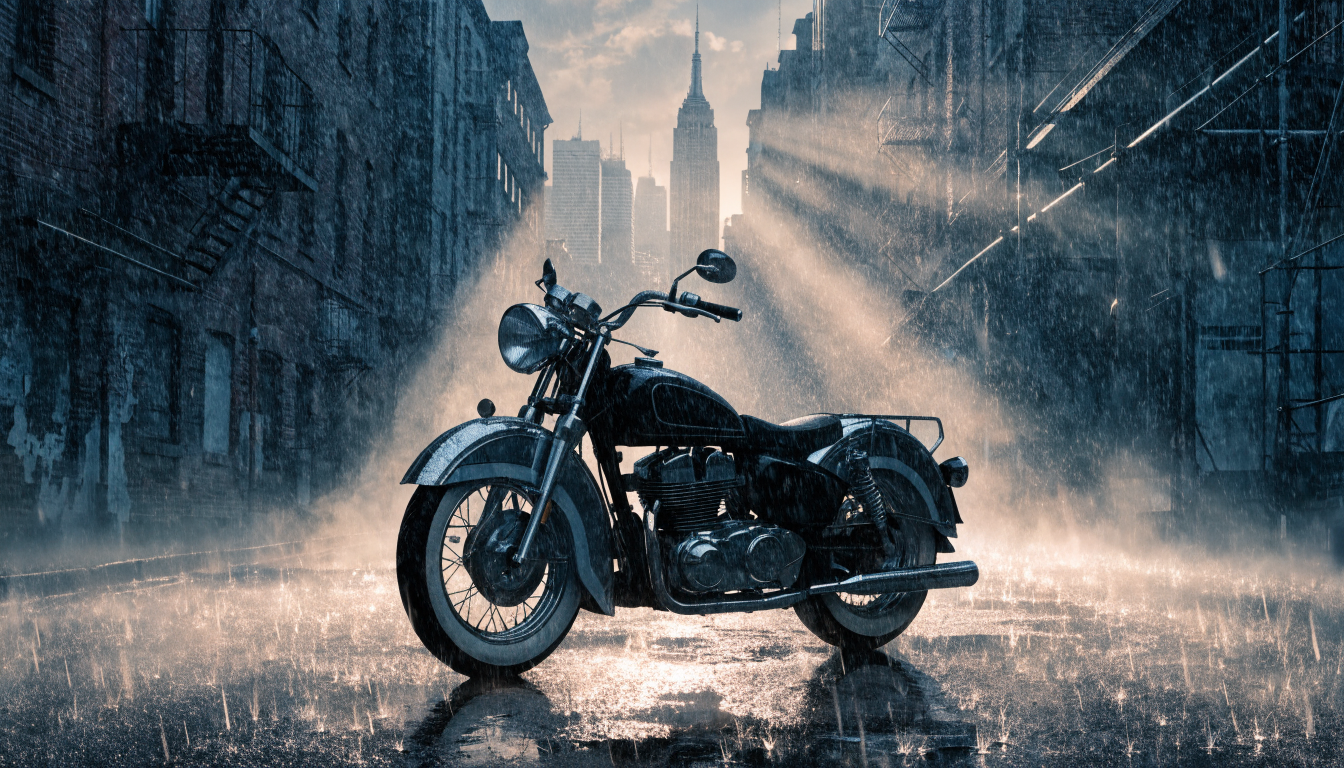
Watch the edges on hair and fur. This remains the hardest part of any background change, AI or manual. Tools that offer edge refinement sliders or manual touch-up brushes handle this better. If you are working with very fine hair, consider tools that offer dedicated portrait processing.
Use transparent PNG exports when possible. If you plan to composite the subject into a design later, export as PNG with transparency rather than baking in a background immediately. This gives you more flexibility in your final layout.
When to Use AI vs Manual Editing
AI background changers work well for the vast majority of use cases: social media posts, e-commerce listings, headshots, marketing materials, and quick creative projects. They are fast, affordable, and require no technical skill.
Manual editing in Photoshop or GIMP still makes sense for a few specific scenarios. Complex multi-subject compositions where you need precise control over every layer benefit from manual masking. Images with extreme motion blur or unusual lighting conditions can confuse AI models. And if you need pixel-perfect accuracy for large-format printing, manual refinement after an AI-assisted first pass often produces the best results.
Frequently Asked Questions
Can AI change a photo background without losing quality?
Yes. Modern AI background changers preserve the original resolution of your subject. The key factor is your export settings: always download at the highest available resolution. Some free tools compress exports, which can reduce quality regardless of how well the AI performed.
What file formats work best for AI background removal?
PNG and high-quality JPEG files produce the best results. Avoid heavily compressed images, screenshots, or low-resolution files. The more detail the AI model has to work with, the cleaner the edge detection will be around fine details like hair and transparent objects.
Do I need to manually refine edges after AI removes the background?
For most photos, no. Current models handle clean edges automatically, including on hair and semi-transparent fabrics. You may need manual touch-ups on very complex subjects, images with extreme bokeh that blurs the subject boundary, or photos where the subject and background share very similar colors.
Can I generate a completely new background from a text prompt?
Yes. Tools like Canva and Phot.ai include built-in text-to-image generation for backgrounds. For higher quality results, you can generate a background separately using a dedicated AI image generator like FLUX 1.1 Pro and then composite it with your subject.
Are AI background changers good enough for professional product photography?
For e-commerce and web use, absolutely. Tools like Mokker AI are specifically designed for product photography and produce studio-quality results. For large-format print or luxury brand campaigns where every pixel matters, you may want a professional retoucher to do a final pass.
Is it legal to use AI-modified photos commercially?
In most jurisdictions, yes. You own the rights to your original photo, and using AI to edit the background does not change that ownership. However, if you use an AI-generated background that closely resembles a copyrighted image or trademark, standard intellectual property rules apply. When in doubt, use original or licensed source images.
How do AI background changers handle group photos?
Most tools detect multiple subjects automatically and remove the background behind all of them. Results are generally good for groups of two to five people. Larger groups or photos where people overlap significantly can produce artifacts at the boundaries between subjects. In those cases, processing each person individually and compositing manually gives cleaner results.
Conclusion
AI background removal has reached a point where it handles the vast majority of real-world use cases reliably and quickly. The tools covered in this guide range from free browser-based options to specialized e-commerce solutions, and choosing the right one depends on your specific workflow. For quick social media edits, Canva or Phot.ai will get the job done. For product photography at scale, Mokker or Fotor’s batch processing saves significant time. And for the highest quality results, combining a dedicated AI photo generator with a background removal tool gives you full control over both subject and scene.
The technology will continue improving, but even today, the gap between AI-assisted and fully manual background editing is small enough that most professionals are making the switch.