Making a music video used to require a production crew, a rented location, and a budget most independent artists simply don’t have. AI tools have changed that equation entirely. In 2026, you can generate striking visuals, animate still frames, and assemble a finished music video without spending anything upfront. The quality gap between AI-generated footage and traditional shoots is closing fast, and for genres like electronic, ambient, and hip-hop, AI-generated visuals often fit the aesthetic better than live action anyway.
This guide walks through the full process: generating your visual concept with AI image models, turning those stills into motion, and assembling the final video. Whether you’re a solo artist, a producer, or someone making visuals for a friend’s track, these steps work with free-tier video tools.
Start With AI-Generated Stills
The strongest music videos built with AI start with high-quality still images, not raw video generation. Text-to-image models like FLUX 1.1 Pro give you precise control over mood, color palette, and composition that video generators still struggle with.
Here’s the workflow: write 5-10 prompts that match the emotional arc of your song. A track that builds from quiet verses to an intense chorus might use prompts that shift from foggy landscapes to neon-lit cityscapes. Each image becomes a “scene” in your video. Learning to write effective prompts is the single biggest factor in output quality.
For the best results, keep your prompts specific. Instead of “cool space background,” try “a lone astronaut standing on a crystalline planet surface, twin moons in a violet sky, cinematic lighting, shallow depth of field.” The more detail you provide, the more cohesive your visual story will be. Consistency across scenes matters more than any single image looking perfect.
Best Free Tools for AI Music Video Creation
Not every AI tool works well for music videos. You need a combination of image generation, animation, and editing. Here are the tools that offer genuinely useful free tiers.
Runway
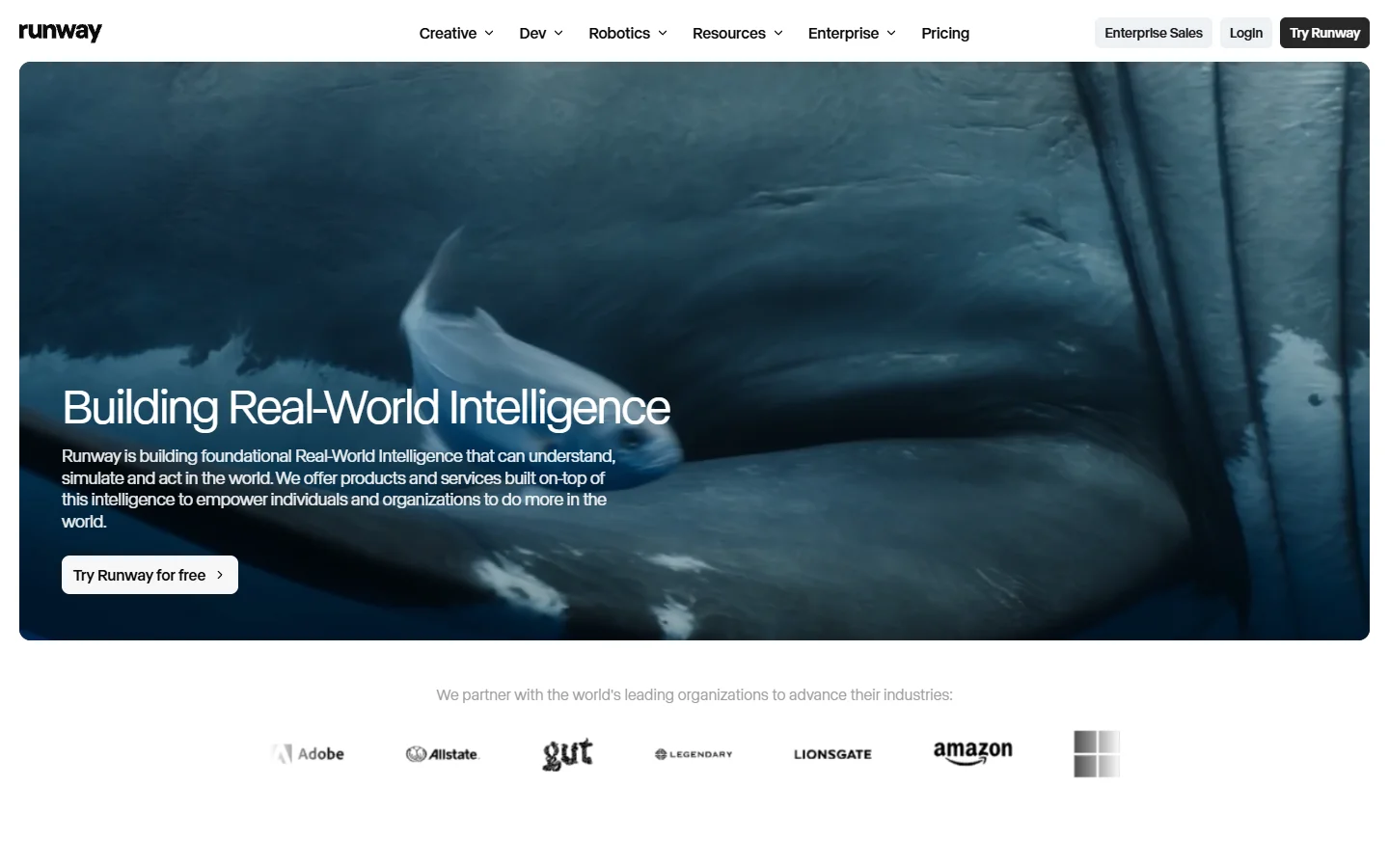
Runway’s Gen-4 model produces the most cinematic AI video clips available right now. The free tier gives you enough credits to generate several short clips per day. Its image-to-video feature is particularly useful for music videos: feed it one of your AI-generated stills and it adds natural camera movement and subtle animation. Best for: hero shots, cinematic transitions, and establishing scenes.
Pika
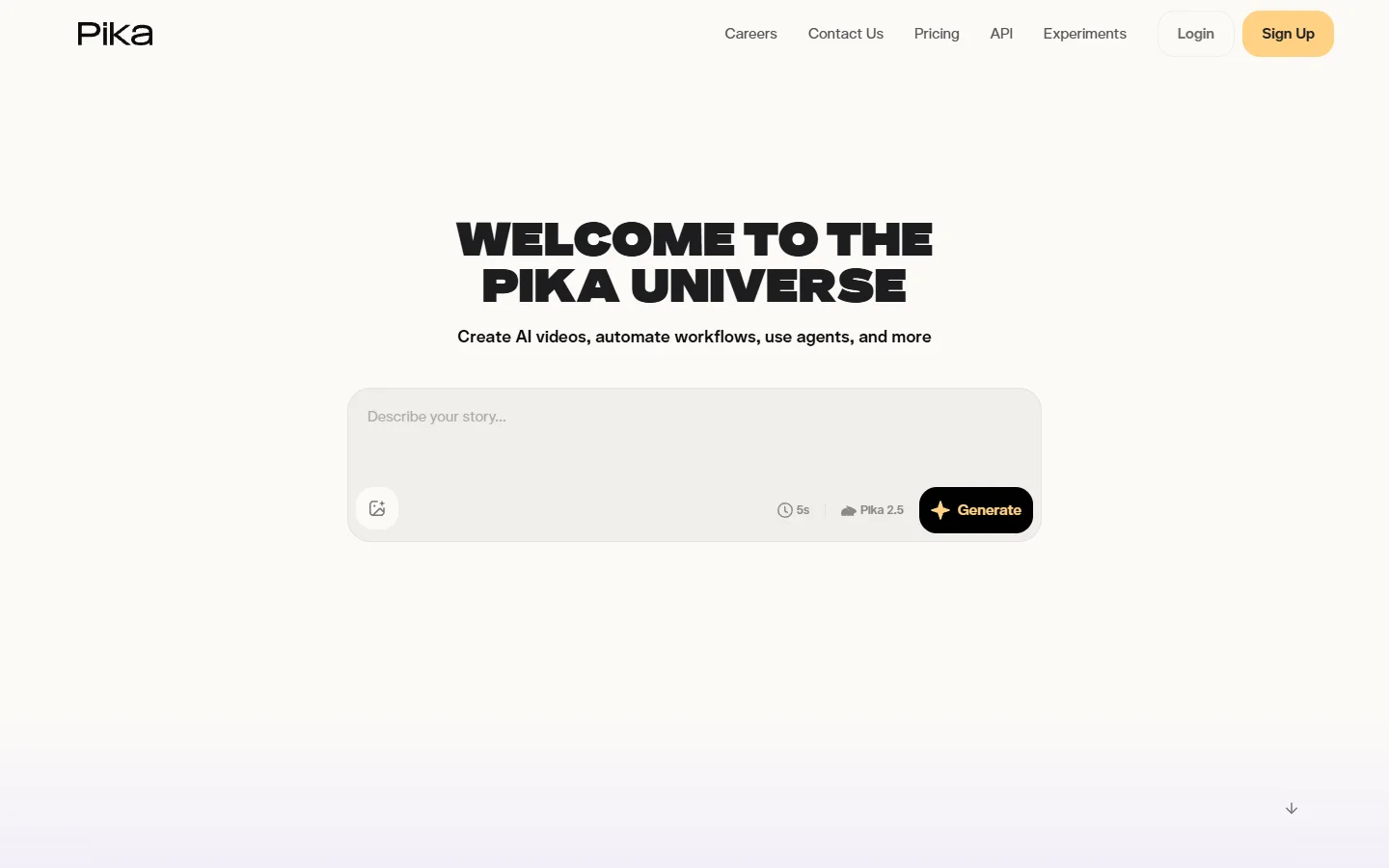
Pika 2.0 is more accessible than Runway and better suited to stylized, abstract visuals. The free tier is generous enough for a full short-form music video (under 60 seconds). Its “modify region” feature lets you animate specific parts of an image while keeping the rest static, creating an effect similar to a cinemagraph. Best for: lyric videos, abstract visualizers, and social media clips.
Kaiber
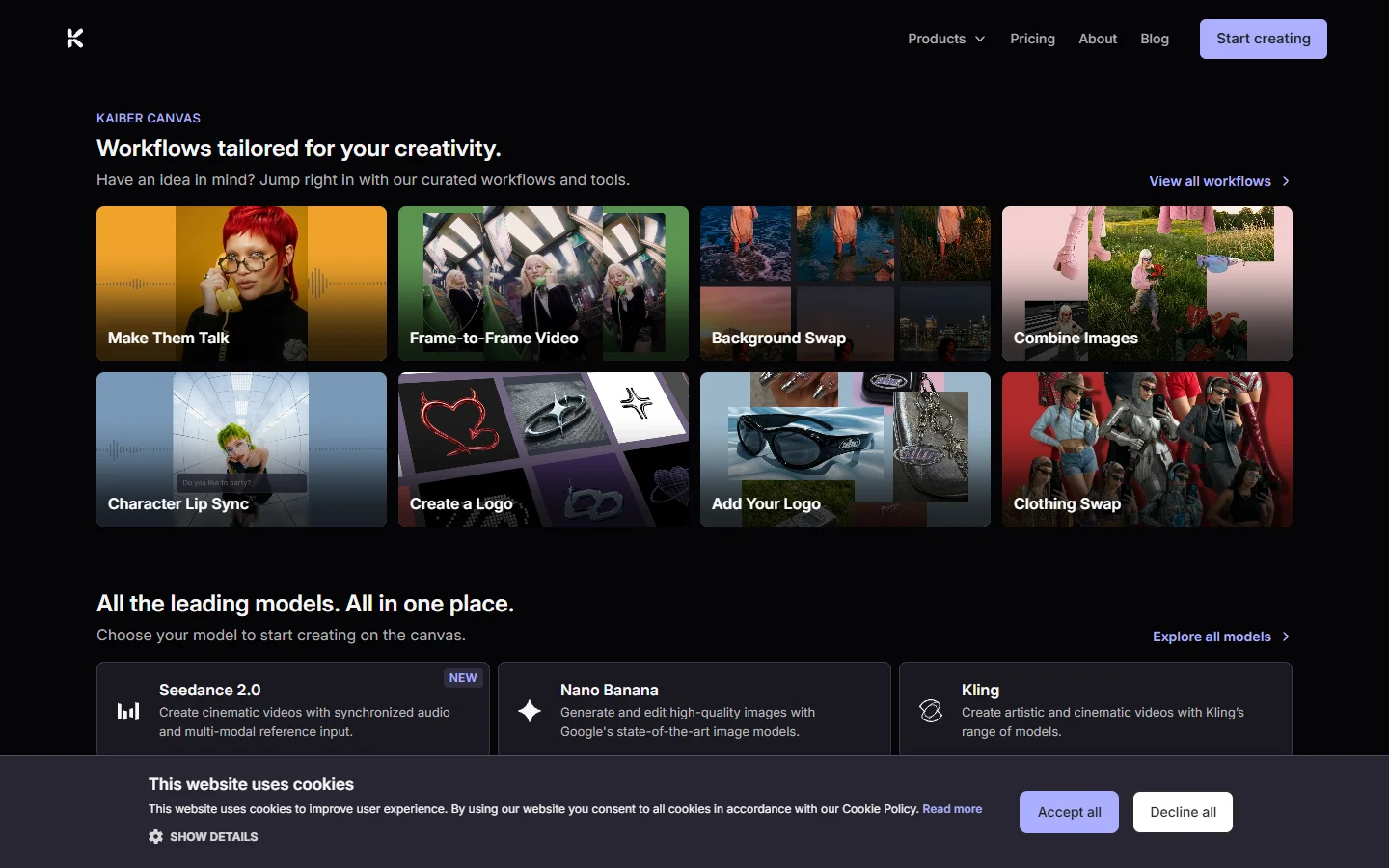
Kaiber was built specifically for music visualization. Upload your audio track and it generates visuals that react to the beat, tempo, and energy of the music. The free trial gives you enough to produce one complete video. For artists looking for AI-generated soundtracks to pair with their visuals, Kaiber integrates with several audio generation tools as well. Best for: electronic music, lo-fi beats, and abstract visual journeys.
Krea
Krea’s real-time generation mode lets you iterate on visual concepts quickly. You can sketch a rough composition and watch it transform into a polished image in seconds. For music videos, this speed matters because you’re generating dozens of frames. Wireflow offers a detailed breakdown of how these tools compare for different music genres and production styles.
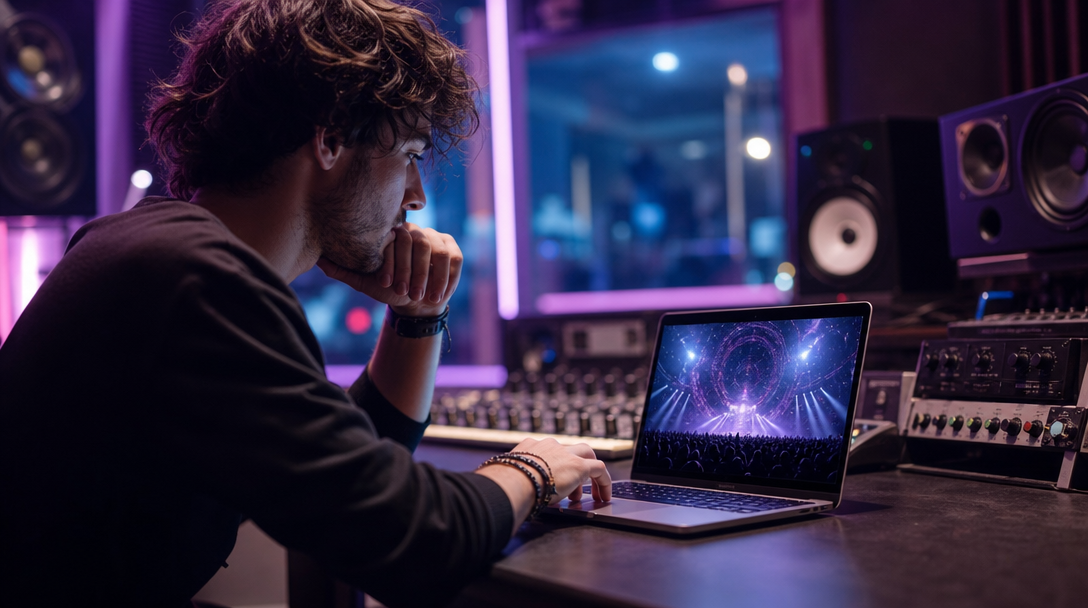
Step-by-Step: Your First AI Music Video
Here’s a practical workflow you can follow today with zero budget. The same approach works for YouTube content, social media clips, and full-length releases.
1. Map your song structure. Listen to the track and note timestamps where the mood shifts. A typical 3-minute song might have 6-8 distinct sections (intro, verse 1, pre-chorus, chorus, etc.). Each section gets its own visual scene.
2. Generate scene images. Use a text-to-image tool to create one hero image per section. Stay consistent with style by reusing parts of your prompt (same lighting style, same color palette) across all scenes.
3. Animate the stills. Feed each image into Runway or Pika’s image-to-video feature. Aim for 4-8 second clips per scene. For sections where you want more movement, generate 2-3 clips and pick the best. The text-to-video pipeline works as an alternative when you want fully generated clips rather than animated stills.
4. Add transitions. Most free video makers let you add crossfades, zooms, and beat-synced cuts. Match transitions to the rhythm of your track.
5. Sync and export. Import your audio, align your clips to the song structure, and export at 1080p. For YouTube, use 16:9. For TikTok, re-export at 9:16.
Keeping Visual Consistency Across Scenes
The biggest challenge with AI music videos is consistency. Each generated image can look like it belongs to a completely different video. Three techniques help solve this, and they work with any AI image generator.
Seed locking. Some models let you fix the random seed, so structural elements stay consistent between generations. Generate your base scene, note the seed, then modify only the prompt details for each variation.
Style transfer. Use your first scene image as a reference for subsequent generations. Runway and Krea both support image-to-image with adjustable influence, so new scenes inherit the color grading and visual style of the original. This technique also works well when creating AI animations from a consistent base.
Color grading in post. Apply the same LUT or color correction across all clips in your editor. This is the simplest fix and works even when the AI outputs vary. Free LUTs are widely available, and applying one in DaVinci Resolve takes seconds. For a deeper look at maintaining style consistency across AI-generated visuals, check it out here.
Genre-Specific Recommendations
Different music genres call for different visual approaches. Here’s what works best with current AI video tools.
| Genre | Recommended Tool | Visual Style | Free Tier Capacity |
|---|---|---|---|
| Electronic / EDM | Kaiber | Audio-reactive abstract patterns | 1 full video |
| Lo-fi / Ambient | Pika | Slow cinemagraphs, minimal motion | 3-5 short clips |
| Hip-hop / Rap | Runway | Cinematic urban scenes, portraits | 5-10 clips |
| Pop | Runway + Pika | Mixed narrative + stylized cuts | Combined free tiers |
| Rock / Metal | Krea + Runway | High-contrast, gritty textures | 5-8 clips |
For hip-hop and pop, where narrative visuals matter most, generating high-quality portrait stills first and then animating them produces the most convincing results.
Frequently Asked Questions
Can I use AI-generated music videos commercially? Most free-tier tools grant commercial usage rights for the content you generate. Runway, Pika, and Kaiber all allow commercial use on their paid plans, and some extend this to free-tier outputs. Always check the current terms for AI-generated content before distributing.
Will YouTube flag AI-generated videos? YouTube does not penalize AI-generated content. However, you must disclose AI involvement using YouTube’s built-in AI disclosure label when uploading. This applies to realistic-looking content; abstract visualizations typically don’t require disclosure. The same rules apply to YouTube Shorts.
How long does it take to make a full music video with AI? A 3-minute video with 8-10 scenes takes roughly 4-6 hours from concept to export. Most of that time is spent generating and selecting images, not editing. With practice, you can cut this to 2-3 hours.
What resolution should I target? Export at 1080p (1920×1080) for YouTube. Most AI video tools generate at 720p or 1080p on free tiers. For higher resolution, you can upscale clips using AI enhancement tools before importing them into your editor.
Can I combine AI footage with real footage? Yes, and this often produces the best results. Use AI clips for abstract interludes, transitions, or B-roll, and mix in live performance footage or phone-shot clips. The contrast between real and generated visuals can be a stylistic choice, not a limitation.
Do I need a powerful computer? No. The AI generation happens in the cloud, so any computer with a browser works. The editing step is the only part that benefits from a faster machine, but free cloud editors like CapCut handle this too. Many free video generators run entirely in the browser.
What about music licensing? AI tools generate visuals, not music. You still need to own or license the audio track. If you’re the artist, you’re already covered. If you’re making a video for someone else’s song, get written permission or use royalty-free music from AI music generators.
Conclusion
AI music video production has reached the point where the barrier is not talent or budget, but knowing which tools to combine and in what order. The workflow above (generate stills, animate, assemble, color-grade) works today with free tools and produces results that genuinely hold up on YouTube, TikTok, and Instagram.
The tools keep improving. Models that generate longer, more coherent video clips are releasing quarterly, and audio-reactive generation is becoming more precise. If you start learning the workflow now, you’ll be well-positioned to take advantage of each improvement as it arrives.